
Setting Up a 24/7 Agent with ChatGPT dots
OpenAI's new always-on agents keep working between conversations. Here's how to set one up as a daily inbox-and-project assistant without handing it the keys to everything.

Introduction
Most of us already use AI in bursts: ask, read, close the tab. The work that wears us down is the work that never closes, like an inbox that refills overnight or a project channel where a deadline quietly slips.
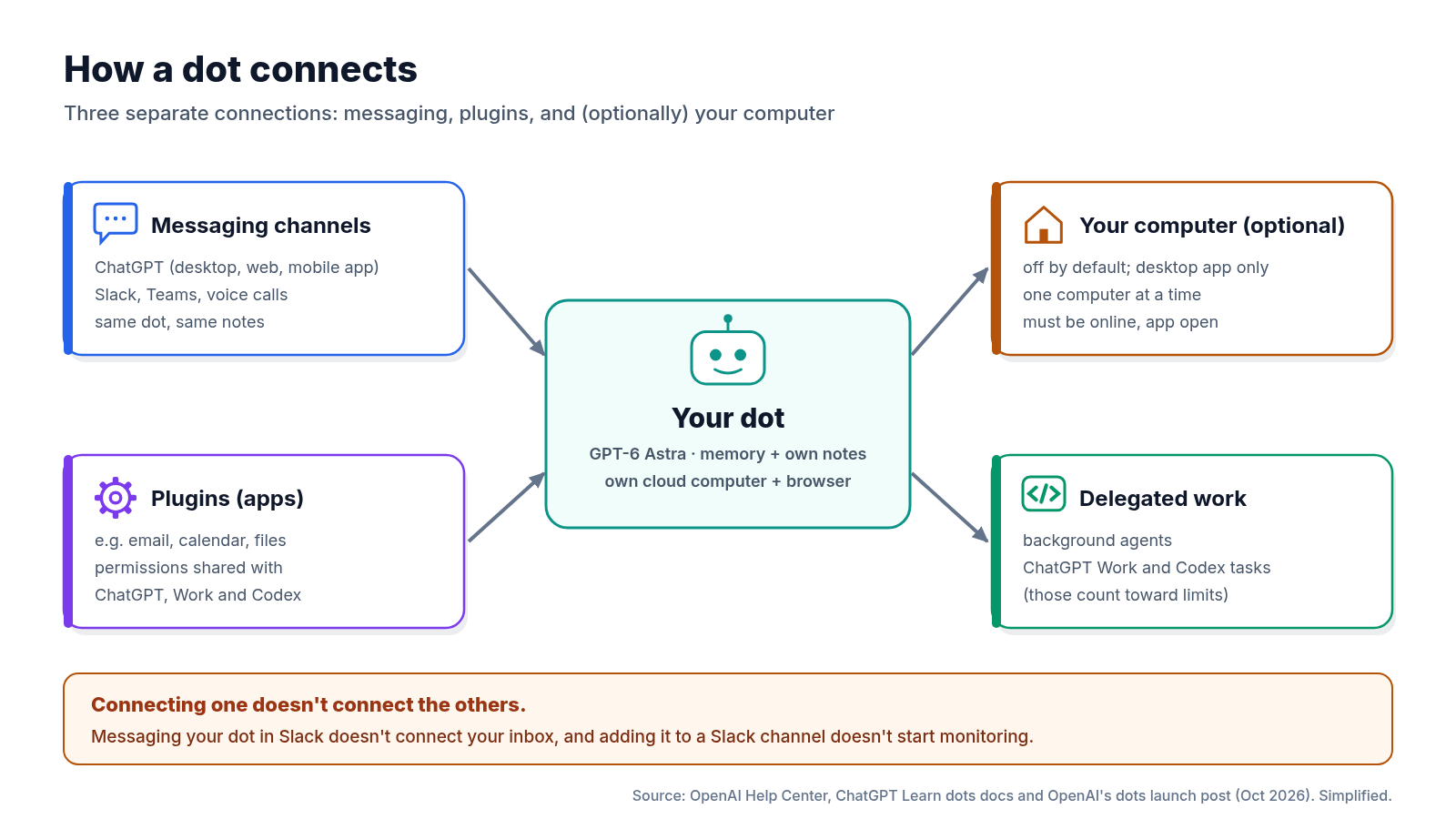
That’s the job OpenAI built dots for. Announced on September 29, a dot is an “always-on agent” in ChatGPT that, in OpenAI’s words, “can work towards your goals 24/7.” It runs on GPT-6 Astra, has its own cloud computer and browser, connects to apps through plugins, and keeps its own notes as you correct it.
In this edition, we check the launch claims against OpenAI’s docs, collect what has changed up to October 24, and design a realistic first job: a dot that watches your inbox and one project channel and sends one daily summary, with drafts but no sending. The prompts are labelled as examples. I use only the UI labels that OpenAI’s documentation names. This is a guide built from the docs, not a log of my own runs.
An always-on agent is only as safe
as the permissions you leave on.
1. What a dot Is (Verified Facts)
Key Features
- Always-on: a dot keeps working between conversations, decides when to pause and wake up again, and can run several background agents in parallel.
- Model and computer: powered by GPT-6 Astra, with its own cloud computer and browser. You can open the computer and use Take over and Return control.
- Plugins: OpenAI says the plugin ecosystem connects to “over 4,000 apps.” Plugin permissions are shared across dots, ChatGPT, ChatGPT Work and Codex.
- Your name, your dot: you name it during setup. The default handle is
@yourname-dot, and it becomes@yourname-agentnameonce you name it. - Ongoing goals: the Help Center says to “give it a goal” and “define what it can do on its own.” Recurring work runs on a saved schedule, and some connected sources support event triggers.
- Learns from feedback: the dot starts with your ChatGPT memory and keeps its own notes about your preferences and decisions.
- Where you reach it: the ChatGPT desktop app, a desktop browser or the mobile app, plus Slack, Teams and voice calls. Mobile web isn’t supported.
Who can use dots: Pro and Business Premium users, plus an Enterprise, Edu and Healthcare beta that an admin has to turn on. Personal Pro accounts must be 18+ and are not available in the EEA, Switzerland or the UK at launch.
Plans, Pricing and Limits
| Plan | Dots access (as documented) |
|---|---|
| Pro 100 / 200 / 500 ($100, $200, $500 a month) | Yes, 18+, outside the EEA, Switzerland and the UK |
| Business Premium seat ($125/user/month monthly, $100 annually; 2-seat workspace minimum) | Yes, in all supported ChatGPT regions |
| Enterprise, Edu, Healthcare | Beta, off by default, enabled by a workspace admin |
| Free, Go, Plus, Business Standard | No access announced as of Oct 24 |
Your first dot is included at no extra cost. Conversations with your dot don’t count toward your ChatGPT usage limits, but Work or Codex tasks it starts do count. OpenAI says plans include “an allowance for deeper work, with extended limits for the first month after launch,” and that you’ll later be able to add more dots and buy more speed or monthly capacity. No prices have been published for those. The ChatGPT release notes word this differently: dots usage “won’t count toward” plan allowances for the next month, and “after this period, we’ll share usage terms for each plan.” As of Oct 24, OpenAI hasn’t published them yet. Check which terms apply after about Oct 29.
2. Latest Updates (as of Oct 24, 2026)
- Sep 29 (17:19 UTC): Launch. OpenAI also adds a dots appendix to the GPT-6 Astra system card. Setup is desktop app or desktop browser only.
- Sep 30: OpenAI’s Thibault Sottiaux (@thsottiaux) posted on X (01:18 UTC): “We will have a few million dots online within days.” Later that day he asked what users would like to see shipped “for dots and space in the next two weeks.”
- Oct 2 (18:00 UTC): The Verge’s hands-on finds dots strong on work the reviewer controls, like a website redesign or a video edit, but often stopped by security checks on consumer sites.
- Oct 7 (21:45 UTC): The Register reports “task failures and connection issues,” dots that disappear, and refusals that seem to come from abuse prevention. It also covers open-source imitators.
- Oct 9 (about 19:14–19:40 UTC): The “October 5–9” update. You can now create a dot in the iOS and Android apps, dots can start and follow up on Codex work, and dots can review and edit ChatGPT Work scheduled tasks. Fixes include faster cloud browsing, fewer duplicate notifications, Outlook setup and approval buttons that no longer get hidden.
- Oct 11 (01:18 UTC): In a reply on X, Sottiaux wrote: “1M dots running and doing things for their users.” This is a social post, not an official OpenAI metric.
- Oct 13 (08:15 UTC): An OpenAI Developer Community post recaps the update round.
- Oct 13–14: Reactions on X are mixed. Simon Smith posted that “Dots for personal tasks has improved a lot.” Eliot Gevers listed complaints, including dot-created threads missing from the desktop and mobile apps and approvals that don’t reliably reach tasks.
- Oct 15 (15:25 UTC): @OpenAIDevs reposts a demo that combines ChatGPT Sites, MCP Events and dots.
- Oct 12–16: OpenAI’s weekly update adds a Your dot Home Screen widget on iOS and an Open your dot action in Apple Shortcuts (Messaging, Dictation or Call mode), which you can assign to the iPhone Action button on supported models. It requires ChatGPT for iOS 1.2026.279 and dot access.
- As of Oct 24: No plan or region expansion has been announced. OpenAI’s Help Center still lists Pro (18+, outside the EEA, Switzerland and the UK), Business Premium and an admin-enabled Enterprise beta, so Plus and personal Pro in Europe are still waiting.
3. Hands-On: A 24/7 Inbox and Project Summary
The scenario: you’re a team lead with one busy inbox and one project channel in Slack. You want a single message every weekday at 7:30 AM your local time that lists what needs you, what’s FYI and what can wait, with suggested replies drafted but never sent. It’s narrow, easy to check, and only reads unless you approve something. The steps follow OpenAI’s docs. They aren’t a record of my own runs.
Step 1: Confirm access
Check your plan and region against the table above, then open chatgpt.com/dots with the right account and workspace. Rollout is gradual, so an eligible account may wait several days. On Enterprise, ask your admin to enable the beta.
Step 2: Create and name your dot
Open dots in the ChatGPT mobile app (latest version), the desktop app (macOS or Windows) or a desktop browser, and follow the introduction. Give your dot a name and pick its appearance. You can keep the defaults and change them later. Your dot introduces itself and suggests ways to help, based on the context it can see.
Step 3: Connect only the plugins this job needs
For this job, that’s your email plugin and Slack. Calendar is optional. Review each plugin’s permissions before you connect it. On mobile, the Help Center points to your dot’s profile, Customize → Plugins. Plugin permissions are managed in ChatGPT’s Plugins tab. Two points from the docs matter here. Disconnecting a plugin later doesn’t delete what your dot already learned from it, and adding Slack as a messaging channel doesn’t give the dot access to your inbox. Skip the local-computer connection, because a summary job doesn’t need it.
Step 4: Hand it the responsibility, in one clear message
OpenAI suggests describing the outcome, the sources and the decisions that stay with you, rather than treating each chat as a fresh request.
Example prompt (illustrative, not an official template):
Your ongoing job: keep me on top of my work inbox and the #project-apollo
Slack channel. Sort what's new into Needs me / FYI / Can wait. For anything
that needs a reply, draft one for my review. Don't send, archive, delete or
label anything, and don't post in Slack. Flag any deadline that moves.
Ask me if you're unsure what counts as urgent.
Step 5: Save the schedule, with time zone and end date
The docs say recurring work needs a saved schedule that states what to check, when (including time zone and any end date), which changes deserve a notification, and where to send results. Then ask the dot to confirm what it saved.
Example prompt (adapted from the pattern in OpenAI’s docs):
Every weekday at 7:30 AM in my time zone for the next four weeks, send me
the summary in ChatGPT. Outside that time, message me only if a client
email or a deadline change needs a decision today. Confirm the schedule.
Check the result in Scheduled, where you can change the repeat schedule, the time or completion notifications.
Step 6: Add custom rules for the lines you never want crossed
Instructions in chat set the scope. Custom rules set firm boundaries. The ChatGPT Learn docs place them under Settings > Personalization, then Custom rules under Permissions. On mobile, the Help Center points to Customize → Custom rules. A sensible starting set for this job: Ask before taking action for sending any email or Slack message, and Hand off to you for deleting anything.
Note: The app shows this option as Take action when you say so. The Help Center’s mobile section calls it Take action if pre-approved.
Step 7: Review the first runs and teach it
Read the first summaries carefully. In the desktop app, open your dot’s profile and select Activity to see each task’s progress, files and pending requests. Give corrections inside the affected task, because each task has its own conversation. For example: “Anything from the finance team is Needs me, even when it’s marked FYI.” The docs also warn that a completed run doesn’t prove the result was delivered.
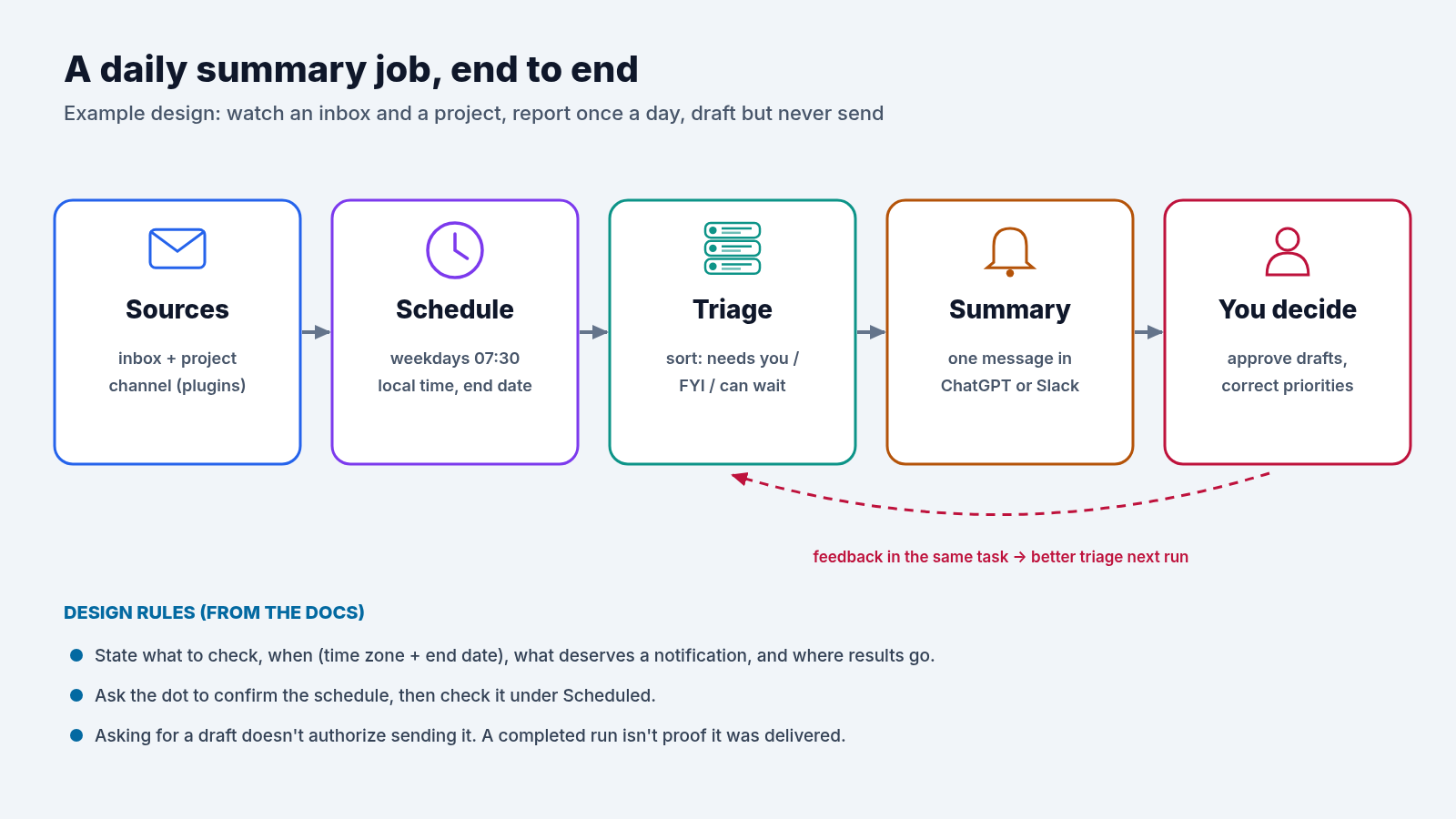
“Asking for a draft doesn’t authorize sending it.”
— OpenAI Help Center
4. Safe Permissions for an Always-On Agent
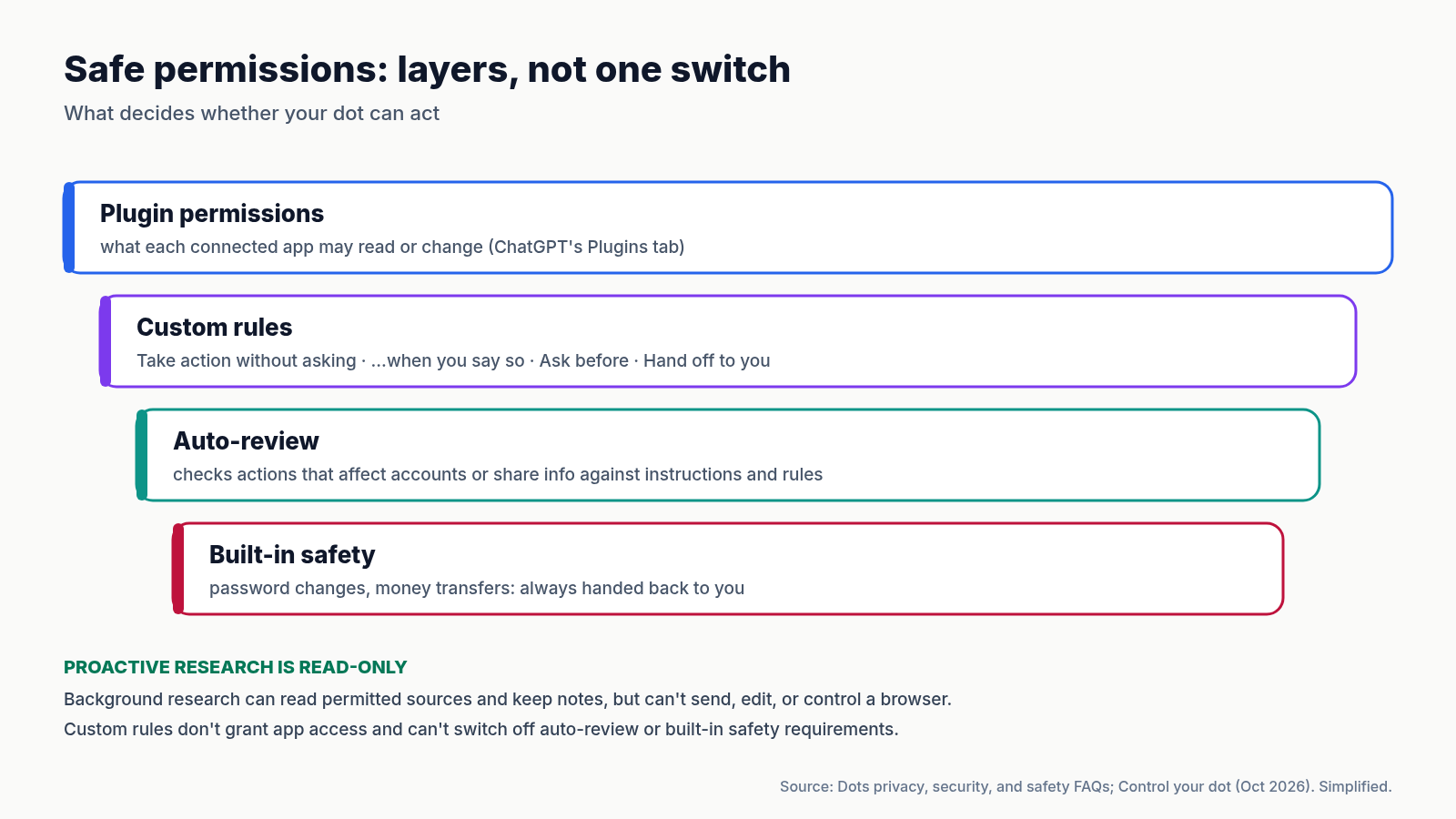
A dot’s safety model has layers. Knowing which layer does what keeps you from over-granting access.
- Plugin permissions decide what each app may read or change. The Help Center notes that permission to read “may not include permission to change it or send messages,” and for a summary job that’s what you want.
- Custom rules allow, gate or hand back specific actions. They “don’t grant access to an app or computer” and can’t override built-in safety requirements.
- Auto-review checks actions that could affect your accounts or share information. Before sending an email, for example, it checks the recipient and the message.
- Built-in requirements can’t be changed. You complete password changes and money transfers yourself.
- Proactive research is read-only. In the background, a dot can read permitted sources and keep private notes, but those research tools can’t send messages, change content or control a browser.
Some habits follow from this. Scope approvals by who, what and when, because approving one message doesn’t grant ongoing permission. Enter passwords only in the secure sign-in form, since its protections don’t cover passwords pasted into chat. Turn on multi-factor authentication. Keep the local-computer connection off until a job needs it. Remember that Pause stops only the dot’s current main task. Stop delegated tasks in Activity and cancel recurring ones in Scheduled. Deleting a dot doesn’t undo changes already made in connected apps.
5. Known Issues and Gotchas
- Websites block the cloud browser. The Verge’s reviewer hit a “human check” and a looping security check on a login. The docs suggest using takeover or a connected computer.
- Reliability reports. The Register (Oct 7) describes task failures, connection issues and dots that disappear, and OpenAI’s status page logged a dots incident that day. User reports on X are anecdotal.
- Abuse-prevention pauses. The Register reports refusals that appear tied to abuse prevention. On OpenAI’s community forum, a Pro user posted a “your dot is taking a break” notice citing an abuse-prevention limit on Oct 13. It cleared after about two hours. OpenAI hasn’t documented this limit.
- Memory controls are blunt. You can’t view or edit individual dot memories. Deleting (resetting) the dot is the only way to clear them.
- Launch gaps. A dot can’t call you, and it can’t have its own standalone email address. Texting: the Help Center describes a limited beta for US Pro users only, so most people can’t text their dot yet.
6. Lessons Learned
1. Start Narrow, Then Widen
One inbox, one channel and one daily message are easy to check. Add sources only after a week of summaries you trust.
2. Write Down the Schedule
“Keep an eye on it” isn’t a schedule. Give a time, a time zone, an end date and a destination, then confirm what was saved.
3. Drafts Aren’t Permission
The docs keep separating drafting from sending. Put the same separation into your rules.
4. Teach Inside the Task
Corrections work best where the work happened, so your dot’s notes improve with each run.
Recap and Key Takeaways
- Dots launched Sep 29 on GPT-6 Astra for Pro and Business Premium, with an admin-enabled Enterprise beta. Personal Pro excludes the EEA, Switzerland and the UK.
- The first dot is included. Chats don’t count toward limits, but delegated Work and Codex tasks do.
- Since Oct 9 you can create a dot on mobile, and dots can drive Codex and edit Work scheduled tasks.
- For a 24/7 assistant: least-privilege plugins, a confirmed schedule with time zone and end date, drafts-only rules, and feedback given inside each task.
- Watch for cloud-browser blocks, early reliability reports and blunt memory controls.
More Always-On Use Case Ideas Across Business Functions
- Sales: keep a proposal current as requirements change, and flag open security reviews.
- Marketing: watch a launch channel and prepare revised copy when product scope changes.
- Engineering: investigate new bug reports in a connected Slack channel and prepare fixes for review.
- Operations: track offsite or event headcounts and ask before requesting revised quotes.
- Research: rerun an analysis as new data arrives, and flag results that change the conclusion.
Conclusion
Dots are OpenAI’s clearest move yet from answering questions to taking on responsibilities. The feature list is long, but the setup that matters is short. Grant narrow, read-first access, write down exactly when and where your dot should report, and keep anything it sends behind your approval. Start with one daily summary. If it holds up for a couple of weeks, you’ll know what to hand over next.
Where to Go Next
- Introducing dots: OpenAI’s Sep 29 launch post. → openai.com/index/introducing-dots
- Getting started with your dot: plans, setup, plugins, schedules and troubleshooting. → help.openai.com
- Dots privacy, security, and safety FAQs: approvals, auto-review and memory. → help.openai.com
- Tasks and memory: recurring tasks, event monitoring and proactive research. → learn.chatgpt.com/docs/dots/tasks-and-memory
- Control your dot: custom rules, stopping work and deleting a dot. → learn.chatgpt.com/docs/dots/controls
- October 5–9 update: mobile setup and Codex delegation. → learn.chatgpt.com/docs/whats-new/dots-october-9-2026
- Hands-On with ChatGPT Work: our July walkthrough of ChatGPT Work, whose scheduled tasks a dot can now review and edit. → Read the story
If you found this guide valuable, consider sharing it with the teammate whose inbox never sleeps. Their first dot could start with a single morning summary.