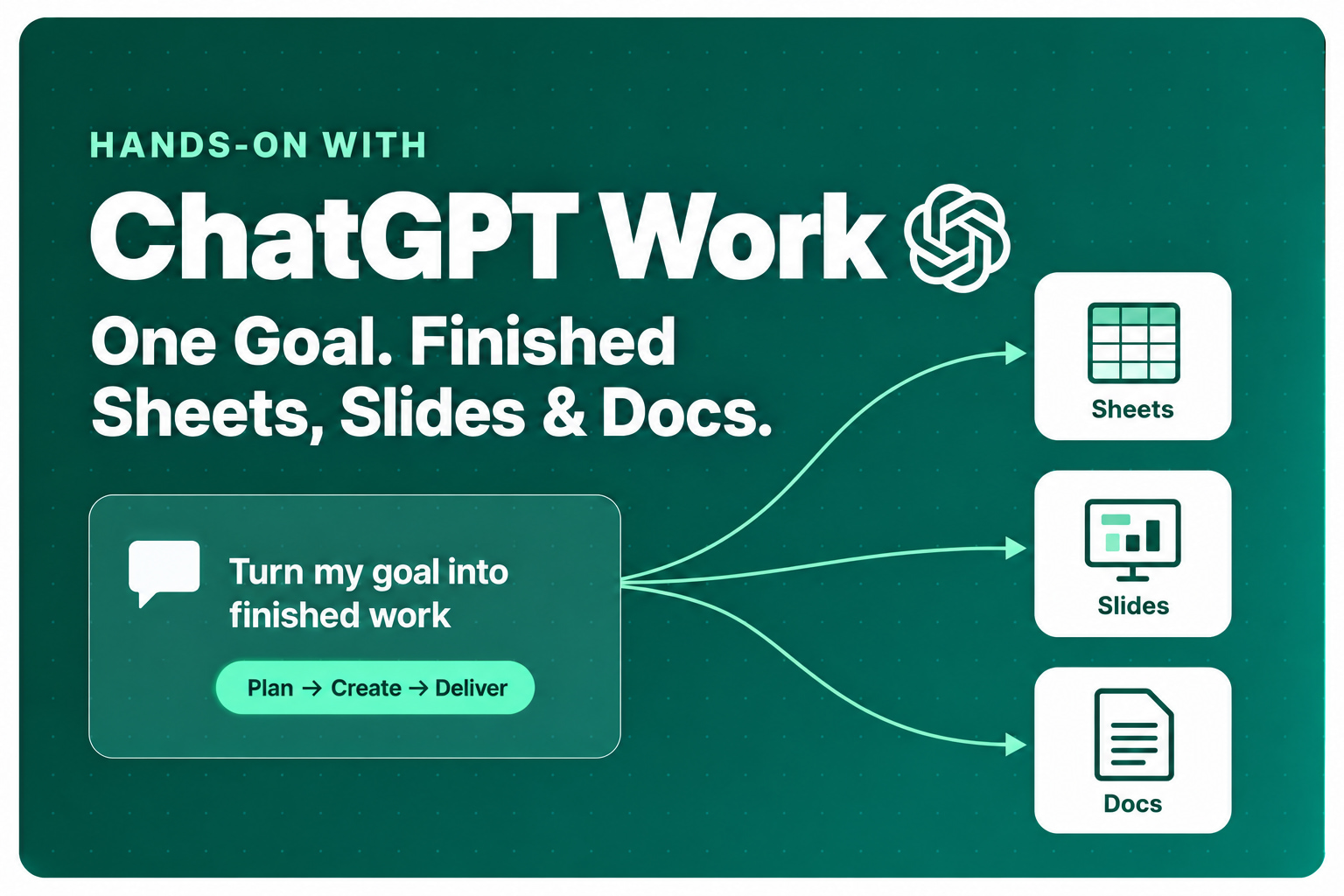
Hands-On with ChatGPT Work: Turn One Goal into Finished Sheets, Slides, and Docs
From a single request to a budget sheet, a leadership deck and a program brief, plus a first look at Sites (beta).
Introduction
Last month I argued that the harness is the product: the tools, context, feedback loops and permissions around a model decide what it can actually finish. On July 9, OpenAI shipped a harness most of us can use without writing a single line of glue code.
ChatGPT Work is an agent inside ChatGPT that can take action across your apps and files, stay with a project for hours, and turn a goal into finished materials: sheets, slides, docs and web apps. It launched alongside GPT‑5.6, OpenAI’s new frontier model, together with a public beta of Sites for turning work into shareable interactive sites.
In this edition, we take one realistic goal, a launch kit for a new internal AI-workshop program, and walk it all the way from a single prompt to a budget sheet, a slide deck, a brief, and a small launch-calendar site. Along the way you’ll see where to steer, where to approve, and where to slow down.
The unit of delegation is no longer the prompt.
It is the goal.
1. What Is ChatGPT Work?
ChatGPT Work gathers information across your apps and workflows, breaks complex projects into smaller steps, and completes them independently. It has Codex technology built in. OpenAI says more than 5 million people use Codex every week, and more than 1 million of them use it for work outside software development.
Key Capabilities
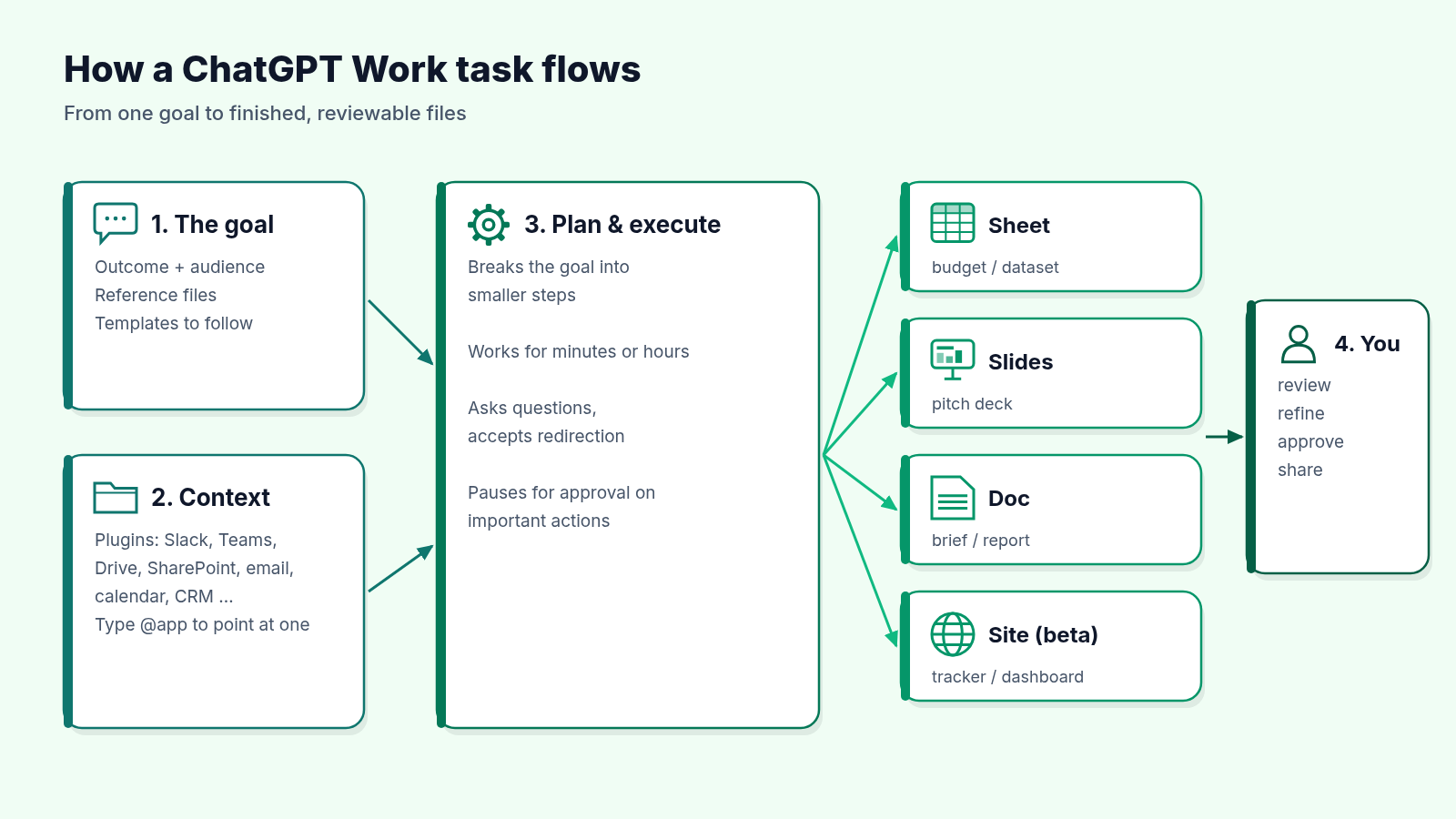
- Goal-to-deliverable execution: it creates finished sheets, slides, docs and web apps, and GPT‑5.6 is tuned to follow your templates and reference files.
- Long-running work: it can stay with a project for hours. You can follow progress, answer questions, change direction and approve important actions.
- Whole workflows in one request: for example, customer research → campaign brief → marketing assets → localized versions, with context carried through every step.
- Plugins for context: connections to Slack, Microsoft Teams, Google Drive, SharePoint, email, calendars, CRMs, project trackers and internal tools.
- Scheduled Tasks: run an action once, on a schedule, when an event occurs, or as a monitor over time.
- Desktop extras: in the ChatGPT desktop app it can use local files and apps, a built-in browser, and Computer Use for clicking, typing and moving files in the background.
Who Can Use It
On web and mobile, ChatGPT Work started rolling out on July 9 for Pro, Enterprise and Edu, with Plus and Business following over the next few days. In the new ChatGPT desktop app (Mac and Windows), Chat, Work and Codex are available on every plan, including Free. The Codex app merges into the new desktop app, and the previous desktop app is renamed ChatGPT Classic.
Usage note: ChatGPT Work follows the same usage structure as Codex. Usage varies with the amount of work, so more complex tasks use more of your plan’s included usage. OpenAI has not published a separate price for Work. Check your plan’s usage page before you hand it a multi-hour job.
2. Hands-On: One Goal, Four Deliverables
The OpenAI announcement gives good advice: start with a task you already know well. Then you can judge the output like an expert instead of being impressed by it like a tourist. Here is the test case for this walkthrough, a project that is easy to judge because most teams have done it by hand:
The goal: launch a four-week “AI for Everyday Productivity” workshop for non-technical staff. I need a budget, a kickoff deck for leadership, a one-page program brief, and a calendar people can check.
Follow along
Download the sample files
These are the files the prompt in Step 2 refers to. Upload them to your Google Drive, or attach them with Files in the Work tab. They contain sample data for a fictional company.
Step 1: Connect the context where the work already lives
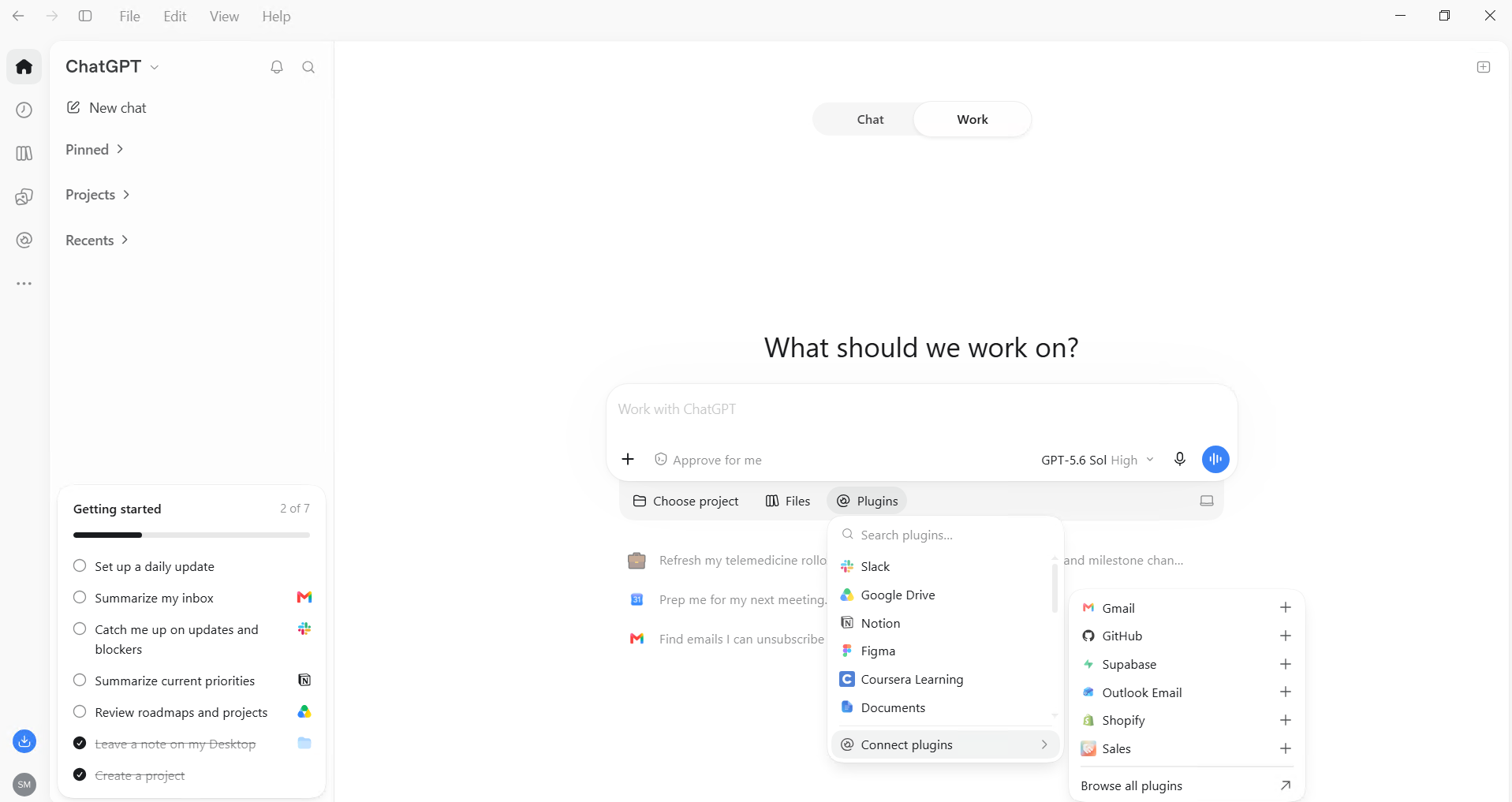
Plugins connect ChatGPT to the systems that hold your real inputs. ChatGPT decides on its own when to reference a plugin, but you can point it at a specific app by typing @ followed by the app name. A new unified plugins directory gathers them in one place, and ChatGPT can suggest relevant ones during a conversation.
In the Work tab, click Plugins below the message box (or type @), then Connect plugins and choose an app, or select Browse all plugins for the full directory.
For this project, connect file storage (last year’s workshop budget and your slide template; to follow along, use the sample files above) and the team chat where the idea was first discussed.
Step 2: Write the goal, not the steps
Give it the outcome, the sources, the constraints, and a definition of done. That last part is the harness lesson from June: give the agent something it can be checked against.
Goal: Prepare the launch kit for a 4-week "AI for Everyday Productivity"
workshop for ~60 non-technical staff, starting the first week of September.

Sources:
- @Google Drive: "2025 Workshop Budget.xlsx" and "Company Slide Template.pptx"
- @Slack: the #learning-ideas thread where this program was proposed

Deliverables:
1. Budget sheet: line items, unit costs, totals, 10% contingency.
   Flag every number you estimated instead of sourcing.
2. 8-slide kickoff deck for leadership on our template.
3. One-page program brief: audience, outcomes, weekly agenda, success metrics.

Constraints:
- Use our template; do not invent brand colors.
- Do not message anyone or share files. Ask me before any external action.

Done means: totals reconcile, every slide maps to a section of the brief,
and you list open questions at the end.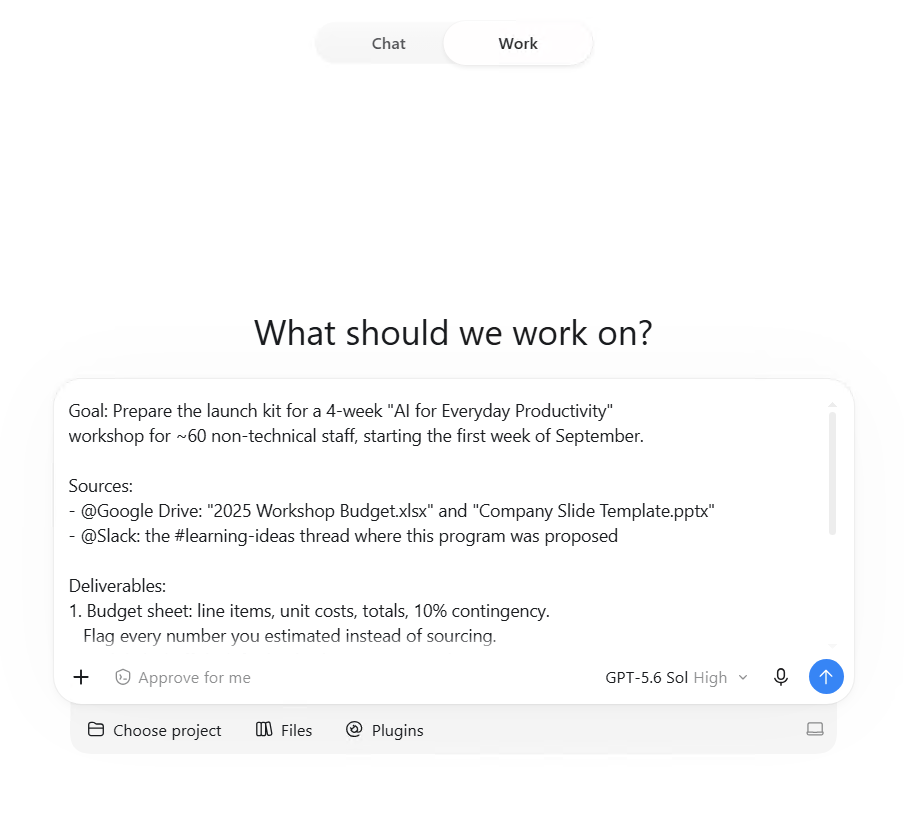
Step 3: Follow along and steer
This is not a fire-and-forget black box. You can follow its progress, answer its questions, change direction, and approve important actions. In a project like this, the most valuable moment is often a clarifying question, such as whether facilitator time counts against the training budget. That is exactly the kind of judgment call a human should own.
Two habits that pay off:
- Redirect early. If the first outline is aimed at the wrong audience, say so before it builds eight slides.
- Answer questions in full sentences. Your answer becomes context for every later step.
Step 4: Review each deliverable like an editor
Treat the output as a diff, not a verdict. My review checklist:
- Sheet: do the totals reconcile? Are estimated numbers flagged as I asked?
- Slides: is the template respected? Does each slide trace to the brief?
- Doc: are the outcomes measurable? Is anything stated as fact that came from nowhere?
- Open questions: did it surface what it could not decide?
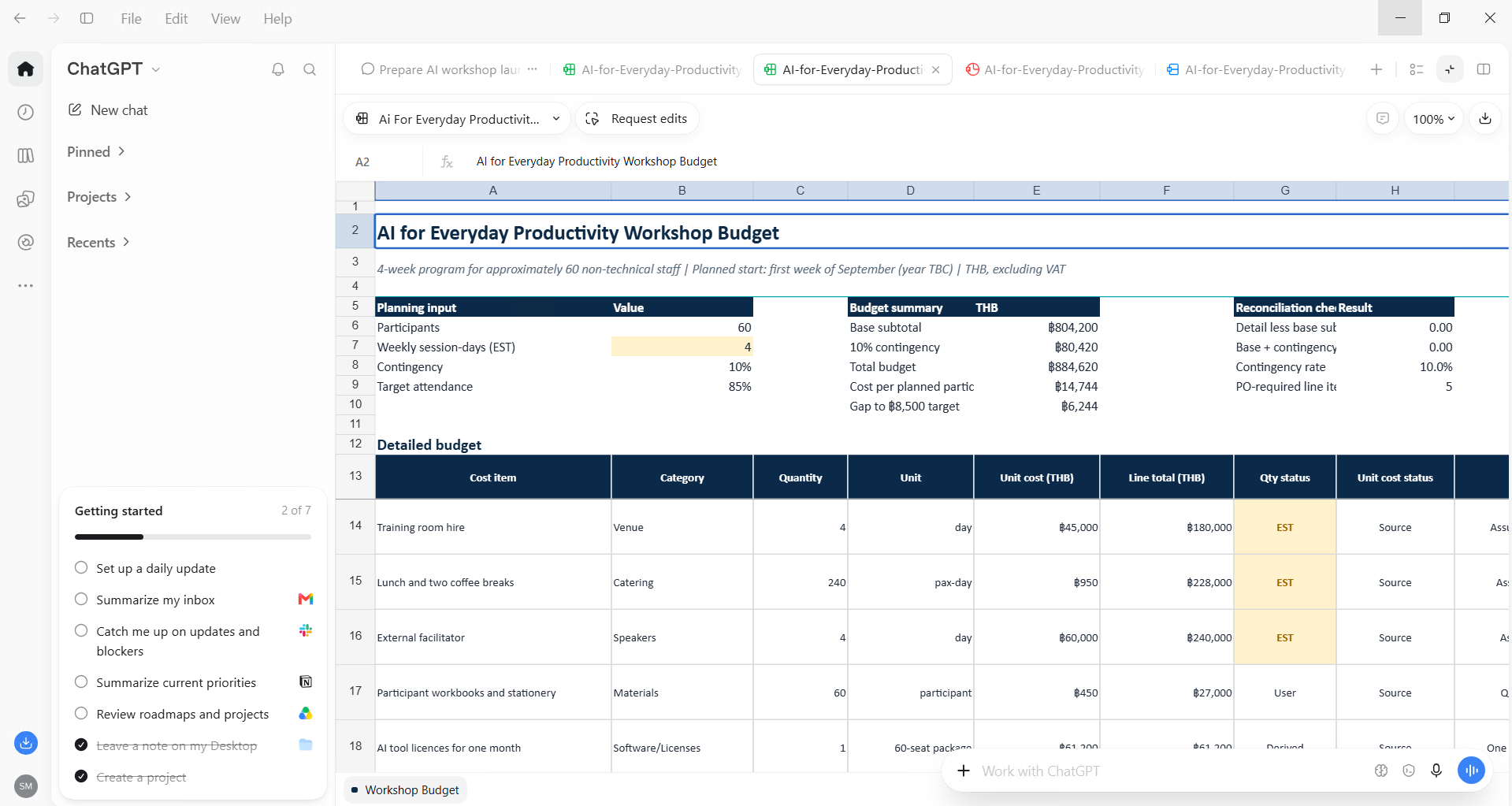
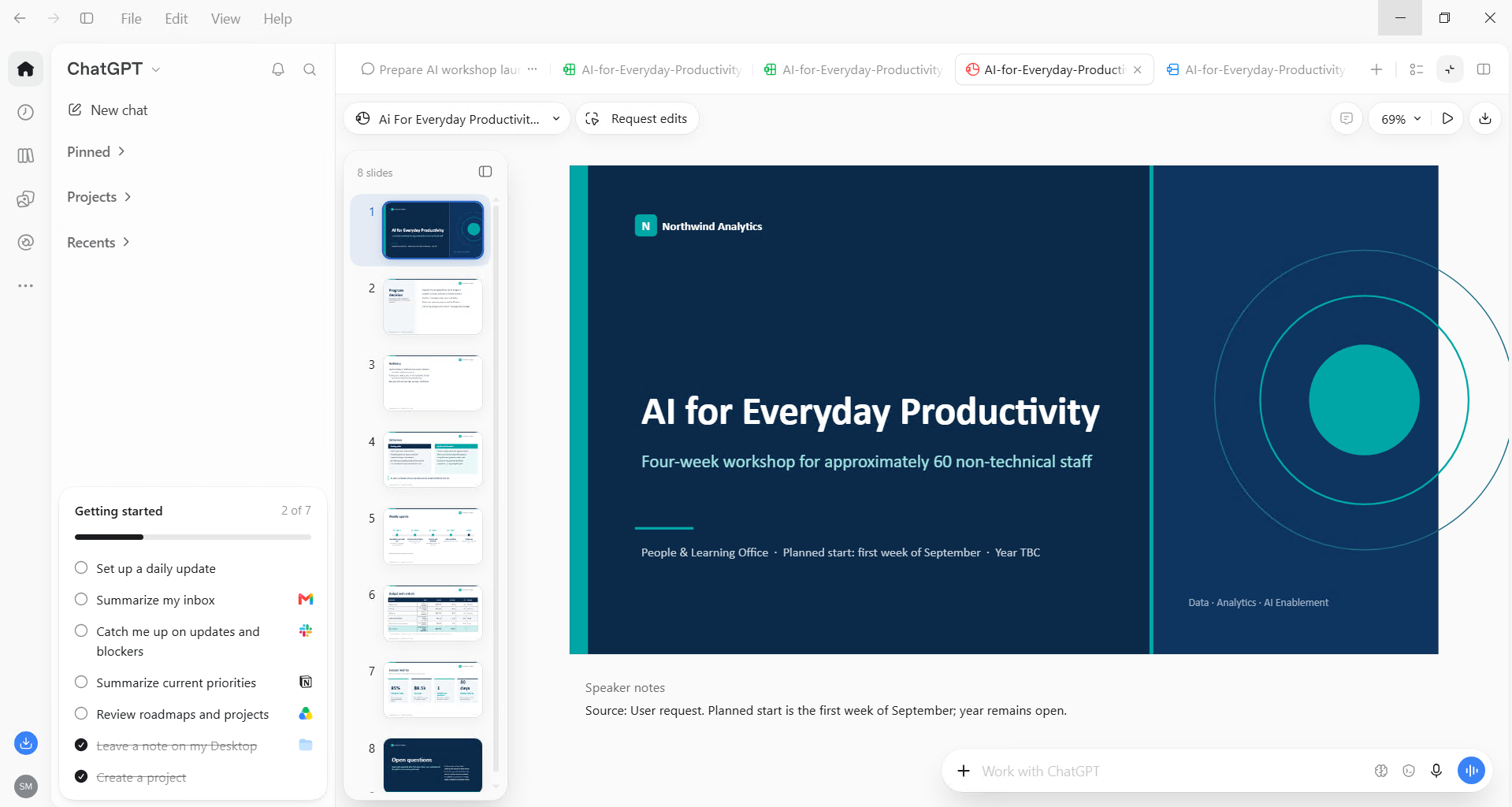
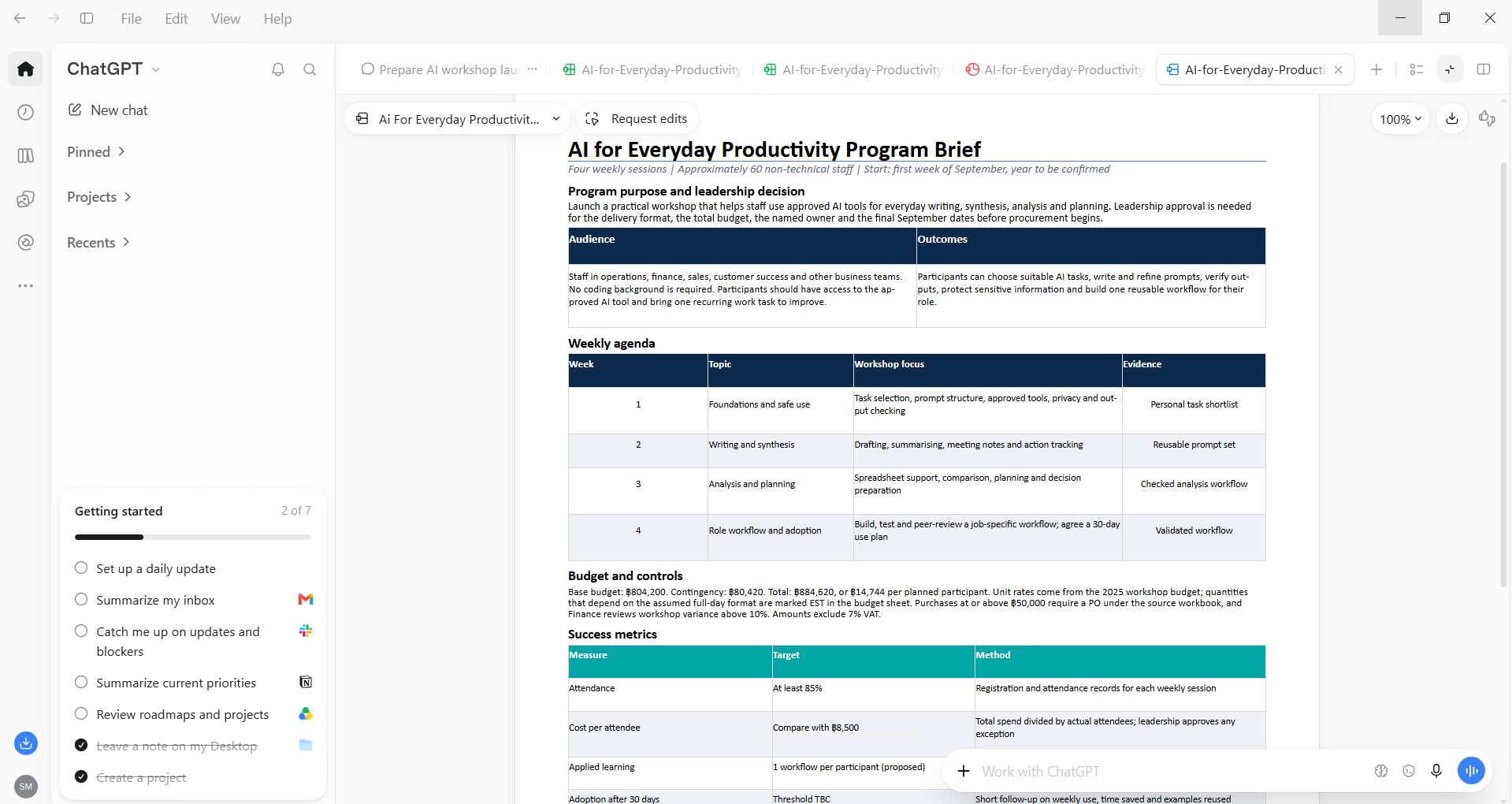
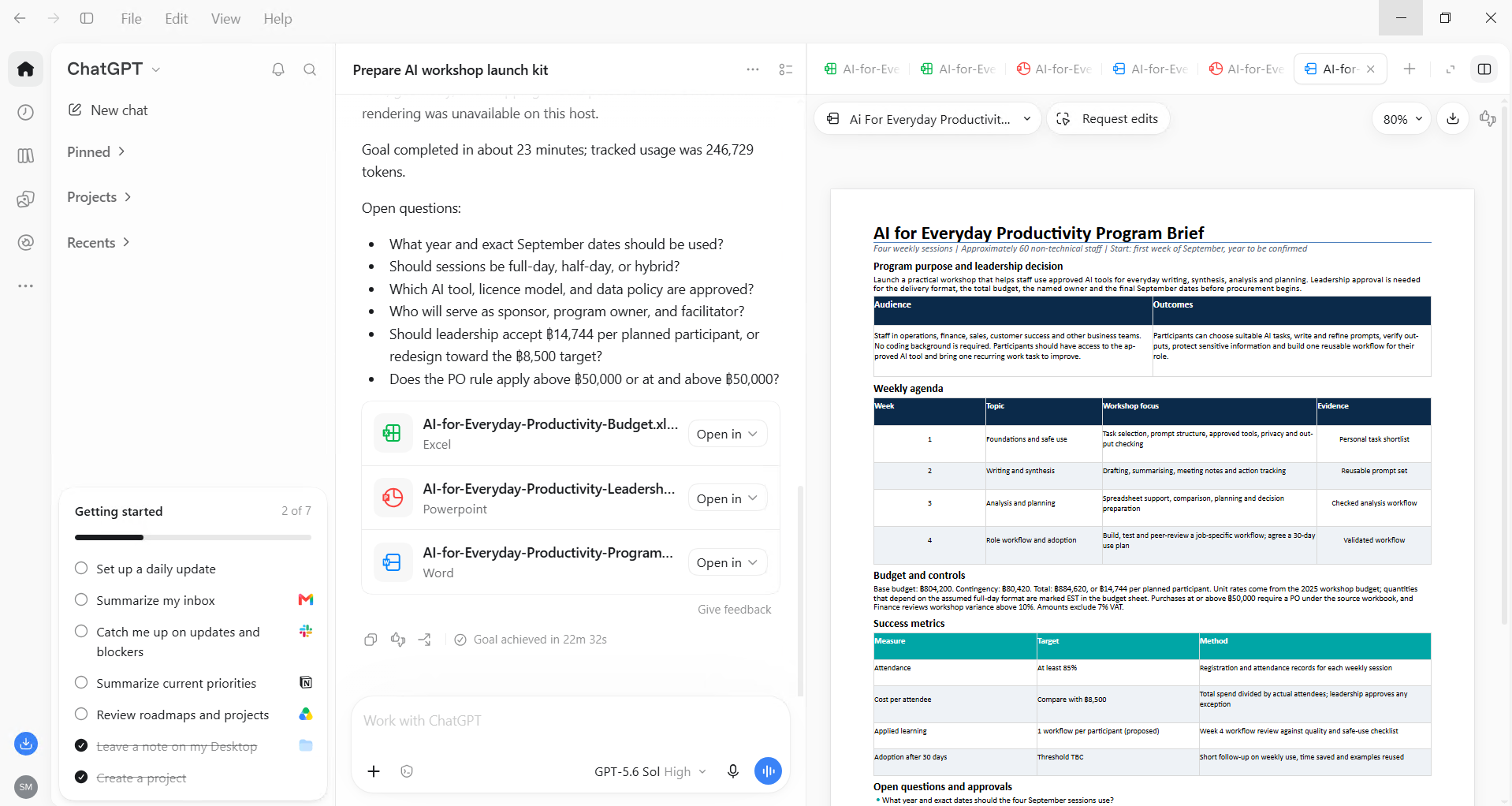
Then ask for revisions in one consolidated message instead of ten small ones.
Step 5: Keep it fresh with a Scheduled Task
Scheduled Tasks can use your connected apps and browser to review updates on a schedule, check websites and dashboards each morning, monitor feedback, or update a presentation when new feedback arrives by email. For the workshop, I want the brief to track the conversation:
Every Monday at 9:00, review new messages in the #learning-ideas Slack
channel. If anything changes the workshop agenda, dates or budget, update the
program brief and list exactly what changed at the top.
Do not post in Slack. Ask me before sharing the updated brief.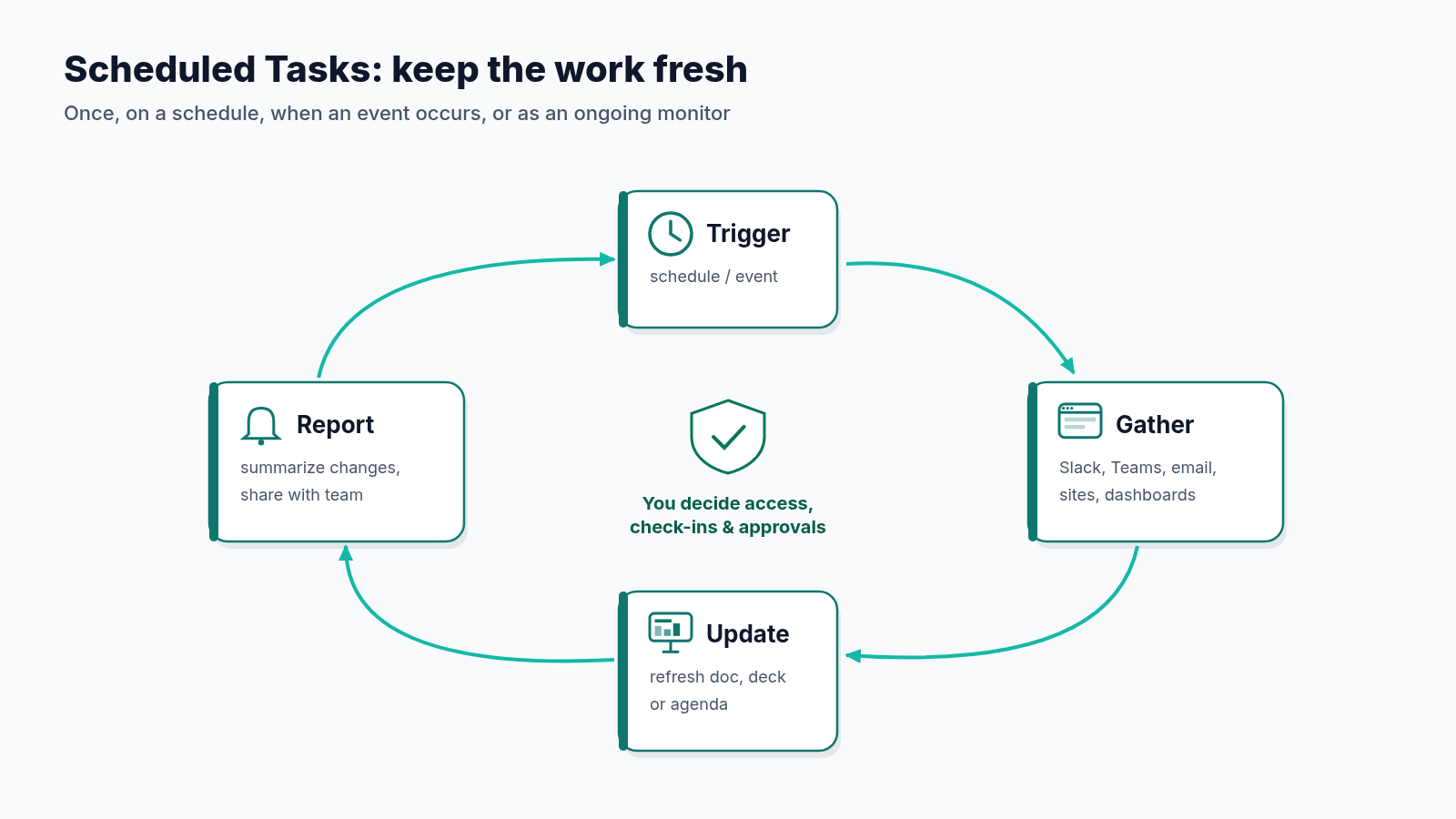
3. Demo: Turning the Plan into a Site (Beta)
A calendar in a doc is fine. A calendar people can filter is better. Sites, now in public beta, turns your work or ideas into an interactive site or web app that you can test inside ChatGPT and share with your team or publicly through a URL. OpenAI’s examples are live dashboards, project trackers, launch calendars, prototypes, internal portals and interactive reports. ChatGPT can also update a Site as the underlying information changes.
How to Start a Site
According to OpenAI’s Sites documentation, you start in ChatGPT Work on the web, or in Work or Codex in the desktop app. Include the word “website” in your prompt or mention @Sites to start the Sites workflow explicitly.
Step 1: Describe the Site
Describe the audience, purpose, required behavior, and the information the Site should use:
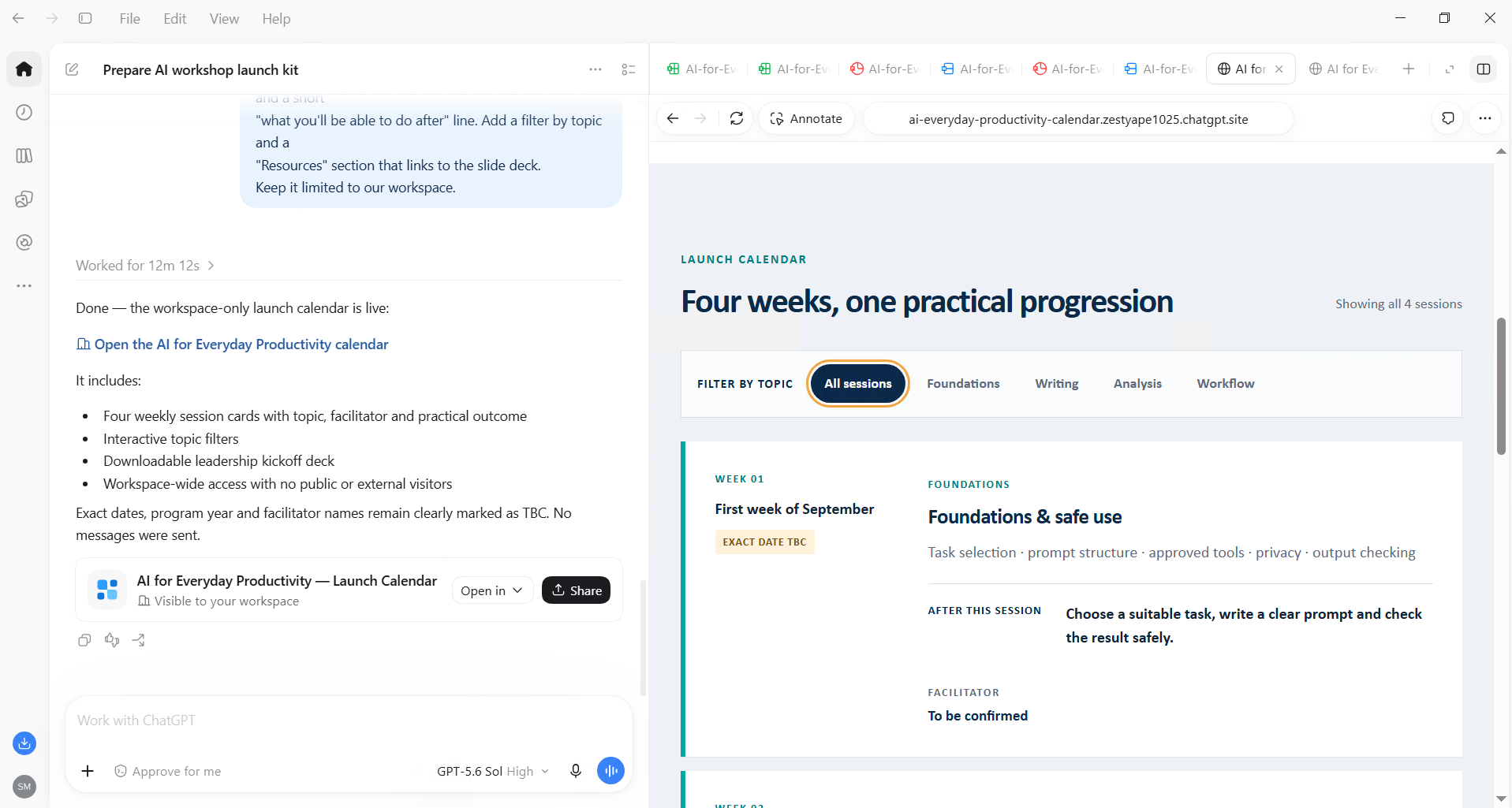
@Sites Build a launch-calendar website for the AI for Everyday Productivity
workshop, using the program brief we just finished.
Audience: employees deciding which session to attend.
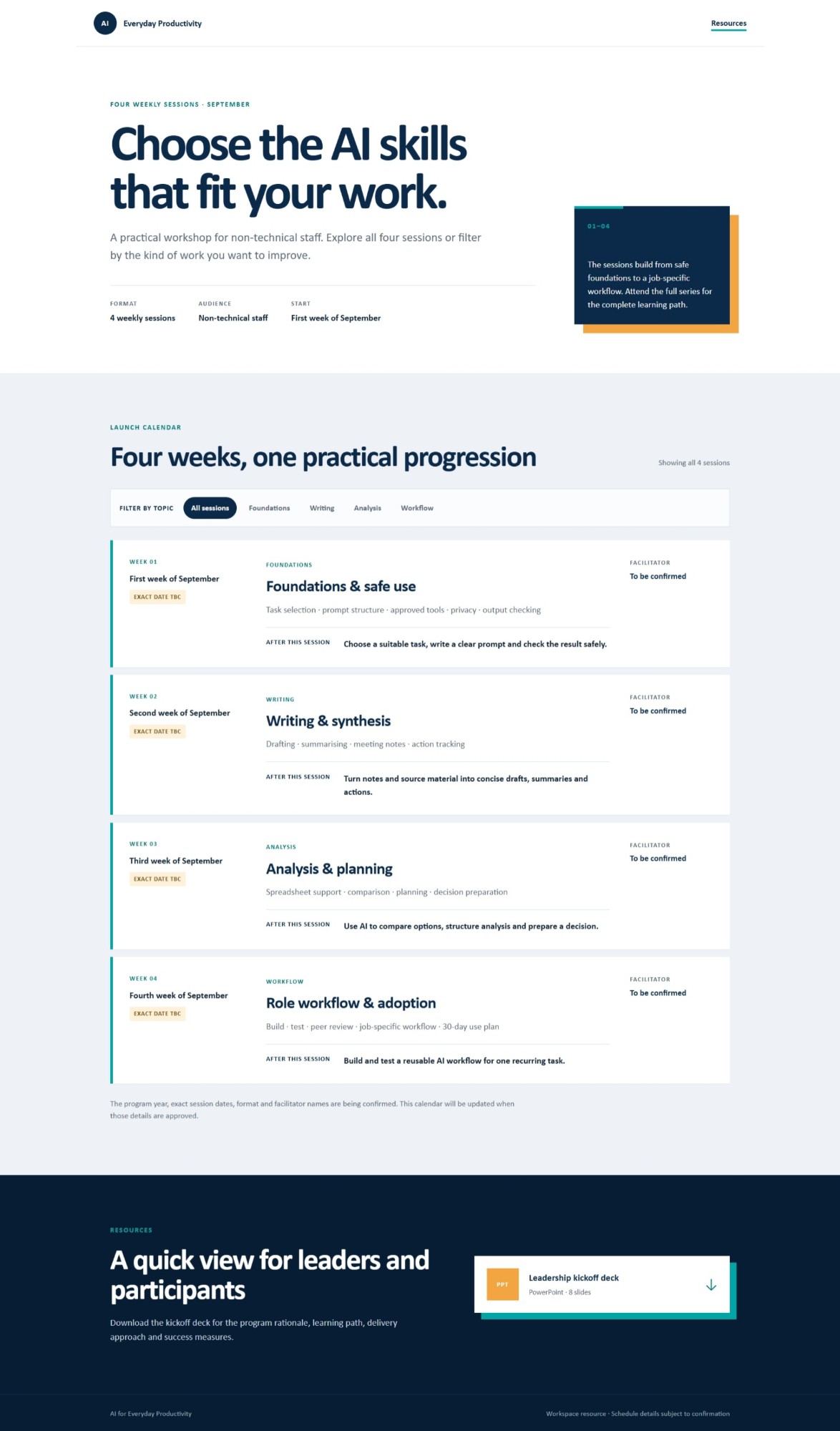
Show the 4 weekly sessions with date, topic, facilitator and a short
"what you'll be able to do after" line. Add a filter by topic and a
"Resources" section that links to the slide deck.
Keep it limited to our workspace.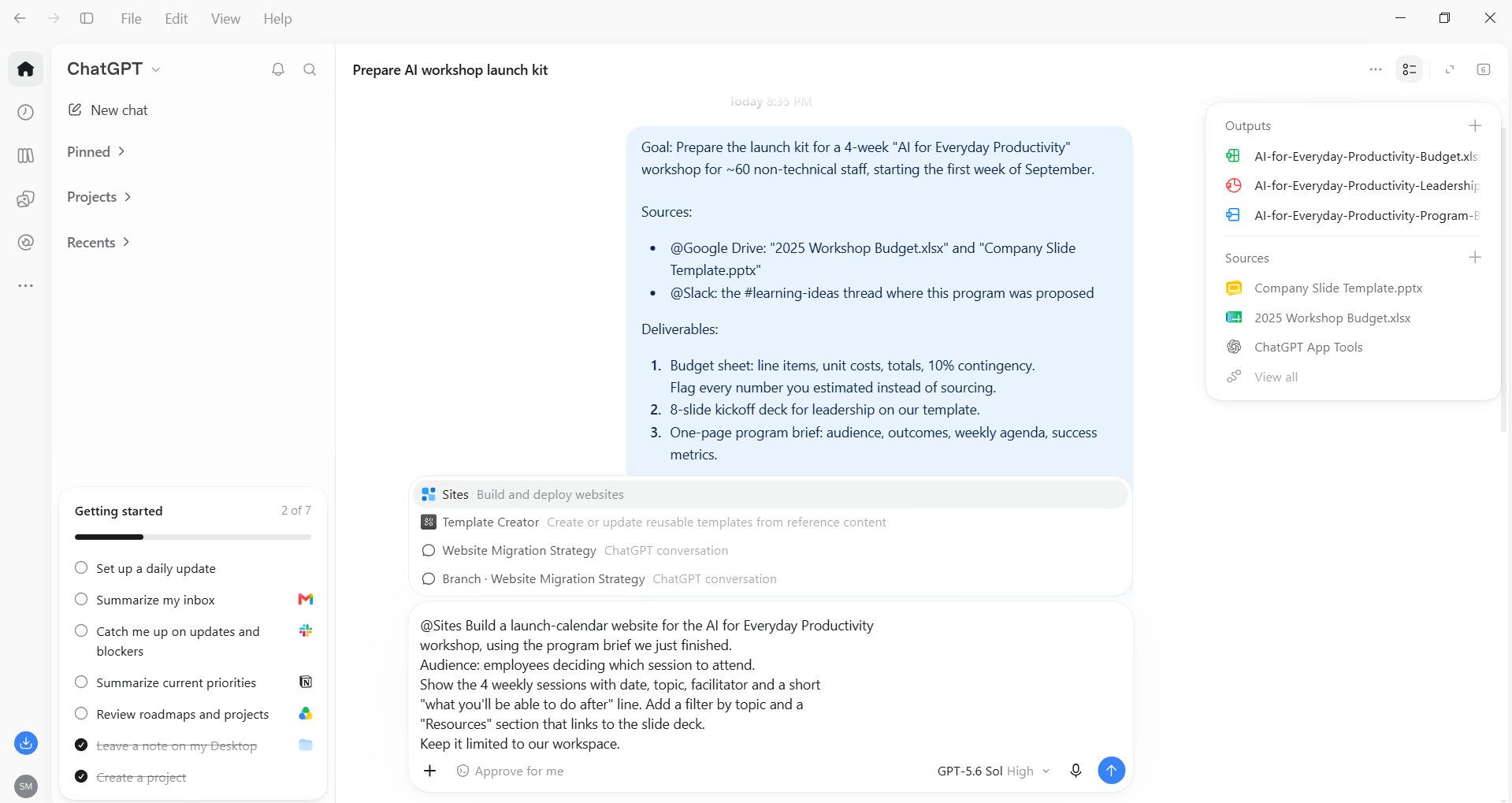
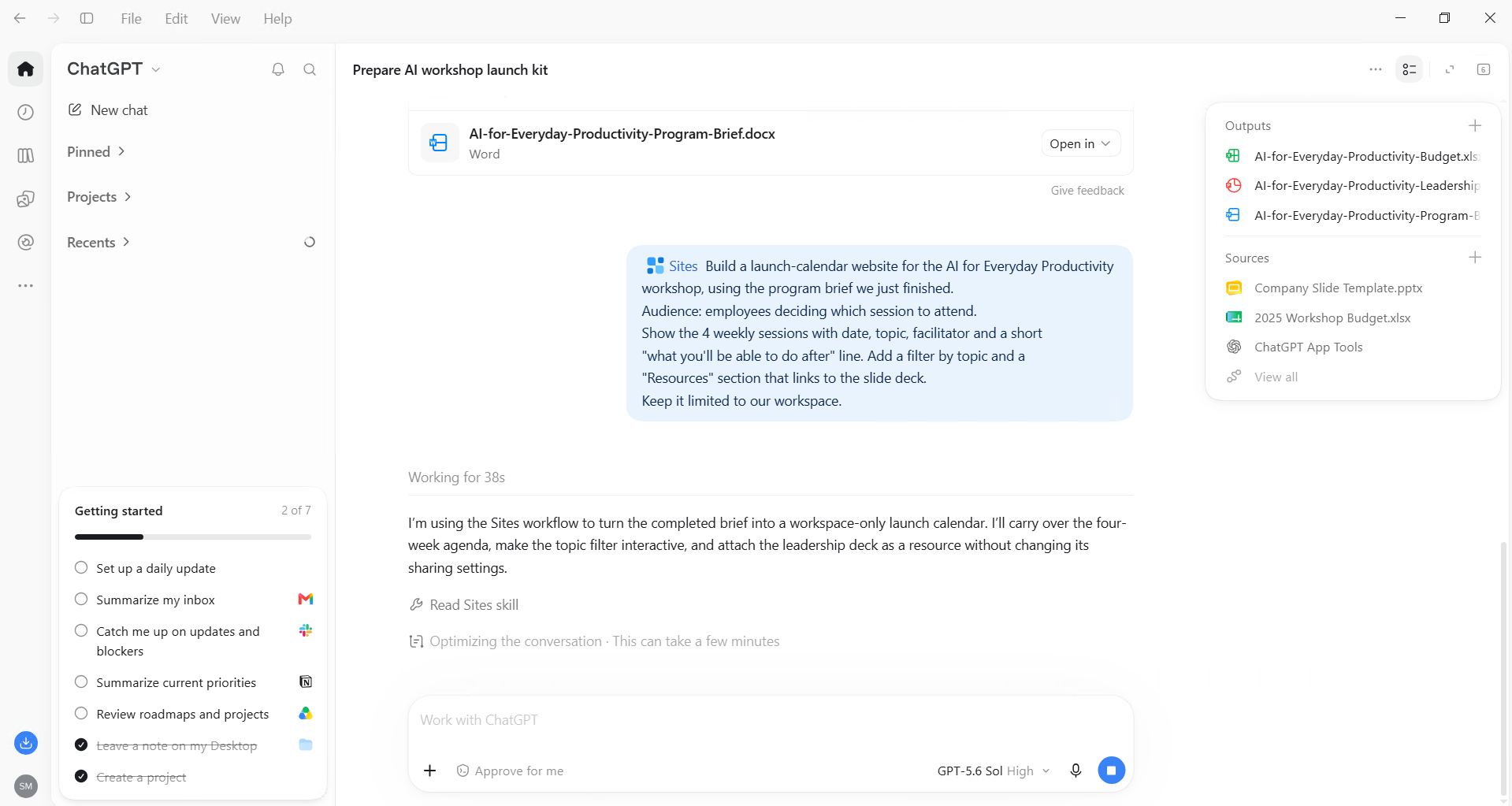
Step 2: Review the private preview
Check that it uses the intended information and handles data as expected.
Step 3: Refine
In the preview, select Edit and describe the changes, adding a screenshot or files when they help.
Step 4: Manage and share
Choose who can visit and share the link.
Versions vs. Deployments
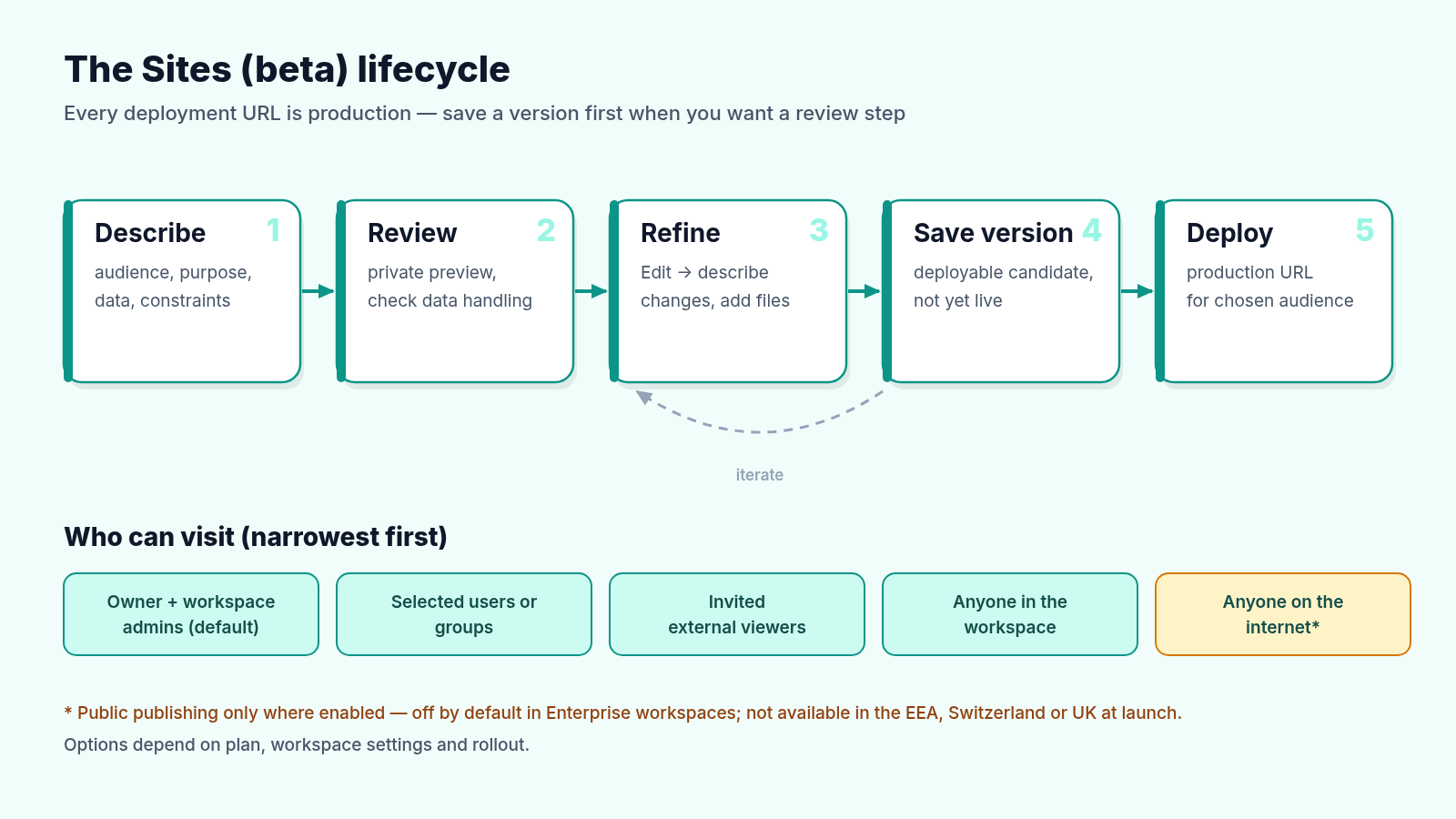
This is the detail most people will miss. Every Sites deployment URL is a production deployment. Publishing has two stages: save a version (a deployable candidate) and deploy a version (it goes live for the selected audience). If you want a review step, ask ChatGPT to save a version without deploying it.
Access, Limits and What Not to Build
- Default access: a new Site is limited to its owner and workspace admins until you change it. Visitor access does not grant edit access.
- Plans: Sites is available during the beta on Plus, Pro, Business, Enterprise and Edu. It is not available on Free or Go, and plan-specific usage limits apply.
- Public publishing: off by default in Enterprise workspaces until an admin enables it. Public publishing and the expanded beta were not available in the EEA, Switzerland or the UK at launch.
- Prohibited uses: OpenAI says not to use Sites for Protected Health Information or payment-card data. For readers who followed my medication refill workflow, that rules Sites out for patient-facing healthcare data.
- Secrets: keep secret values out of prompts, attached files and Site content. Use the Site’s settings for hosted environment values.
4. Governance: The Harness Has Brakes
A long-running agent with access to your apps needs real controls, and this launch ships with several:
- You decide what ChatGPT can access, when it checks in, and when it needs your approval before acting.
- Admins on Enterprise and Edu can centrally manage who has access, what company context ChatGPT can use, which tools it can connect, and what actions it can take. On web they can configure browser use and network access for cloud environments. The Compliance API gives visibility into Work conversations and actions.
- Auto-review uses OpenAI’s most advanced models to review important actions involving connected tools and APIs before they happen, to help prevent unauthorized sharing of sensitive information.
- Spend controls let Enterprise and Edu admins set workspace defaults, group limits and individual overrides for Work usage.
Autonomy is a dial.
Start with drafts. Earn your way to actions.
5. Lessons Learned
1. Templates Beat Adjectives
“Make it look professional” is a wish. “Use Company Slide Template.pptx” is a constraint the agent can satisfy. GPT‑5.6 was built to follow templates and reference files, so give it some.
2. Define “Done” in Checkable Terms
“Totals reconcile” and “every slide maps to the brief” are stop conditions. “Looks good” is not.
3. Ask for Flags on Estimates
One of the most useful instructions in the prompt above is flag every number you estimated. It turns hidden guesses into a visible review list.
4. Keep External Actions Behind Approval
Let it draft, reconcile and recommend. You do the sending, sharing and publishing until you trust the pattern.
5. Remember That a Site URL Is Production
Save a version, review it, then deploy. Start with the narrowest audience that works.
Recap and Key Takeaways
- ChatGPT Work (launched July 9 with GPT‑5.6) turns a single goal into finished sheets, slides, docs and web apps, and can work on a project for hours.
- Plugins and
@appmentions bring in real context. Scheduled Tasks keep deliverables current.- Sites (public beta) turns work into interactive, shareable sites. Save a version before you deploy.
- The best first task is one you already know well, so you can judge the result as an expert.
More ChatGPT Work Use Case Ideas Across Business Functions
- Finance: month-end variance analysis that pulls source data into a sheet, reconciles it and drafts the summary slides.
- Marketing: customer research → campaign brief → assets → market-specific versions.
- Sales: meeting prep packs from CRM history, recent email and account news.
- Operations: a launch-readiness tracker Site fed by project-tracker tasks.
- HR and Learning: program briefs and enrollment calendars like the one in this walkthrough.
- Healthcare administration: non-clinical scheduling and staffing dashboards, with no PHI in Sites.
Conclusion
ChatGPT Work is a strong argument for the thesis of this newsletter. The model got better with GPT‑5.6, but the bigger change is the harness around it: connected context, long-running execution, schedules, a browser, approvals and admin controls. Give it a goal you know well, define done, keep the brakes on, and judge the output as an editor. That is how one prompt becomes a launch kit.
Where to Go Next
- ChatGPT is now a partner for your most ambitious work: OpenAI’s launch post for ChatGPT Work, Sites, Scheduled Tasks and the new desktop app. → openai.com/index/chatgpt-for-your-most-ambitious-work
- Sites documentation: prompts, versions vs. deployments, access controls and limits. → learn.chatgpt.com/docs/sites
- ChatGPT Release Notes: plan availability and regional notes for Sites. → help.openai.com/en/articles/6825453
- The Harness Is the Product: why the environment around the model matters more than the model. → Read the story
- Sample files for this walkthrough: the workshop budget workbook and slide template used in the Step 2 prompt. → Download them
If you found this walkthrough valuable, consider sharing it with your team leads and operations colleagues. The fastest way to learn ChatGPT Work is to hand it a job you already know by heart.