Hire Your First AI Teammate: Setting Up Grok Bot for Real Work
Persistent Bots with a name, a job, a memory and their own cloud computer, and what that means for the harness you used to build yourself.
Introduction
In June I wrote that the harness is the product. A model becomes useful when you give it tools, context, feedback, verification and permissions. In earlier editions we built those harnesses ourselves: an n8n workflow for medication refills, and a multi-agent FastAPI server on the OpenAI Agents SDK with Perplexity and Notion.
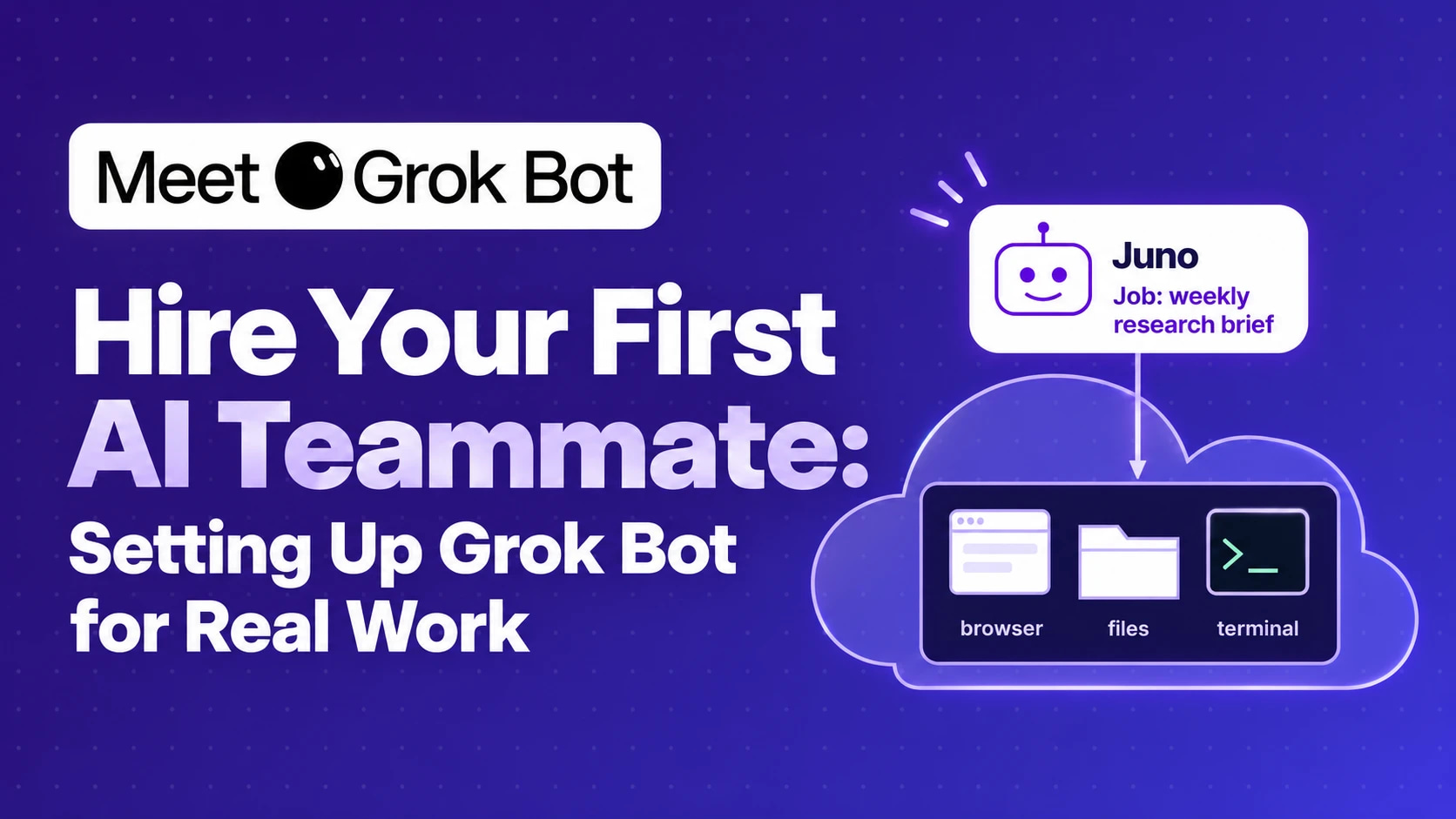
On August 11, xAI released Grok Bot in beta. It takes a different approach: instead of building the harness, you hire one. Each Bot is a persistent AI teammate with a name, a job and a memory, and it works on its own cloud computer with a browser, files and a terminal. You set it up by chatting with it, and it comes back to you when something needs your approval.
In this edition, we set up a first Bot step by step, give it a real recurring job (a weekly research brief), and compare what you get against the n8n and Agents SDK builds from earlier posts.
Other AI tools ask you to build the workflow first.
Grok Bot asks you to describe the job.
1. What Is Grok Bot?
xAI describes Grok Bot as “AI teammates you can give real work to.” The official docs describe Bots as teammates “with names, jobs, and context that compounds over time.”
Key Features
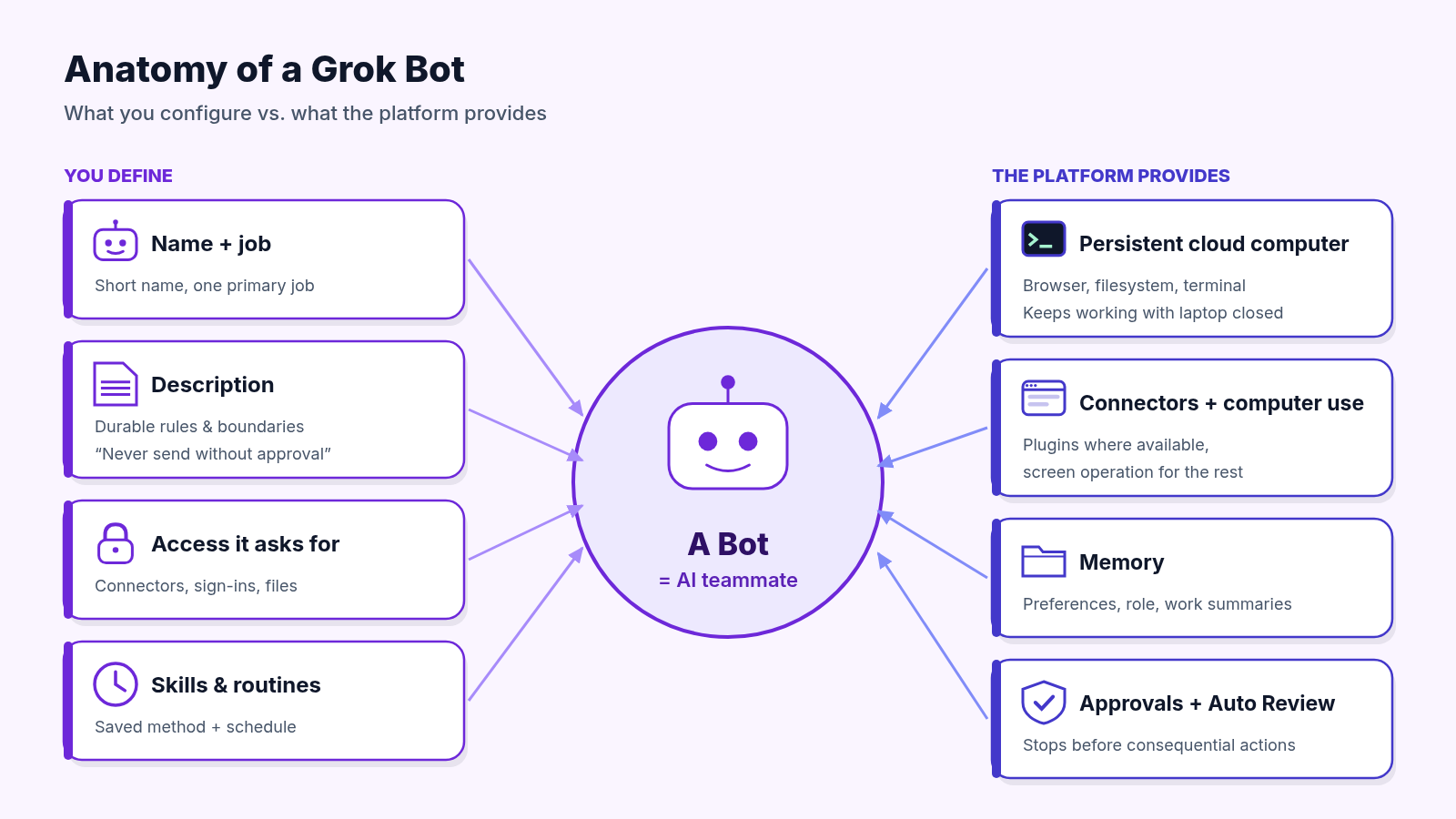
- A computer of its own: each Bot works on a persistent cloud computer with a browser, filesystem and terminal, so work continues while your laptop is closed.
- Connectors plus screen operation: Bots use connectors (installed as plugins) where they exist and computer use for everything else, including sites with no clean API or MCP server.
- Chat-based setup: “Setup is a message, not a workflow builder.” You create a Bot, describe the job, and grant access when it asks.
- Memory: a named Bot keeps stable preferences, role context and summaries of prior work across sessions.
- Skills and routines: a working process can be saved as a reusable skill and run on a schedule as a routine. Bots can also learn a workflow by watching you demonstrate it.
- Teams of Bots: Bots can run in parallel, message each other, and coordinate in group chats.
- Approvals: Bots stop before consequential actions such as sending, publishing, buying and deleting.
Availability at Launch
The announcement lists the beta for SuperGrok, SuperGrok Plus and SuperGrok Heavy; Cursor Pro, Pro+ and Ultra; and Cursor Teams Standard and Premium subscribers, on desktop and iOS. At launch, Grok Bot came with its own usage, separate from your Grok and Cursor plans, and enterprises could join a waitlist. The docs list desktop apps for macOS, Windows and Linux plus iPhone, iPad and Android, with usage that resets weekly.
Availability update (October 2026): Plans have changed since launch. Grok Bot is now included on the Premium, Super and Ultra plans of The X Subscription and on paid legacy Cursor plans, and its usage comes from the same weekly pool as Cursor and the Grok apps. Check the official Plans and billing page for the current list. No prices are quoted here because they change often.
2. The Harness, Pre-Assembled
Hold Grok Bot up against the five harness parts from the June essay and the design choices become clear:
| Harness part | How Grok Bot supplies it |
|---|---|
| Tools | Plugins from Connect apps, plus a browser and terminal on the cloud computer. Reworked reports that, when asked, Grok Bot said its catalog has 220 plugins, none installed by default. |
| Context | Per-Bot memory, a description that holds durable rules, shared files in /workspace, and saved skills. |
| Feedback loops | You review results in the conversation and correct them. The transcript shows tool activity, computer use and created files. |
| Verification | A clear “review point” in each request, and a Test run before any routine goes live. |
| Permissions | Approval cards (Allow once, Always allow, Deny), Auto Review rules, and secure handoff for passwords and 2FA. |
You don’t write tool definitions or retry logic. Your job moves up a level: describe the job well, set the boundaries, and review the work.
3. Step-by-Step: Setting Up Your First Bot
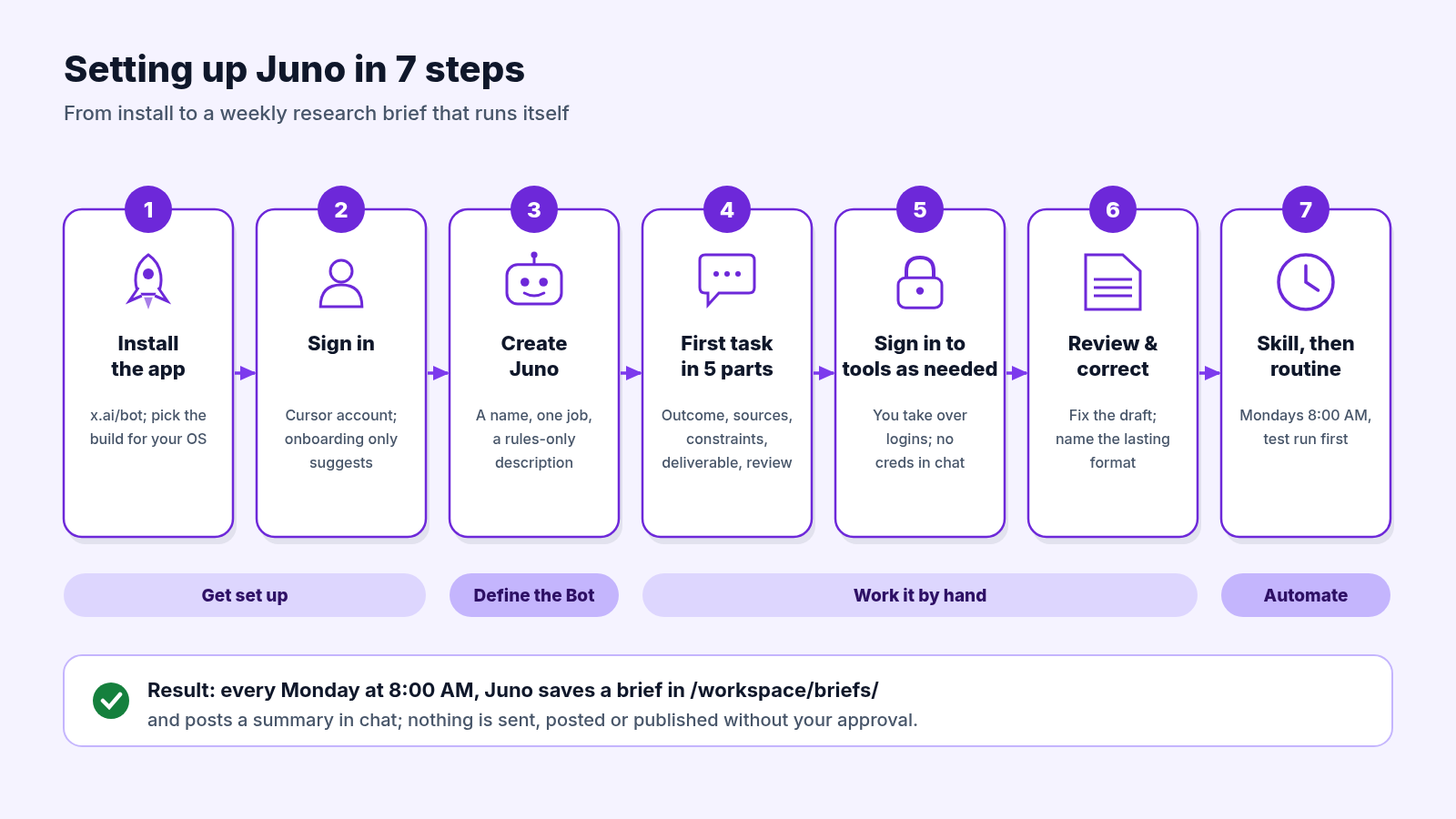
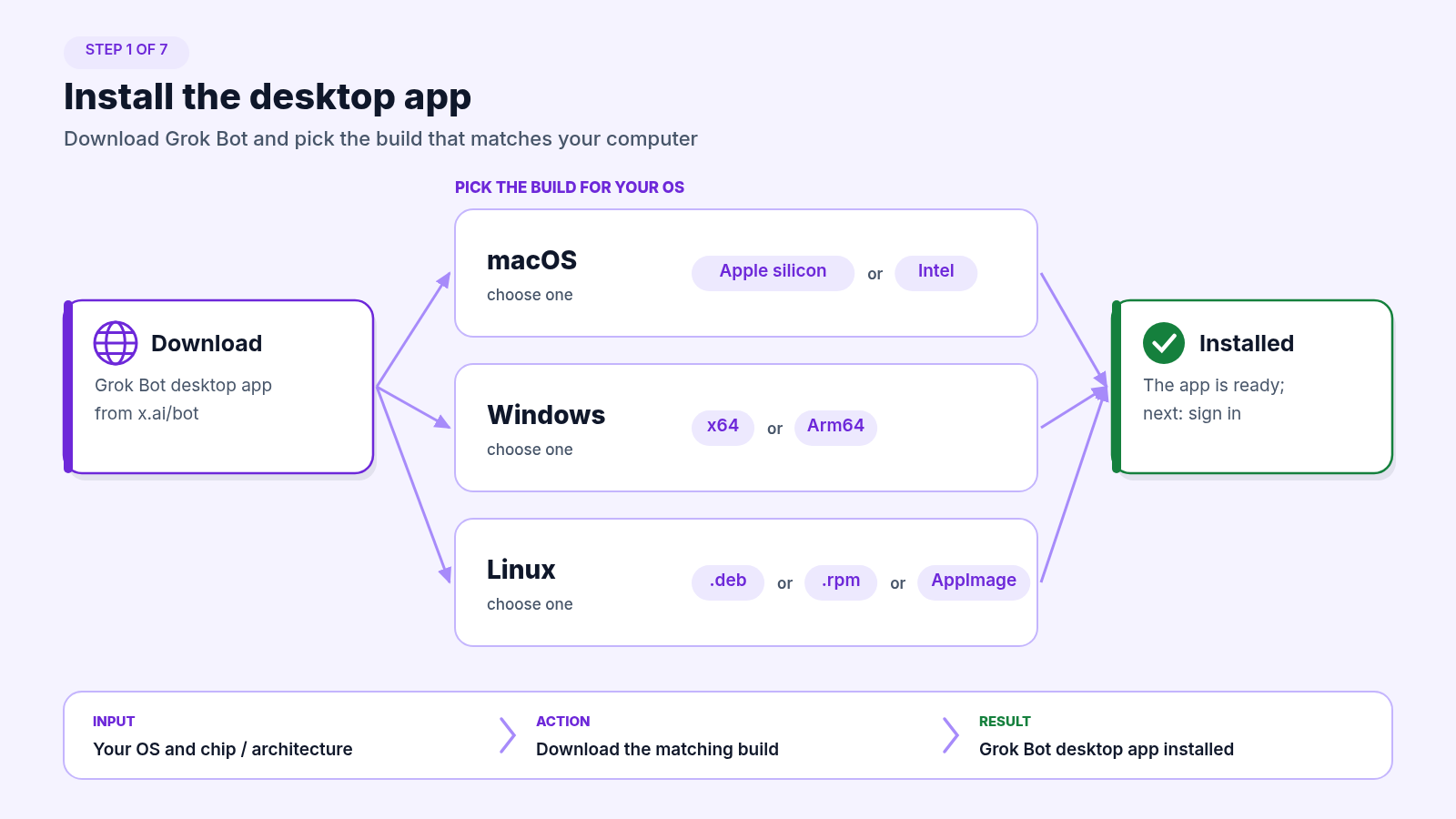
Step 1: Install the desktop app
Download Grok Bot from x.ai/bot. On macOS, choose the Apple silicon or Intel build. On Windows, choose x64 or Arm64. Linux builds come as .deb, .rpm or an AppImage.
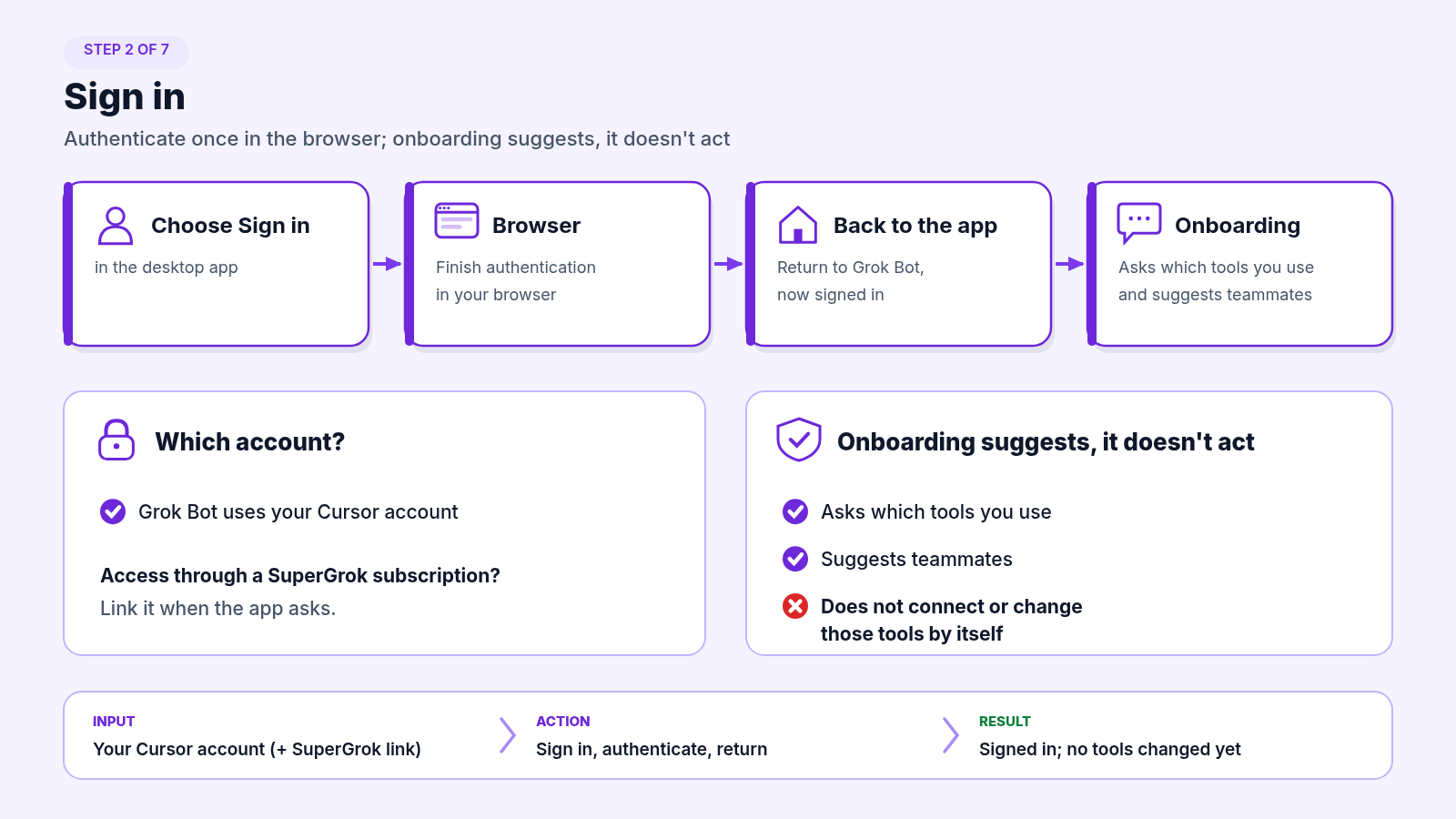
Step 2: Sign in
Choose Sign in, finish authentication in the browser, and return to the app. Grok Bot uses your Cursor account. If your access comes from a SuperGrok subscription, link it when the app asks. Onboarding then asks which tools you use and suggests teammates. It does not connect or change those tools by itself.
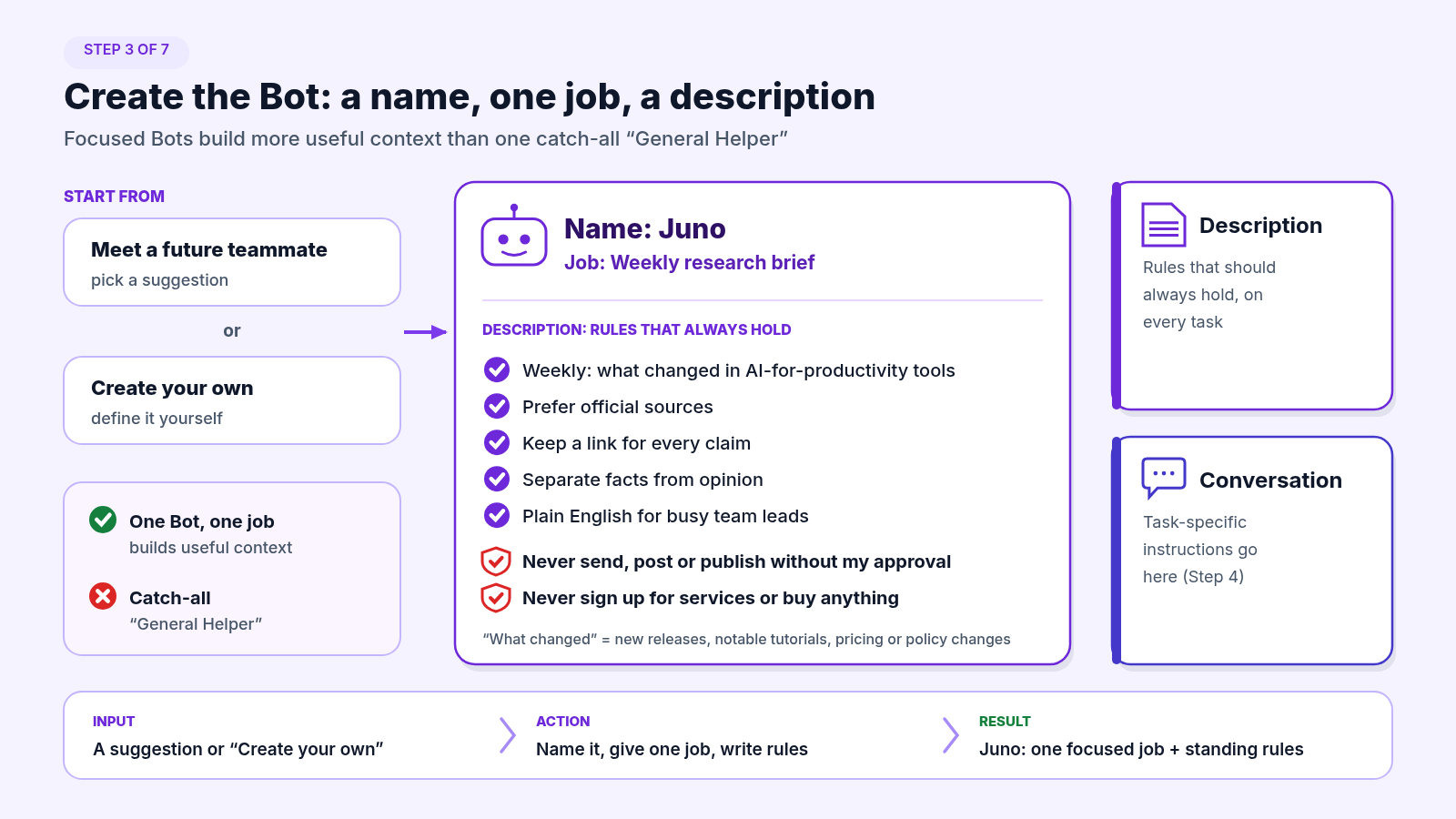
Step 3: Create the Bot: a name, one job, a description
Pick a suggestion from Meet a future teammate or choose Create your own. The docs are blunt: focused Bots build more useful context than one catch-all “General Helper.” Here is the Bot for this tutorial:
Name: Juno
Job: Weekly research brief
Description: Every week, research what changed in AI-for-productivity tools
(new releases, notable tutorials, pricing or policy changes). Prefer official
sources, keep a link for every claim, and separate facts from opinion.
Write in plain English for busy team leads. Never send, post or publish
anything without my approval. Never sign up for services or buy anything.
The description is for rules that should always hold. Task-specific instructions go in the conversation.
Step 4: Give it a first task with five parts
The docs recommend that every request cover the outcome, sources, constraints, deliverable and review point:
Outcome: A research brief on what changed in AI productivity tools in the
last 7 days.
Sources: Official product blogs and changelogs first, then reputable tech
press. Use the attached list of tools we care about.
Constraints: Max 8 items. Skip rumors unless an official source confirms them.
Do not sign in to anything; ask me if a site requires login.
Deliverable: A one-page brief saved in /workspace/briefs/ as a dated
Markdown file, with sections "What shipped", "Worth trying", "Watch list"
and "Decisions needed". Post a 5-bullet summary here.
Review point: Stop after the draft so I can review before anything goes
further.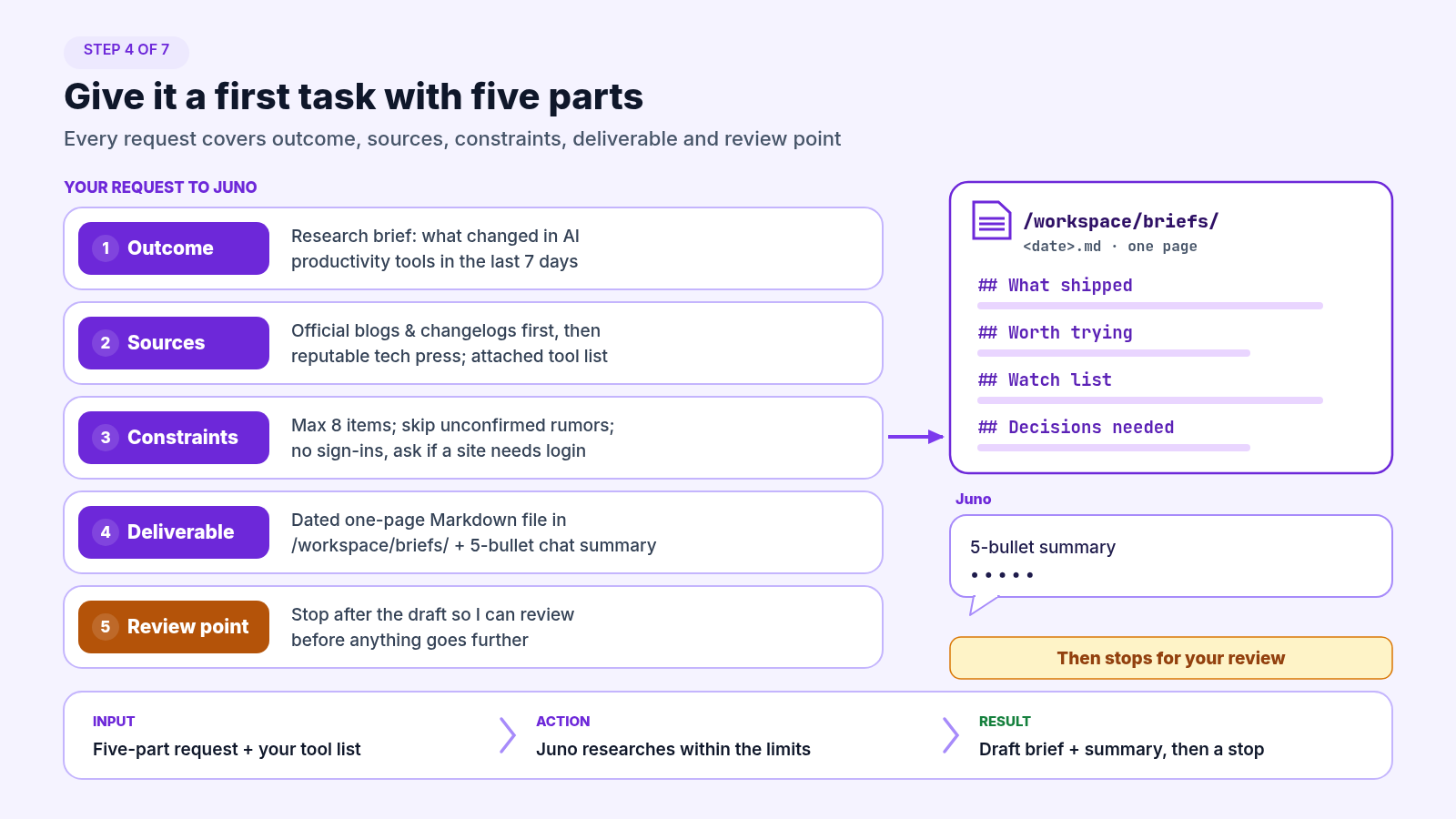
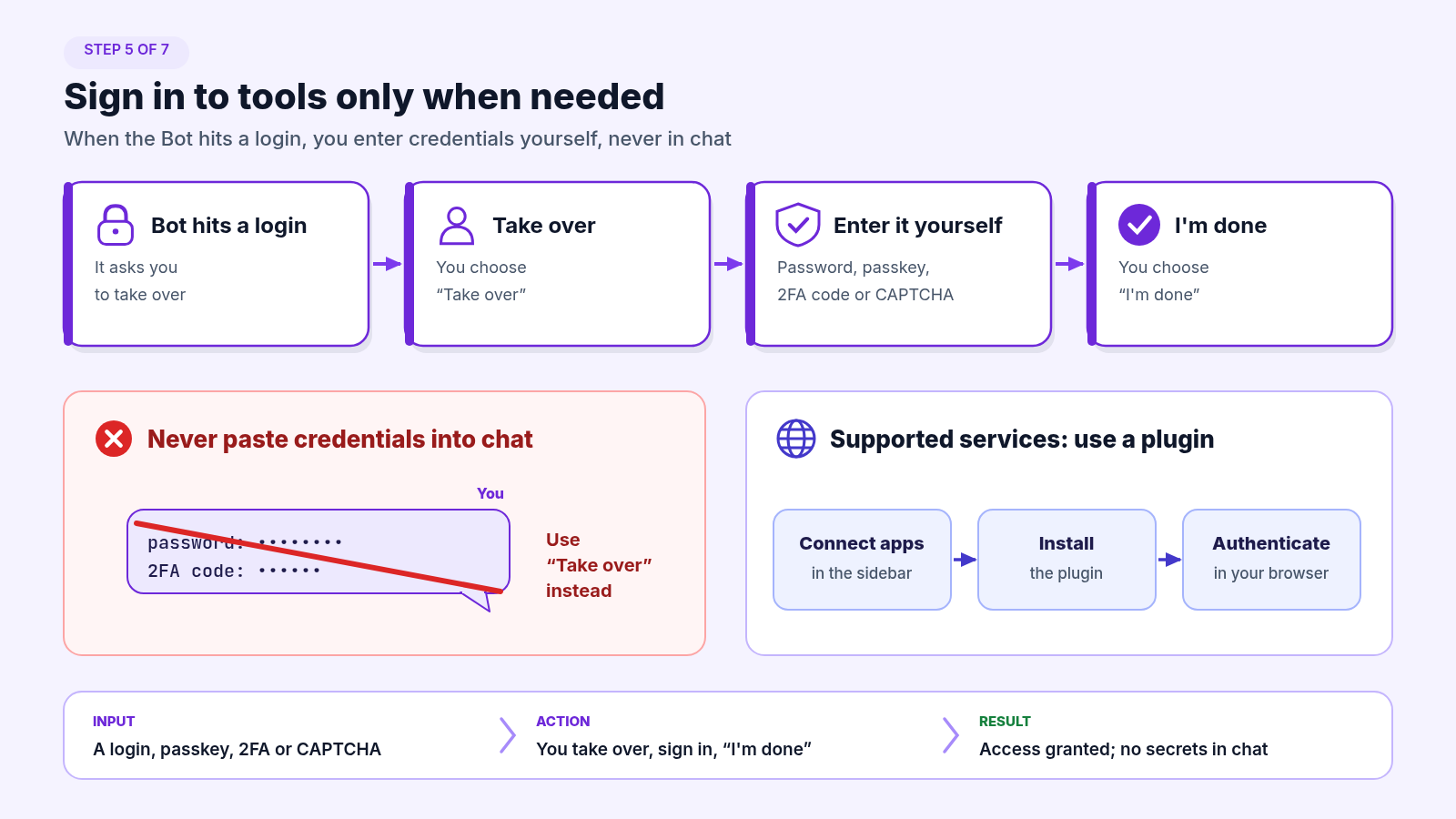
Step 5: Sign in to tools only when needed
When the Bot hits a login, it asks you to take over. Choose Take over, enter the password, passkey, 2FA code or CAPTCHA yourself, then choose I’m done. Never paste credentials into chat. For supported services, install a plugin from Connect apps in the sidebar and authenticate in your browser.
Step 6: Review, correct, and name the lasting preference
Correct anything off. Say explicitly which corrections are permanent:
Use this format for every future brief: 8 items max, source links inline,
one-line "why it matters" per item, and a final "Decisions needed" section.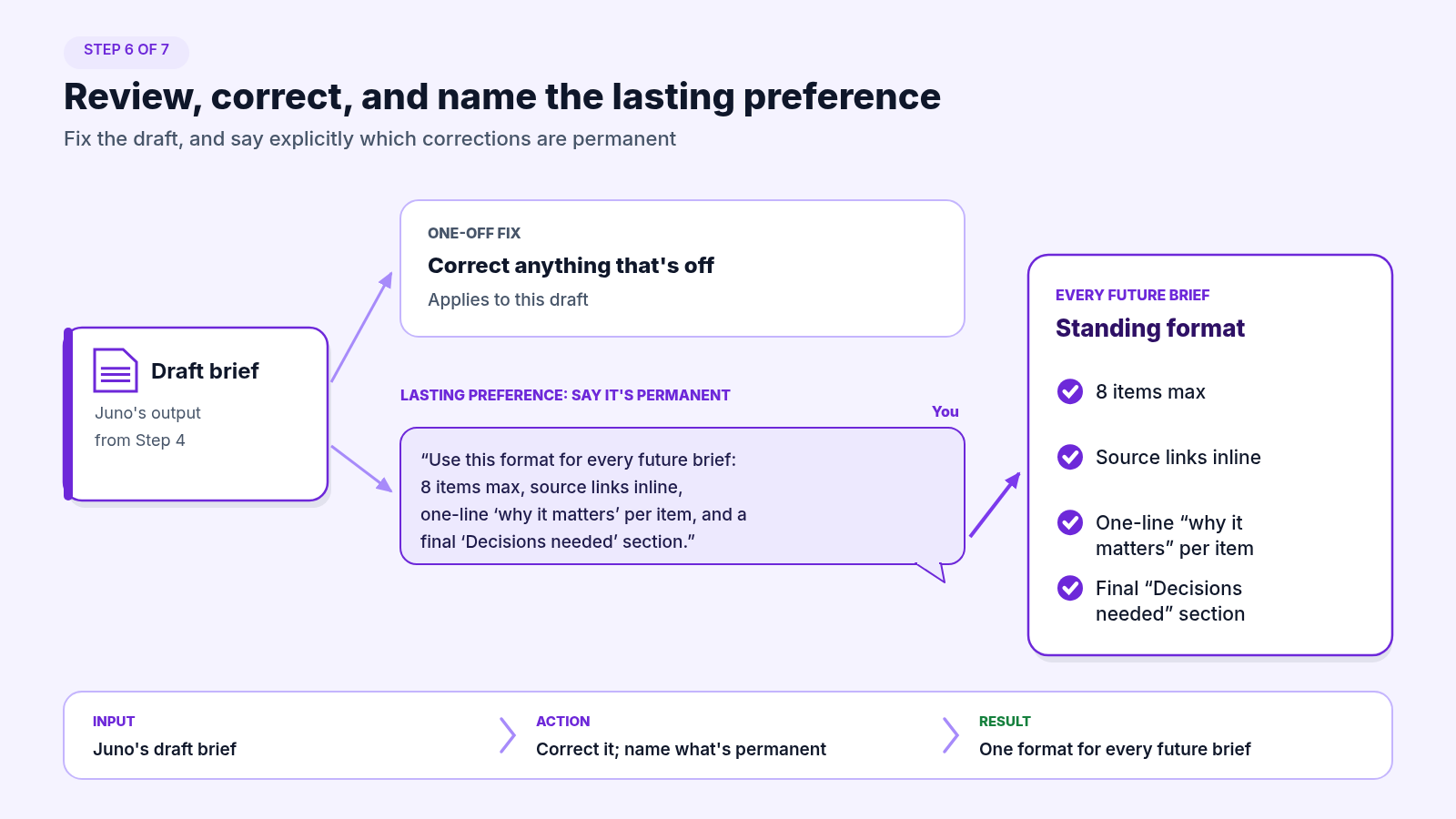
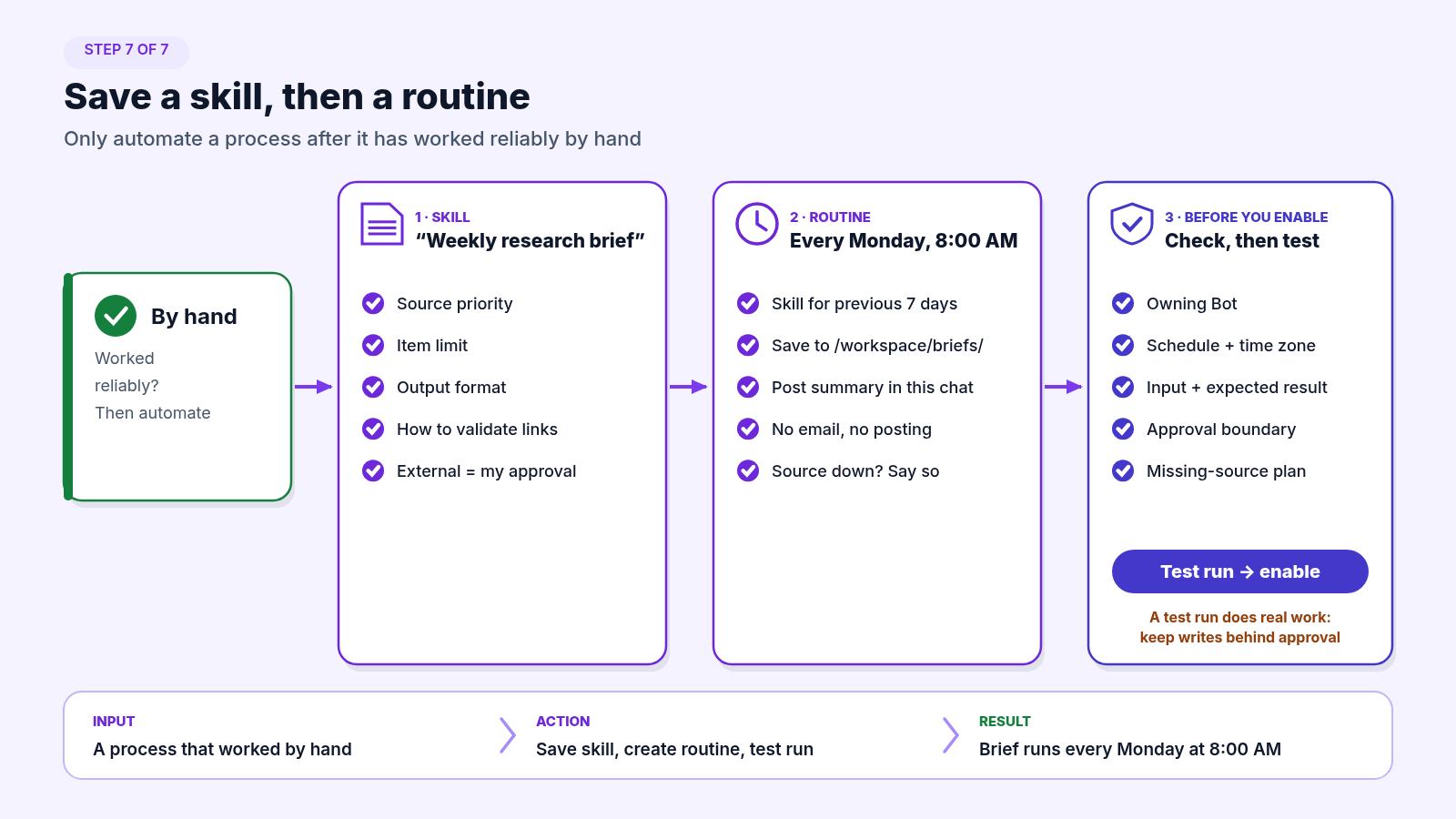
Step 7: Save a skill, then a routine
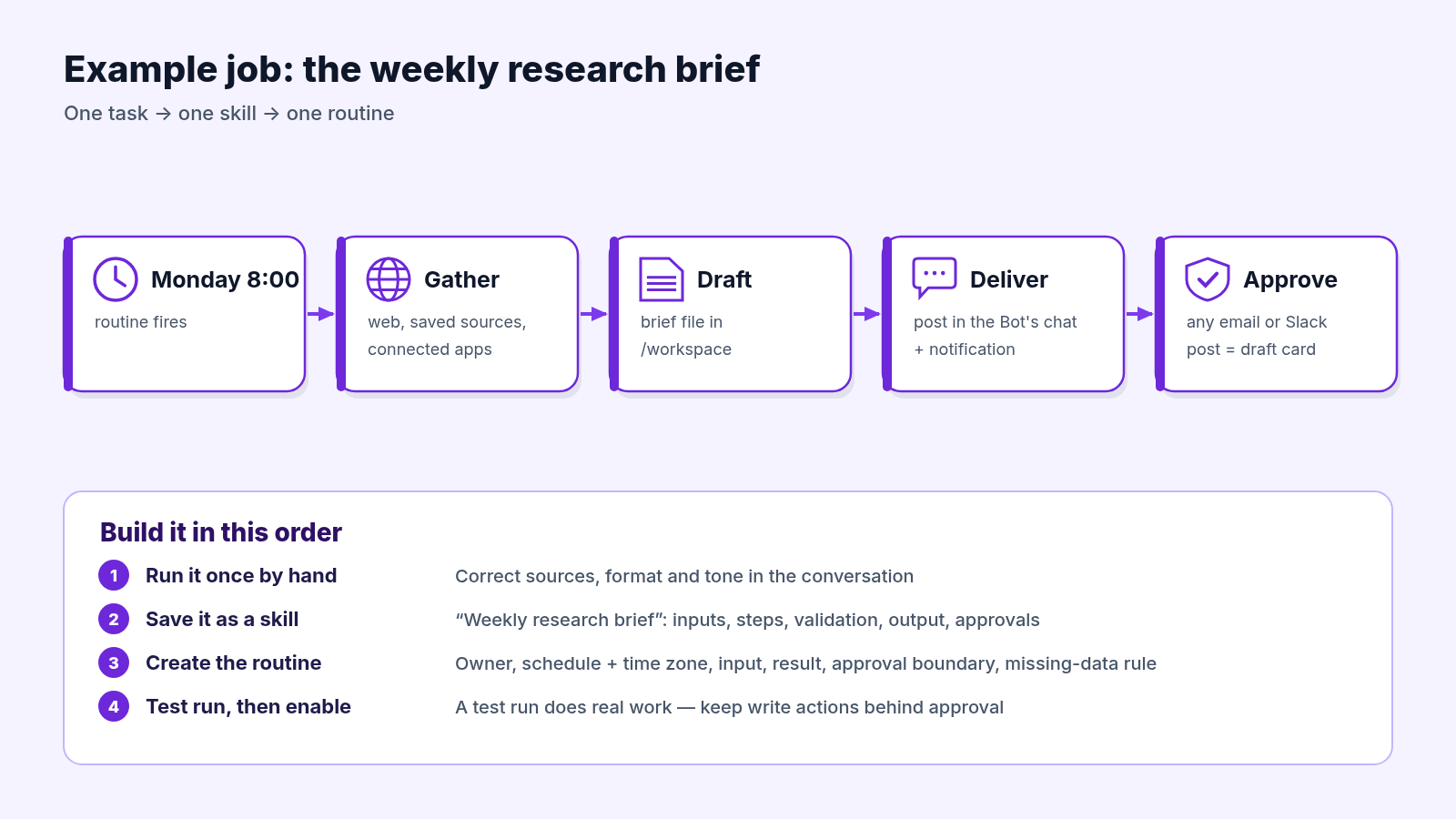
Only automate a process after it has worked reliably by hand. First the skill:
Save the process we just used as a skill called "Weekly research brief".
Include the source priority, the item limit, the output format, how to
validate links, and the rule that anything external requires my approval.
Then the routine:
Every Monday at 8:00 AM, run the "Weekly research brief" skill for the
previous 7 days. Save the file in /workspace/briefs/ and post the summary
in this conversation. Do not email or post it anywhere. If a key source is
unavailable, say so in the brief instead of using old information.
Before you enable it, check the owning Bot, schedule and time zone, input, expected result, approval boundary, and what happens when a source is missing. Then use Test run. A test run performs real work, so keep write actions behind approval.
4. Hired vs. Built: n8n, Agents SDK, and Grok Bot
None of this makes the earlier builds obsolete. It changes which questions you ask before you start.
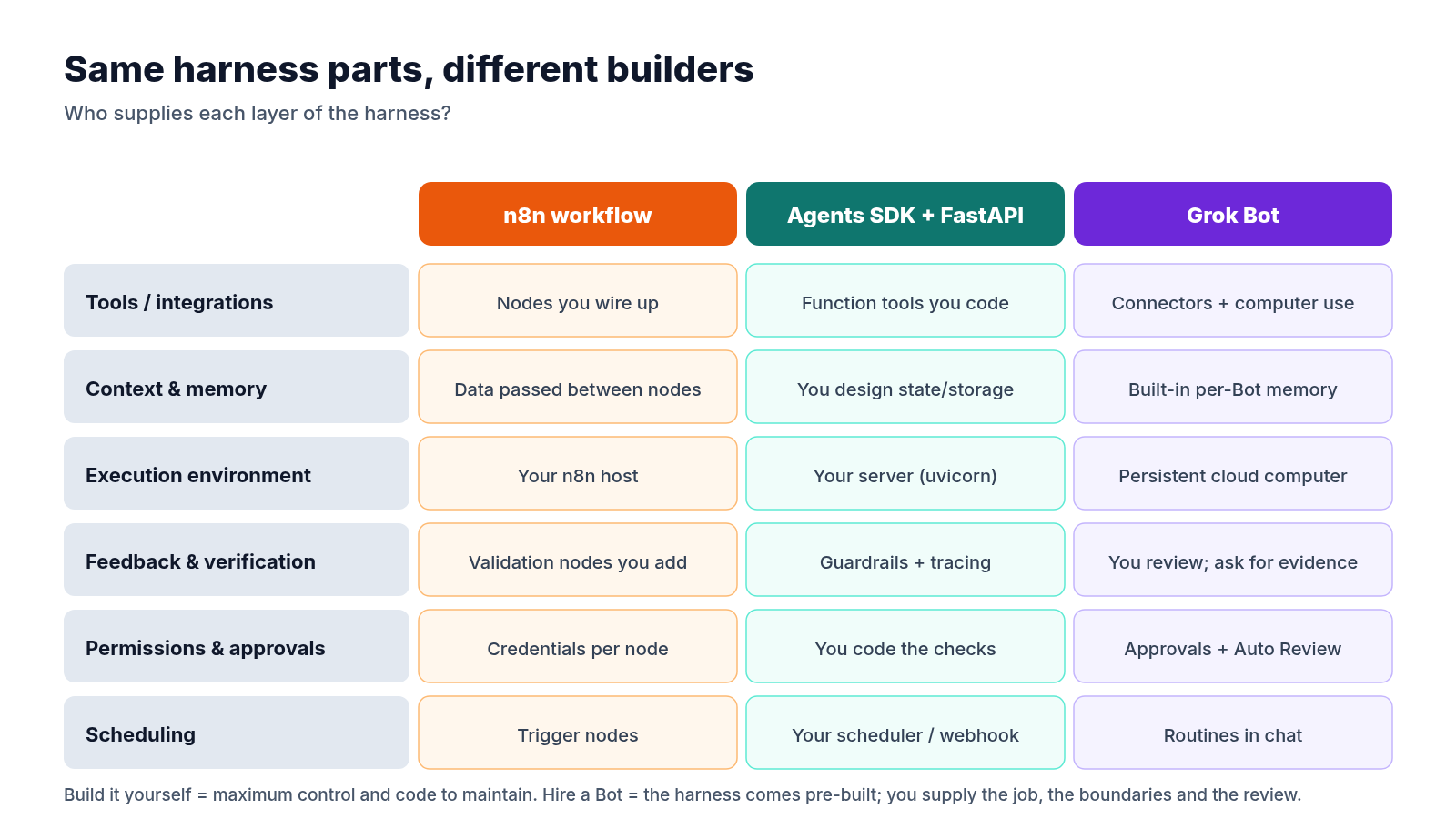
Choose a self-built n8n workflow when…
- The process is deterministic and the same steps should run every time, like webhook → verify identity → classify → log to Sheets.
- You need every node visible and editable by the team, or you must self-host.
Choose an Agents SDK + FastAPI service when…
- AI is part of your product and other systems call it over HTTP.
- You need full control of tool schemas, guardrails, tracing and evaluation.
Choose a Grok Bot when…
- The work is judgment-heavy and spans many tools, including sites with no API.
- You want a teammate that remembers your preferences and improves through feedback, not a pipeline you maintain.
- The finish line is “land it in the real tool,” and a human approval before external actions is acceptable.
5. Safety Basics Before Day One
Reworked’s launch coverage quotes the product calling its shared computer “a real blast radius.” The docs say the same thing in plainer terms. Three rules to set up before the first routine runs:
- One computer, shared by all your Bots. Files, browser sessions and command-line credentials are available to every Bot on your account. Separate Bots are not a security boundary.
- Keep approvals on. Always allow exists, but use narrow rules around known actions, never “allow everything in the browser.”
- Clean up. Sign out of services and uninstall connectors you no longer need.
On compliance, Reworked reports SOC 2 Type II, GDPR compliance and annual penetration testing through Cursor, with ISO 27001 and ISO 42001 audits in progress but neither certification held yet.
6. Lessons Learned
1. One Bot, One Job
A specific job gives the Bot better memory to build on. Add a second Bot only when the work has a stable specialist role.
2. Write the Description Like a Job Contract
The boundaries you’d give a new hire (“never send without approval”) belong in the description, not buried in one conversation.
3. Manual, Then Skill, Then Routine
Automating an unproven process just gets you the wrong answer faster and more often.
4. Memory Is Not a Source of Truth
For consequential decisions, tell the Bot to reopen the current source instead of relying on what it remembers.
Recap and Key Takeaways
- Grok Bot (beta, Aug 11) gives you persistent Bots with a name, a job, memory and a shared cloud computer.
- Setup is a conversation: name, job, description, a five-part first task, then a skill and a routine.
- It is a pre-built harness. You trade some control for speed, and your role shifts to defining the job and reviewing the work.
- Treat the shared computer as one blast radius and keep consequential actions behind approval.
More AI Teammate Ideas Across Business Functions
- Sales: nightly account research that stops at a review list, with no sending or enrolling.
- Finance: weekly expense reconciliation with policy citations and draft follow-ups.
- Customer success: an account-health watch list ranked by evidence.
- Engineering: bug reproduction packs from staging, with no production data.
- Marketing: campaign monitoring and budget recommendations without changing budgets.
- Healthcare operations: preparation work only, keeping patient data inside systems built for it.
Conclusion
In June the advice was to stop shopping for engines and build the car. Grok Bot sells you the car with the harness pre-assembled: computer, tools, memory, schedules and brakes. That doesn’t remove the work. The quality of the job description, the boundaries and your reviews still decides whether the Bot finishes the job or just gets close. Start with one Bot, one job and one weekly brief.
Where to Go Next
- Introducing Grok Bot: the official announcement. → x.ai/news/introducing-grok-bot
- Grok Bot documentation: overview, get started, skills and routines, approvals. → docs.x.ai/grok-bot/overview
- Grok Bot plans and billing: the current eligible plans and how weekly usage works. → cursor.com/help/grok-bot/plans
- Reworked: xAI Wants In on the Enterprise With Grok Bot: launch coverage with security observations. → reworked.co
- The Harness Is the Product: the framework used throughout this post. → Read the story
If you found this guide valuable, consider sharing it with the colleague who keeps saying they need “one more person” on the team. Their first hire might be a Bot.