Your API Key Is Hidden. Here's What It Can Still Do
Grok Bot's secure secret card keeps a key out of chat and away from the model. It doesn't limit what the key can do. Five jobs, five ways to keep the damage small.

In short
- The secure secret card hides the value of a key. It does nothing to shrink what that key is allowed to do.
- Use a connected app if one exists, the secret card if it doesn’t, and never chat, a shell command or a file.
- Treat every key in three stages: set up (scope it), use (fence it with “Ask first” rules), clean up (replace or revoke it).
Picture this
It’s late, and you want a usage report from a service you pay for. You open its dashboard, copy the admin key because it’s the first one listed, and paste it into chat. Grok Bot writes a lovely report.
Two things went wrong. The key now sits in your chat history. And the Bot just held a key that could change your plan, delete projects or run up a bill, for a job that only needed to read numbers.
Grok Bot’s secure secret card fixes the first problem. The field is masked, and “the value isn’t written into the chat or shown to the Bot.” (Vault guide) The security guide adds that it is “excluded from the transcript, and not shown to the model.” (Security guide)
The second problem is yours to solve. A hidden key is still a working key. This guide is about that second problem.
What Grok Bot can and can’t see
Before choosing how to hand over access, know what the Bot actually receives.
| What you hand over | Can the Bot see it? |
|---|---|
| Value typed into a secure secret card | No. The footer says “Stored securely, never shown to your Bot.” (Vault guide) |
| A Team Bot secret’s description | Yes. “The description is visible to the Bot; the value is not.” (Vault guide) |
| A connected app’s sign-in | No. “OAuth tokens are held on Cursor’s connector backend, and the Bot invokes tools without receiving them.” (Apps guide) |
| A login filled by 1Password | No. “1Password fills it in; your Bots never see the values.” (Apps guide) |
| A key pasted into chat, a shell command or a file | It loses that protection. The docs say never to do this. (Vault guide) |
Saved payment cards follow different rules, and we cover them in Set Up Grok Bot’s Vault Safely. This guide sticks to API keys and other secrets.
The description trap
That second row is easy to miss. On a Team Bot, you add a secret with an environment variable name, a short description and the value. The Bot can read the description. (Vault guide)
Our advice: write descriptions that say what the key is for, not what it unlocks. “Read-only key for the monthly usage report” is fine. An account ID, an admin email or a hint about the value is not.
Pick the safest path first
Think of it as a ladder. Start at the top and only step down when you have to.
- Connect the app. If the service has a Grok Bot app, use its Authorize flow. The token stays off the Bot’s computer, and the app “can do only what that account can already do in that service. It cannot raise your access.” (Apps guide)
- Use the secure secret card. For “an API key or another secret that isn’t a login or card,” enter it in the card when the Bot asks. (Vault guide) On a Team Bot you own or manage, add it under Secrets instead.
- Never paste a password, one-time code or API key “into ordinary chat, a Shell command, or a file on the computer,” and don’t type secrets into a demonstration when you use Teach a task. (Vault guide)
Rule 3 matters more than it looks. Every Bot on your account shares one cloud computer, and “files are visible to every Bot” and “command-line credentials are shared.” (Apps guide) A key left in a file is a key every Bot can use.
Set up, use, clean up
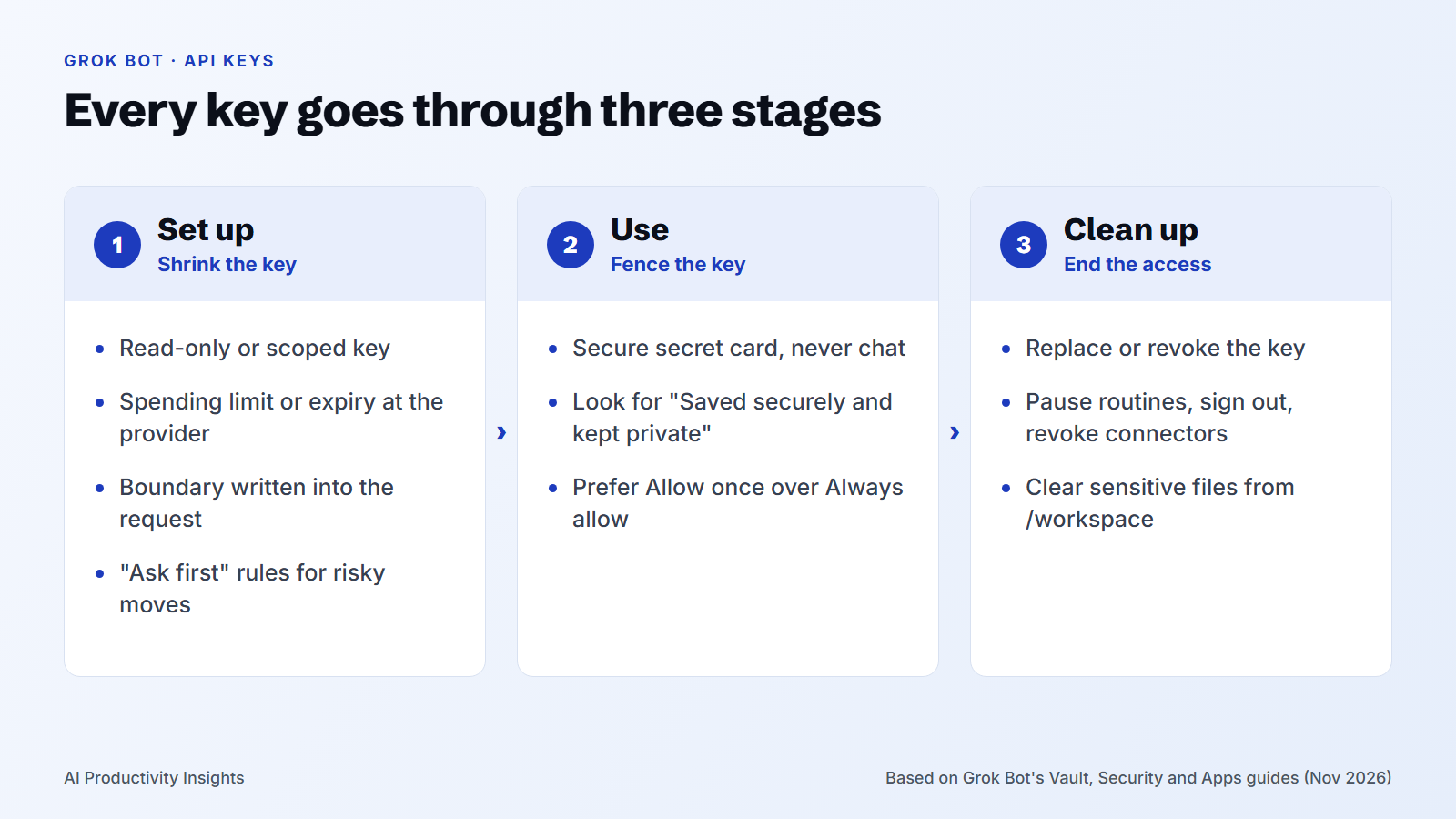
Set up: shrink the key before you hand it over
- Scope it at the provider. Grok Bot recommends you “use scoped service accounts where the source system supports them” and “start with read-only tasks and draft outputs.” (Security guide) In practice, that means making a new key with only the permissions the job needs.
- Cap it at the provider too. Our advice: if the service supports spending limits or expiry dates on keys, set them. An instruction in chat is not a spending cap.
- Write the boundary into the request. The security guide’s own example tells the Bot what to do, what not to do, and when to stop and ask. (Security guide)
- Add “Ask first” rules for the risky moves. Under Settings → General, in the Bot section, open Custom Rules. Describe the action under When Grok Bot wants to:, choose Ask first under It should: and press Add Rule. (Security guide) “Ask first” rules always stop matching actions, and if both kinds of rule match, “Ask first” wins.
Use: watch the card and the approvals
When the Bot sends a secure secret card, enter the key in the masked field and choose Save securely. The card should then say Saved and Saved securely and kept private. (Vault guide)
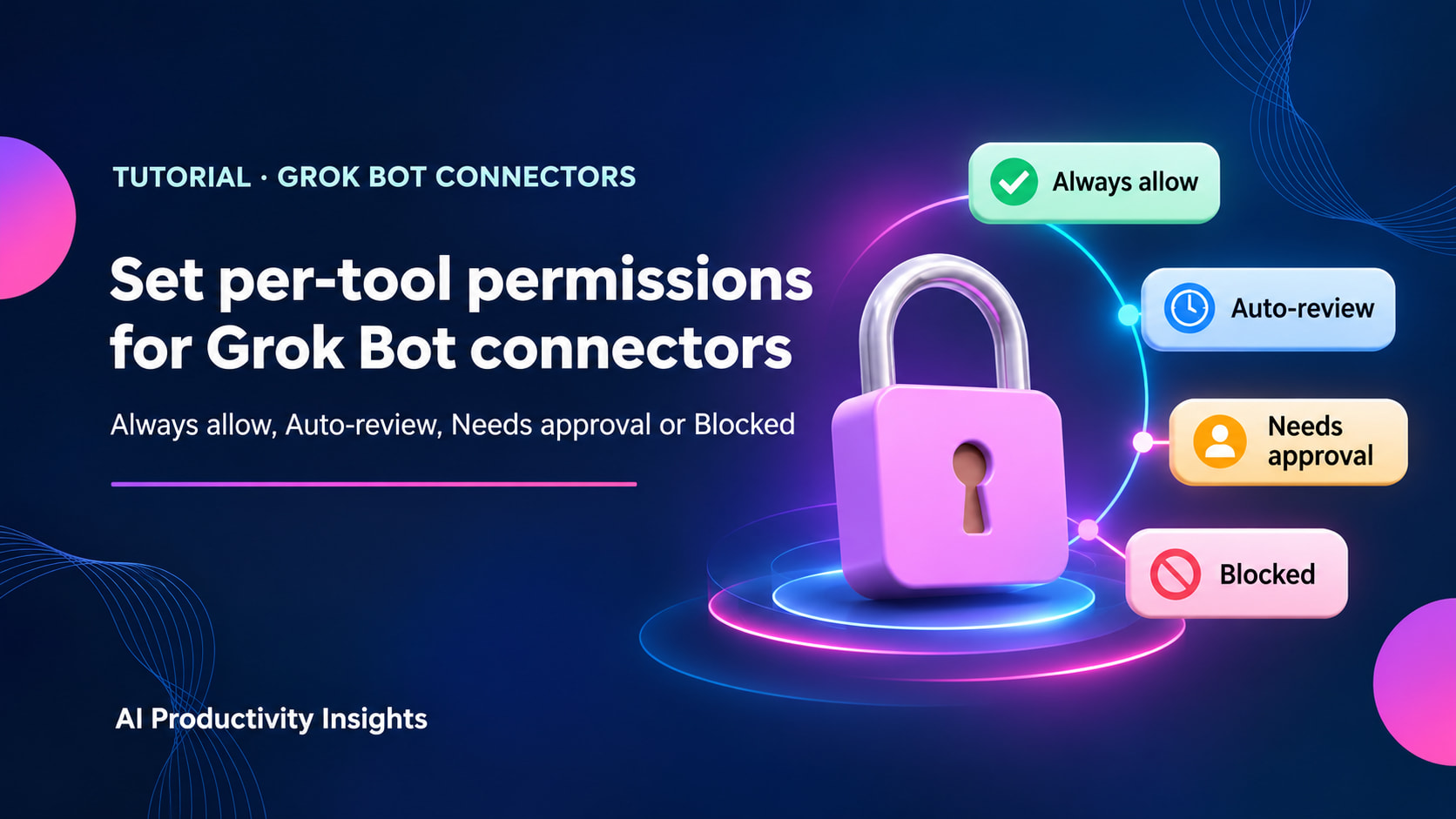
While the Bot works, Auto Review checks each action before the Bot runs a command, uses a connected app or uses its computer. When an action needs you, you get an approval card. (Security guide) Read the buttons carefully:
- Allow once runs the action now and saves no rule.
- Always allow runs it now and saves an Allow rule, so similar actions run on their own next time.
- Deny stops it, and the Bot won’t try again until you send another message.
If a key can spend money or delete data, prefer Allow once. And remember that “an approval controls the proposed action. It does not reverse work already completed.” (Security guide)
Clean up: end the access on purpose
- Replace or revoke the key. On a Team Bot, open Secrets, choose Replace, paste the new value and choose Replace value. You can’t read the old value back. (Vault guide) Our advice: also revoke or rotate the key at the provider once the job is done, especially if it had write access.
- Run the removal checklist. Pause or delete related routines, sign out of websites on the shared computer, uninstall connectors and revoke them in the source service, and remove sensitive project files from
/workspace. (Security guide) - Don’t count on deleting a Bot. “Deleting a Bot does not remove shared-computer files or browser sessions.” (Security guide)
Five jobs, five keys
These are example workflows, not tested walkthroughs. Whether each one works depends on the service and the access it offers.
Job 1: A monthly usage and billing report
- Safest access: a read-only key, entered in the secure secret card.
- If it goes wrong: a full-access key could change your plan or settings. A read-only key can only read.
- Fence: an “Ask first” rule for changing account settings.
Try this prompt: Pull last month’s usage and charges and summarize them in a table. Ask for any API key with a secure secret card. Read only: don’t change my plan, payment details or settings.
Job 2: Investigate a disputed Stripe charge
- Safest access: the Stripe app, not a pasted key. The Bot works through the connected account without receiving its token. (Apps guide)
- If it goes wrong: a refund or cancellation you didn’t mean to approve.
- Fence: an “Ask first” rule for refunds and cancellations. Expect to reconnect from time to time, because “Stripe ends every connection a fixed time after sign-in.” (Apps guide)
Try this prompt: Look into this disputed charge and draft a recommended resolution. Show me the transaction and your reasoning first. Don’t issue a refund, cancel a subscription or message the customer.
Job 3: Inventory a cloud account
- Safest access: a scoped, read-only service account. (Security guide)
- If it goes wrong: deleted or resized resources, or changed permissions. Also, command-line credentials on the Bot’s computer are shared by every Bot on your account. (Apps guide)
- Fence: “Ask first” for any production change. Remove the credential from the computer when you’re done.
Try this prompt: List the resources this read-only account can see and draft a short review. Don’t create, resize, restart or delete anything, and don’t change networking or permissions. Ask for the key with a secure secret card.
Job 4: Test an AI API on a budget
- Safest access: a project key with a provider-side spending limit, entered in the secure secret card.
- If it goes wrong: a loop of paid requests. Hiding the key doesn’t cap the bill.
- Fence: ask for a plan and a cost estimate first, then approve the run with Allow once.
Try this prompt: Draft a test plan for these prompts: model, number of requests and estimated cost. Wait for my approval before making any paid request. Ask for the project key with a secure secret card.
Job 5: Share a key on a Team Bot
- Safest access: the Team Bot’s Secrets list, with a neutral description. Your personal Vault isn’t available on Team Bots. (Vault guide)
- If it goes wrong: every teammate can use it. “Secrets on a Team Bot are used in every teammate’s chat.” (Vault guide)
- Fence: only add keys “you’re happy for everyone who can chat with the Bot to use” (Vault guide). Our advice: use Replace to rotate it when someone leaves the team.
Try this prompt: Use the REPORTS_API_KEY secret to pull this week’s numbers for the team summary. Read only. Don’t create, change or delete anything in the reporting tool.
Three myths about hidden keys
“A blank field means the key is gone”
No. After you save a secret, Grok Bot doesn’t show the value again, so “a blank field later is not proof the secret was deleted.” (Vault guide) On a Team Bot, if the name is still listed under Secrets, the value is still stored.
“Separate Bots keep my keys separate”
No. All your Bots share one computer, and each Bot’s screen is a separate work surface, “not separate security boundaries.” (Apps guide) The security guide puts it plainly: “Do not use separate Bots as a security boundary.” (Security guide)
“An update wiped my secret”
Probably not, if you saved it properly. Recover, Reset and computer updates remove installed apps and packages, so a key typed into a file, a shell profile or an installed tool can disappear with them. Keys saved with the secure card, under Secrets or in Vault are separate. (Vault guide) That’s one more reason to keep keys out of files.
One more fence: text the Bot reads isn’t your permission
A key is most dangerous when someone else tries to steer it. Grok Bot’s Auto Review “takes into account what you asked for in your own messages,” and “text from somewhere else, such as an email or a web page, doesn’t count as your request.” (Security guide) For email, “instructions inside an email never count as your permission to send or act.” (Apps guide)
That’s a useful safety net, but Grok Bot itself says Auto Review “is model-based and should complement, not replace, least privilege and explicit approval boundaries.” (Security guide) A small key is still your best defence.
The bottom line
The secure secret card answers one question: how do I hand over a key without exposing it? The rest of the job is yours: hand over a smaller key, fence it with “Ask first” rules, and end the access when the work is done.
Sources
- Grok Bot Docs: Vault and secure sign-in, last updated 19 November 2026
- Grok Bot Docs: Approvals, security, and privacy, last updated 13 November 2026
- Grok Bot Docs: Use the computer and apps, last updated 19 November 2026