Set Up Grok Bot's Vault Safely: Saved Logins and Cards for Your Bots
Vault lets your Bots sign in and check out without ever seeing your passwords or card numbers. But it's shared by every Bot on your account, and there's no per-payment approval for saved cards. Here's what to save, what to keep out and how to stay in control of payments.
Introduction
Grok Bot’s v0.75.5 release notes (October 23, 2026) add Vault: “Bots can save your logins, cards, and contact info to a Vault in Settings and fill them in to sign in or check out.” The same note says it requires Grok Bot 0.75.2 or later (still the documented minimum as of Nov 1, 2026).
That’s a real convenience. It’s also a real decision, because two details in the help page change how you should set it up:
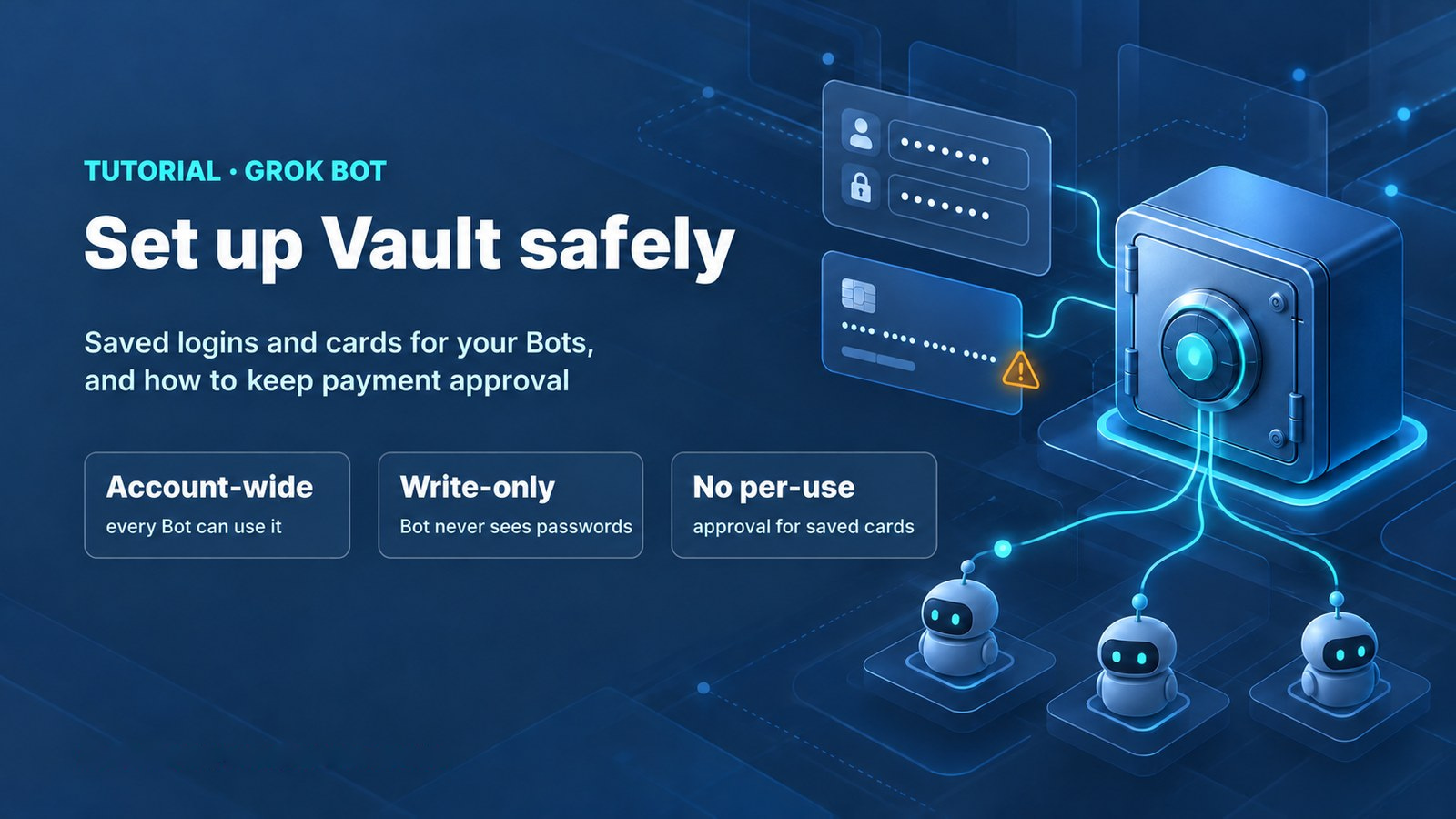
- Vault is account-wide. Every Bot on your account can use every item, and you can’t limit an item to one Bot.
- There’s no per-payment approval for saved cards. In the help page’s words, “there’s no setting that requires your approval each time a saved card is used.”
So the safe setup isn’t about finding an approval switch. It’s about choosing what goes into Vault in the first place. This tutorial is based on Grok Bot’s help documentation; we haven’t run a hands-on test, so the diagrams below are illustrations, not screenshots.
1. How Vault Works
Where it lives
Vault is in Settings > Vault, on desktop and phone.
What it holds
| Item type | Fields |
|---|---|
| Logins | Website, username or email, password |
| Cards | Number, expiry, security code, name, billing address |
| Contact info | Names, addresses, phones, emails |
What your Bot can and can’t see
A Bot never sees a saved password, card number or security code. It can see your contact info and which logins you’ve saved. Vault is write-only in the app too: passwords stay hidden, and cards show only their last four digits.
Who can change what
- A Bot can edit contact info, and an entry’s nickname and hints, when you ask.
- Passwords, usernames, websites, card numbers and security codes change only in Settings > Vault.
- Logins and cards can be removed only in Settings > Vault.
- On the phone, saved cards can’t be edited yet. To change a card number, remove the card and add it again.
Where a Bot looks for a login
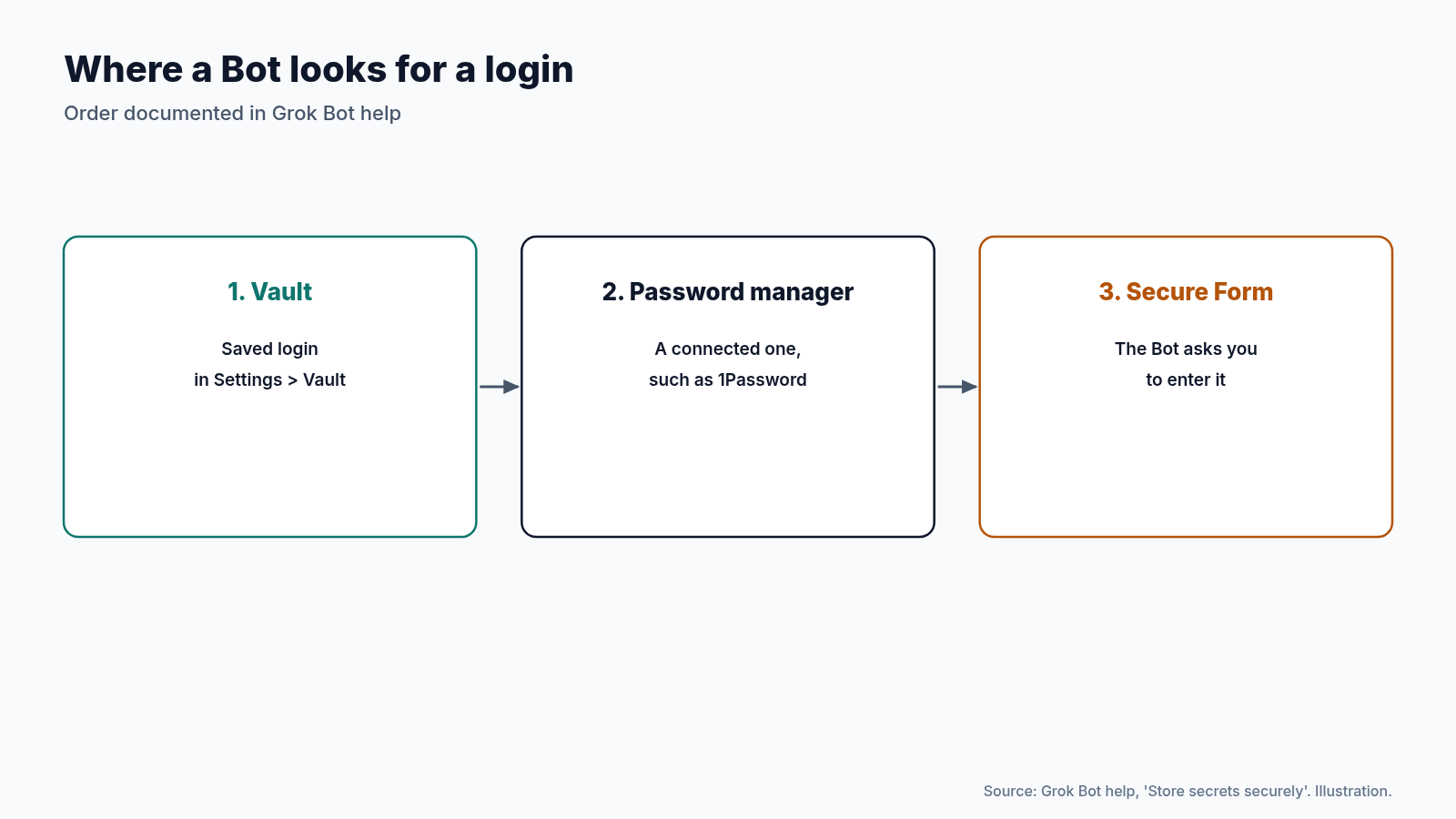
When a site needs a sign-in, a Bot tries a saved Vault login first, then a connected password manager such as 1Password, and then asks you through a Secure Form.
2. Decide Your Policy First
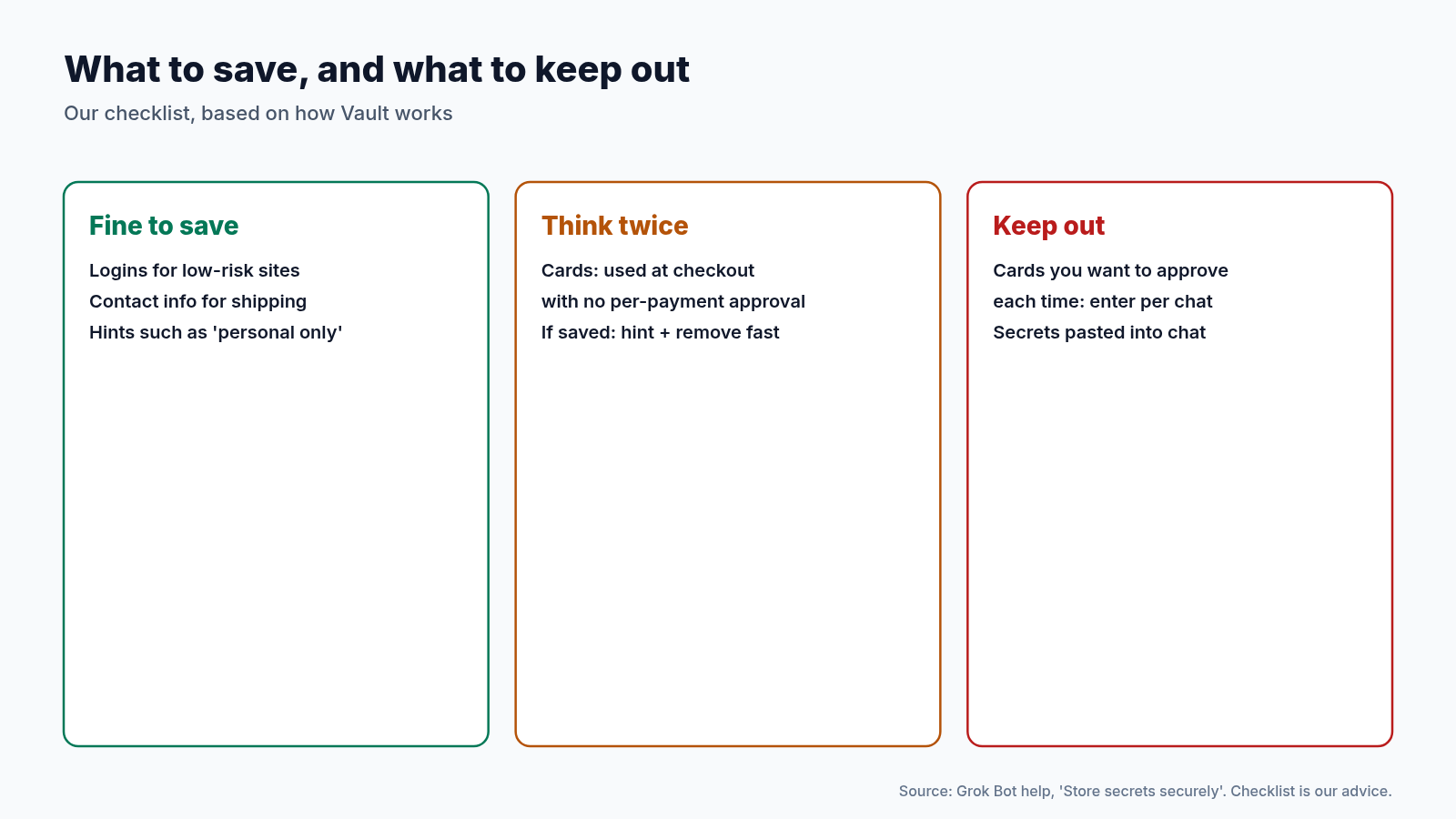
Before you add anything, decide what belongs in Vault. Here’s our checklist (our advice, built on how Vault is documented):
- Save: logins for low-risk sites, and contact info you use for shipping.
- Think twice: cards. A saved card can be used at checkout without asking you each time.
- Keep out: any card you want to approve payment by payment. Enter it per chat instead (Step 5).
- Remember the scope: every Bot on your account can use every saved item, and you can’t limit an item to one Bot.
3. Step by Step
Step 1: Update and open Vault
Make sure you’re on Grok Bot 0.75.2 or later, then open Settings > Vault.
Step 2: Add a login
Choose New item > Login. Fill in Website, Username or email and Password, then select Save login.
If a Bot creates a new account for you and picks the password at sign-up, Vault generates and saves it, and the Bot never sees it.
Step 3: Add hints
Each entry can have a hint that the Bot follows when it chooses an item, such as “Use for work purchases” or “personal shopping only.” Hints are the closest thing Vault has to rules about which item to use, so write them for every login and card you save.
Step 4: If you save a card, limit the damage
- Prefer a low-limit or virtual card from your bank. That’s our advice, not a Grok Bot feature.
- Add a hint, such as “Use for work purchases.”
- Know how to remove it fast: Settings > Vault, select the card, then Remove.
Step 5: Keep approval: enter cards per chat
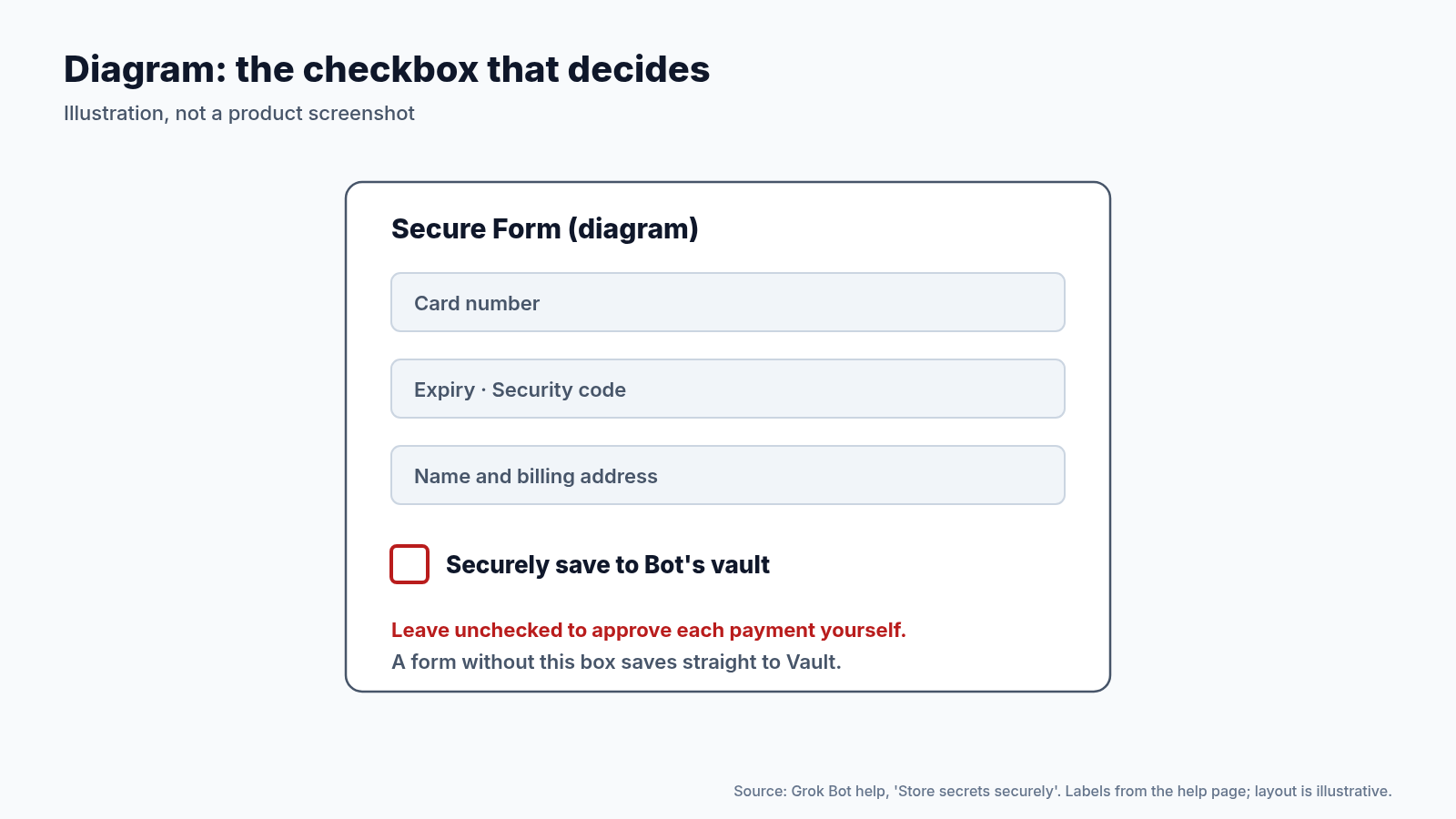
This is how you keep a say on every payment. When a Bot needs a card at checkout and shows a Secure Form, leave “Securely save to Bot’s vault” unchecked. The card is used only in that chat and isn’t saved to Vault.
One catch: a Secure Form without that checkbox saves straight to Vault. If you don’t want the item saved, don’t submit that form.
Step 6: Optional: import from your password manager
On desktop, you can import a CSV export from 1Password, Chrome or Edge, Safari or Apple Passwords, Firefox, Bitwarden or LastPass. The file is read locally and never uploaded, and it must be under 5 MB. Sites that aren’t https, and rows with errors, are skipped.
Then delete the CSV. It’s unencrypted.
Step 7: Watch auto-saved contact info
Names, addresses, phones or emails you give a Bot in chat are saved as contact info after the task, and the Bot tells you when it does. If you don’t want something kept, say so.
Step 8: Review once a month
Open Settings > Vault, remove logins and cards you no longer use, and check what contact info has been saved. That’s our routine; the help page doesn’t set a schedule.
4. Saved Card vs Per-Chat Card
| Save to Vault | Per chat (box unchecked) | |
|---|---|---|
| Reused next time | Yes, by every Bot on the account | No, it isn’t saved |
| Approval per payment | No setting for it | You enter the card each time |
For logins, a connected password manager such as 1Password is the Bot’s next stop after Vault, so it’s reused too.
5. Shared Bots
Vault isn’t supported on shared Bots. For a shared Bot, add API keys under Secrets instead, as the help page describes.
6. Safety Notes
- Don’t paste secrets into chat, the shell or files. Use Vault or a Secure Form.
- A blank field isn’t proof of deletion. For API keys, the help page points to the secure secret card. Once you save a secret, Grok Bot never shows its value again, so a field that looks blank later doesn’t prove the secret was deleted.
- Approvals elsewhere got smarter. In the same release, Auto-review asks less often for actions you asked for in your own words, and after you deny an approval card, the Bot stops and doesn’t retry until your next message. That doesn’t add approval for saved cards.
Our tip (practical advice, not a vendor claim): start with logins and contact info only. Use Bots for a few checkouts with per-chat cards, and only save a card once you’re comfortable letting every Bot on your account pay with it unasked.
Conclusion
Vault is a clean design for secrets: your Bots can use them without seeing them. The trade-off is scope. Everything is shared across your Bots, and a saved card means no per-payment approval. Save logins and contact info freely, think hard before saving a card, and when you want to approve every payment, leave the save box unchecked or remove the card.
Where to Go Next
- Grok Bot changelog (v0.75.5, Oct 23, 2026) → x.ai
- Grok Bot help: Store secrets securely → cursor.com
- Hire Your First AI Teammate: Setting Up Grok Bot for Real Work → Read the story
- Keep Your AI Chats Private: Locked Chats, Share Links and What Never to Paste → Read the story
- Give Your AI Agent a Short Leash: 5 Permission Settings to Check Today → Read the story
- Before You Connect a Personal AI Agent: A 10-Minute Privacy Checklist → Read the story
Know someone about to give their Bots a credit card? Send them this first.