How to optimize your Grok Bot usage effectively
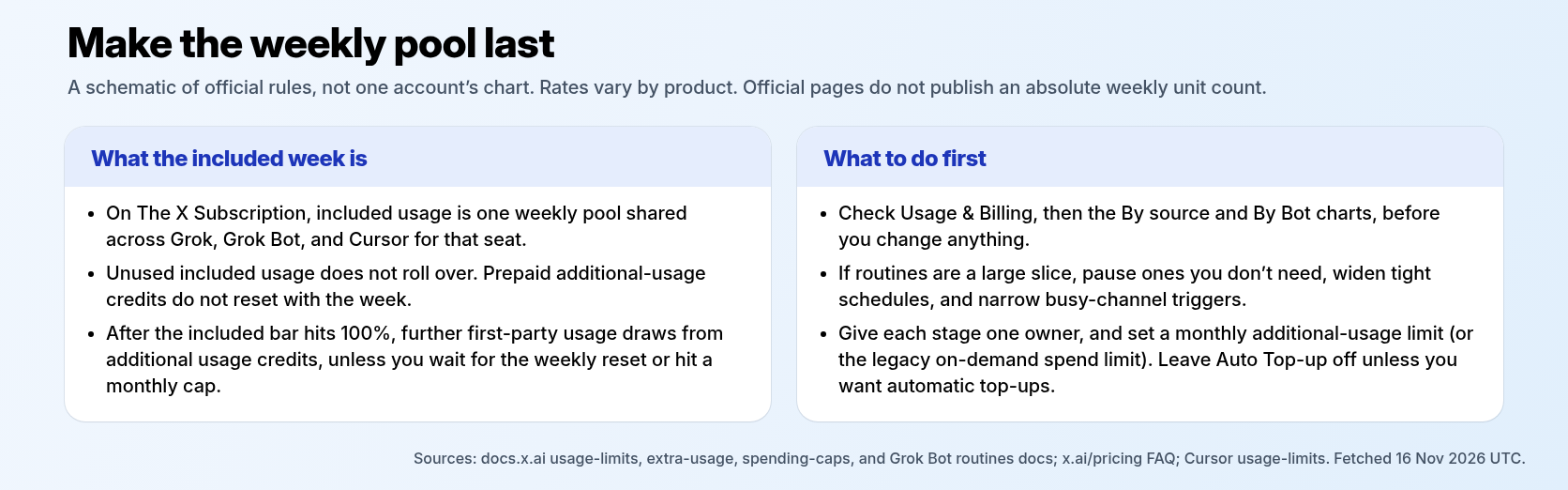
Included usage is a weekly bar, and on The X Subscription it is the same pool Grok and Cursor draw from. See where the week went, then cut what doesn't need to run.

Included Grok Bot usage is a weekly bar. On The X Subscription, it is also the same pool that Grok and Cursor draw from for that seat — not a Grok Bot-only meter. If the bar hits 100%, or the week runs out sooner than you expected, the fix is to see where the usage went, then cut work that does not need to run. This tutorial does not claim a typical split or a promised saving. Official pricing pages give relative multipliers by plan, not an absolute weekly token or dollar amount.
If you are still setting up Grok Bot, see the live tutorial Hire Your First AI Teammate. This post is about Usage & Billing, not that setup, and not about the ChatGPT and Codex shared usage pool.
Step 1 — Check your usage
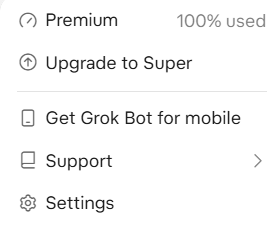
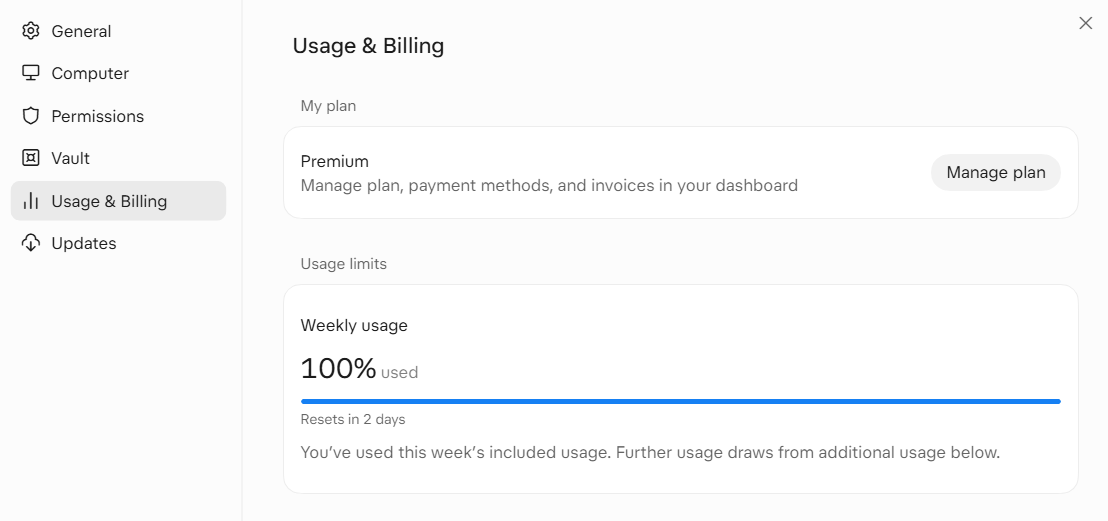
In the Grok Bot desktop app, open the account menu from the sidebar account button (avatar and account name) at the bottom left. You should see your plan and weekly usage at a glance, and items such as Upgrade to Super, Get Grok Bot for mobile, Support, and Settings. Official settings docs also describe that at-a-glance weekly usage. The account menu does not contain a Usage & Billing item. Choose Settings, then the Usage & Billing tab. Keyboard: Cmd+, on macOS or Ctrl+, on Windows and Linux, or the command palette’s “Open settings” command.
Official settings docs list up to five Usage & Billing sections, always in this order: My plan, Usage limits, Grok Bot usage (By Bot or By source), Additional usage (Credits, Buy credits, Auto top-up, and a Monthly additional usage limit — or the On-demand monthly limit, depending on the plan), and Resets. As shown in the app, screenshot dated 16 November 2026, the settings tabs include General, Computer, Permissions, Vault, Usage & Billing, and Updates. Official docs, checked the same day, list those tabs except Permissions; this tutorial does not describe what that tab contains.
You should see My plan with the current plan name and a Manage plan button (“Manage plan, payment methods, and invoices in your dashboard”). Under Usage limits, you should see a Weekly usage heading, a bar for the included week, a line for the next reset, and — if the included week is used up — this official notice:
You’ve used this week’s included usage. Further usage draws from additional usage below.
The reset countdown and the date range on the chart are for that account’s week; read your own reset line. You can also open Usage at grok.com/dashboard and additional usage credits at grok.com/dashboard/billing. Official docs: you can ask your bot about plan and usage in a private chat, owner only. When a usage warning appears, Review Usage asks the bot to review it.
Step 2 — Read the three sources
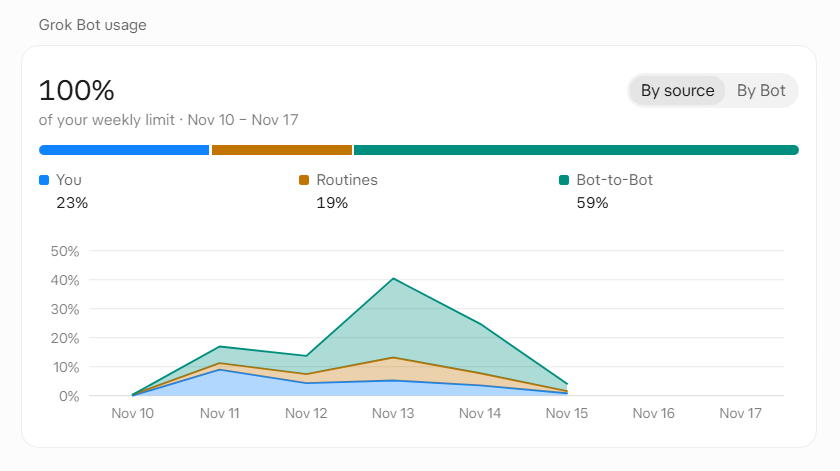
Scroll to the section titled Grok Bot usage. The chart toggles are By source and By Bot — not “By Resource.” Official settings docs: “Grok Bot usage charts your Grok Bot usage, By Bot or By source.”
With By source selected, you should see the labels You, Routines, and Bot-to-Bot, as shown in the app, screenshot dated 16 November 2026. Public docs confirm the By source / By Bot chart, but they do not define those three names. The meanings below are inferred from the screen, not an official glossary:
- You — work started from your own messages.
- Routines — scheduled or event-triggered routine runs.
- Bot-to-Bot — messages and handoffs between bots. Official chat docs: “Every Bot reply counts toward your usage, including replies in a group and messages between Bots.”
Do not add Group chats or Other unless your own chart shows them. The 16 November screenshot shows only the three labels above. The shares on that chart are one account’s week, not a typical split. Read your chart, and start with the largest slice.
Step 3 — Check the By Bot view
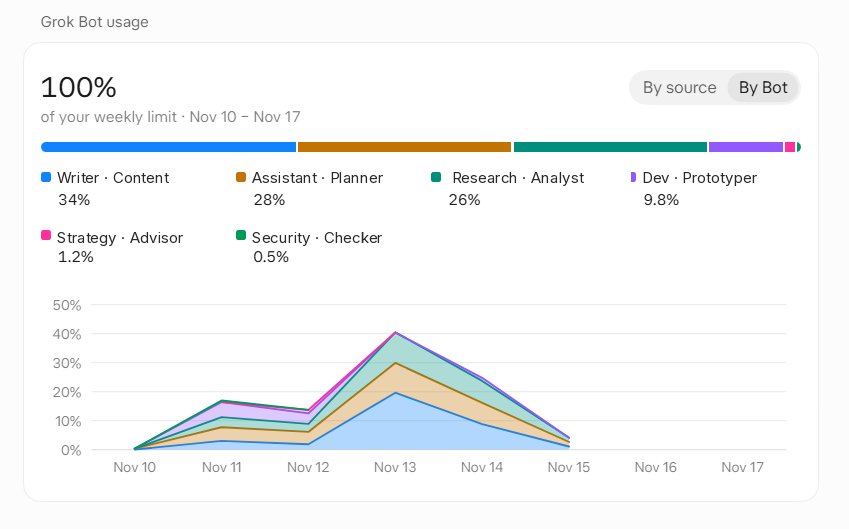
Switch the same chart to By Bot. You should see each bot’s share of the week, plus a line chart across the days of the week. Use it to tell which bots used the most, then narrow the work you give the heavy ones. There is no documented character-cap control in Usage & Billing. Official metering is by the work the agents do (steps and tokens), not the number of messages you send. Asking a bot for a shorter deliverable is an editorial best practice, not an official limiter. Official FAQ: Grok Bot picks the model; “Routing a task to Opus 5.5 doesn’t change what it costs you per token; how fast you use your usage depends on the kind of work you give Grok Bot and how much effort each task takes.” Usage views record this as Grok Bot usage, not by provider or model name.
Step 4 — Know the plan, the shared pool, and the cap
From x.ai/pricing and the docs pricing table, both checked 16 November 2026 UTC. List prices exclude tax. Official pages give included usage as a multiple of Plus, not a unit count.
| Plan | Monthly list price | Included usage vs Plus | Grok Bot included? |
|---|---|---|---|
| Free | $0 | Limited | No |
| Plus | $8/month | Base | No. Official: choose Premium or higher. |
| Premium | $30/month | 4× | Yes |
| Super | $100/month | 15× | Yes; official: a larger weekly pool than Premium |
| Ultra | $200/month | 50× | Yes; official: a larger weekly pool than Premium |
Annual list prices appear only on the official docs pricing page (Plus $80/yr, Premium $300/yr, Super $1,000/yr, Ultra $2,000/yr), checked 16 November 2026 UTC, not on the marketing page fetched that day. On self-serve teams, each paid seat has its own weekly pool; the team shares a prepaid Additional Usage balance. Grok Bot is also included with legacy Cursor Pro, Pro+, Ultra, and self-serve Teams, and with some SuperGrok or X Premium+ grants or a Grok Business seat. Those grants are not additive with a Cursor plan. SuperGrok Lite does not include Grok Bot. On a legacy Cursor plan, further usage is on-demand, with an on-demand monthly or spend limit — use the control your Billing section actually shows.
On The X Subscription, included usage refreshes weekly and does not roll over. Prepaid additional-usage credit does not reset with the week; each top-up stays available until used or until it expires (currently 365 days after purchase). Usage rates vary by product. Third-party models in Cursor are not in the included pool; from the first request they are Additional Usage (Premium and above, at API list price from prepaid credit). A heavy Cursor or Grok-chat day spends the same week.
When the included week is used up, further first-party usage is paid from prepaid additional usage credits (a manual top-up, or optional Auto Top-up) at grok.com/dashboard/billing. A monthly additional usage limit caps paid additional usage even if credit remains. Auto Top-up is off until you turn it on. Official FAQ: “How do I stop charges after my weekly usage runs out?” Set the cap, and leave Auto Top-up off unless you want automatic top-ups. The cap does not stop a bot in the middle of a run.
Step 5 — Cut what doesn’t need to run
Start with the largest slice on By source, then the heaviest bot on By Bot.
Routines
Official guidance, from the skills, routines, and automations page:
Each run spends usage, so a routine that runs often spends more than one that runs rarely. An hourly schedule, a short interval, or a Slack trigger on a busy channel can use a week of usage in a day.
If weekly usage is running out faster than expected, pause routines you don’t need, then ask the bot to widen schedules and narrow Slack triggers before you raise a plan or a limit. A paused or never-run routine does not spend usage; Test does. Toggling routines mid-week to “save usage for yourself” is not the official primary strategy.
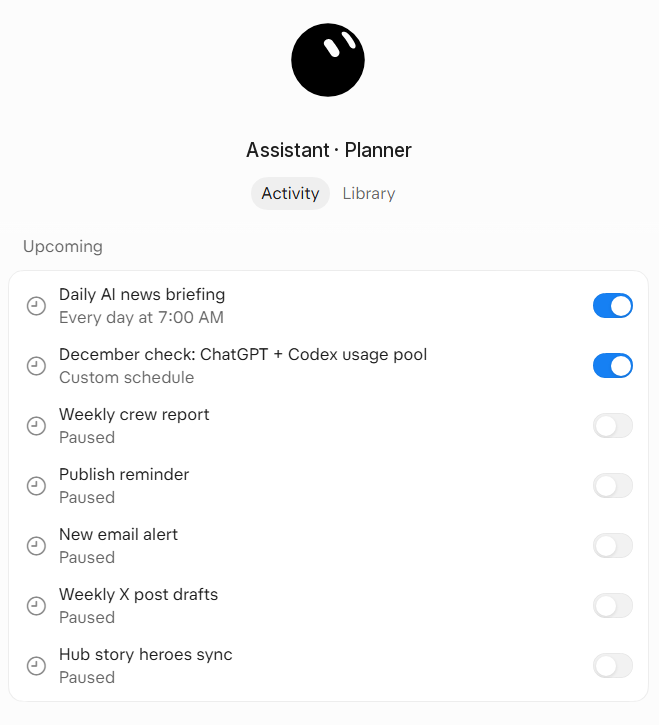
Create and change routines by asking the owning bot in chat. On desktop, click the bot’s name in the chat header to open the per-bot pane (also Cmd+Shift+I or Cmd+Alt+B on macOS, or Ctrl+Alt+B on Windows and Linux). Official docs still say routines are on the Details tab. As shown in the app, screenshot dated 16 November 2026, the pane has Activity and Library tabs, and routines appear under Upcoming, each with an on/off switch and a status such as a schedule or Paused. Use those labels; do not invent a third tab name. You should see the switch on each row — off to pause, on to resume.
A routine can run on a schedule or when an event happens: a Slack message; a GitHub, Linear, Sentry, or PagerDuty event; an email to the bot’s own address; or a webhook. Official: use a narrow matching rule, and “Avoid broad listeners such as ‘every new message.’” Schedules use Settings → Bot → Timezone. Official examples include “every weekday at 8:00 AM” or “every 2 hours.” A new routine waits for its next scheduled time; Test runs now and spends usage. Preferring a narrow event trigger over a short repeating schedule, when the work should run only when something happens, is editorial best practice backed by those official warnings — not a blanket official rule. Routines run in the cloud while the laptop is closed, so they can keep spending while you are away. Official: Grok Bot may ask whether to keep them running after a long period away and pause them if there is no response. Official caps (up to 50 routines per bot, schedules at least five minutes apart, and hourly rate limits) are rate limits, not usage-saving tips. Official controls are pause, edit, and delete.
Bot-to-bot handoffs
Official chat docs: bots can message each other to hand off work, and there is no switch that turns this off. Tell the bots in chat (and ask them to remember) if they should not message other bots. “Every Bot reply counts toward your usage, including replies in a group and messages between Bots, so fewer Bots in a group means fewer replies.” “Ask for a single owner at each stage. Parallel handoffs create duplicate work and noisy updates.” There is no official “bot manager” role, and no official figure for how most people work; handoffs are one way to work, not a default. Giving the receiving bot a complete brief, so it needs fewer follow-ups, is editorial advice aligned with those rules.
Clearer asks
Official chat guidance is to lead with the result you need, and to make the outcome and decision boundary explicit. The FAQ also says to start small and scope tasks tightly. Any claim that this “saves usage” beyond fewer, smaller jobs is editorial. Asking for a short deliverable when a short one will do is an editorial best practice, not an official usage control.
Troubleshooting
- You cannot find Usage & Billing in the account menu. That is expected. Open Settings (or press
Cmd/Ctrl+,), then the Usage & Billing tab. - The chart is not labelled “By Resource.” The current toggles are By source and By Bot, as in official settings docs and the 16 November 2026 screenshots.
- You want a character-limit setting. There isn’t one. Ask for a shorter deliverable if a short one will do.
- The included week is at 100%, and usage is still being drawn. Further first-party usage comes from additional usage credits (or legacy on-demand) up to a monthly cap. Check Auto Top-up and set that cap. It does not interrupt a run already in progress.
- The week ran out faster than you expected, and you barely messaged the bots. Check By source for Routines and Bot-to-Bot. On The X Subscription, a heavy Cursor or Grok-app day draws from the same pool. Official metering is steps and tokens, not message count.
- You paused a routine but usage still moved. A paused routine does not spend usage; Test does, and other bots, handoffs, or Cursor / Grok-app use still can.
Summary checklist
- Open the account menu → Settings (or
Cmd/Ctrl+,) → Usage & Billing. Note the weekly bar and the next reset. - Read By source (You, Routines, Bot-to-Bot — meanings inferred from the screen) and By Bot. Start with the largest slice and the heaviest bot on your chart.
- If routines are a large slice, pause ones you do not need, widen tight schedules, and narrow busy-channel triggers. Official warning: an hourly schedule, a short interval, or a Slack trigger on a busy channel can use a week of usage in a day.
- Give each stage one owner and the next bot a complete brief. There is no off switch for bot-to-bot messages.
- Lead with one clear result. Ask for a short deliverable when a short one will do. There is no official character-limit setting.
- Remember the pool is shared with Cursor and the Grok apps on The X Subscription.
- Set a monthly additional usage limit (or the legacy on-demand spend limit). Leave Auto Top-up off unless you want automatic top-ups. Recheck the chart after a few days before you raise the plan or buy more credits.
Sources
- Grok Bot docs: Settings and notifications, Skills, routines, and automations, Message and collaborate, and the FAQ
- The X Subscription: Grok Bot, Usage limits, Extra usage credits, Spending caps, and pricing, plus x.ai/pricing
- Cursor: Usage and limits, Usage-based charges, and Spend limits
- Dashboards: grok.com/dashboard and grok.com/dashboard/billing
- Related live tutorial: Hire Your First AI Teammate (setup, not billing)
Tutorial · November 2026 · official docs and 16 Nov 2026 app screenshots