Tidy your Claude setup on the new Plugins page
Customize is now Plugins. One page replaces the Skills, Connectors and Plugins tabs. Here is who has it, where everything moved, and a five-minute tidy.
About 8 minutes · Explainer · Claude · Updated: 27 Nov 2026
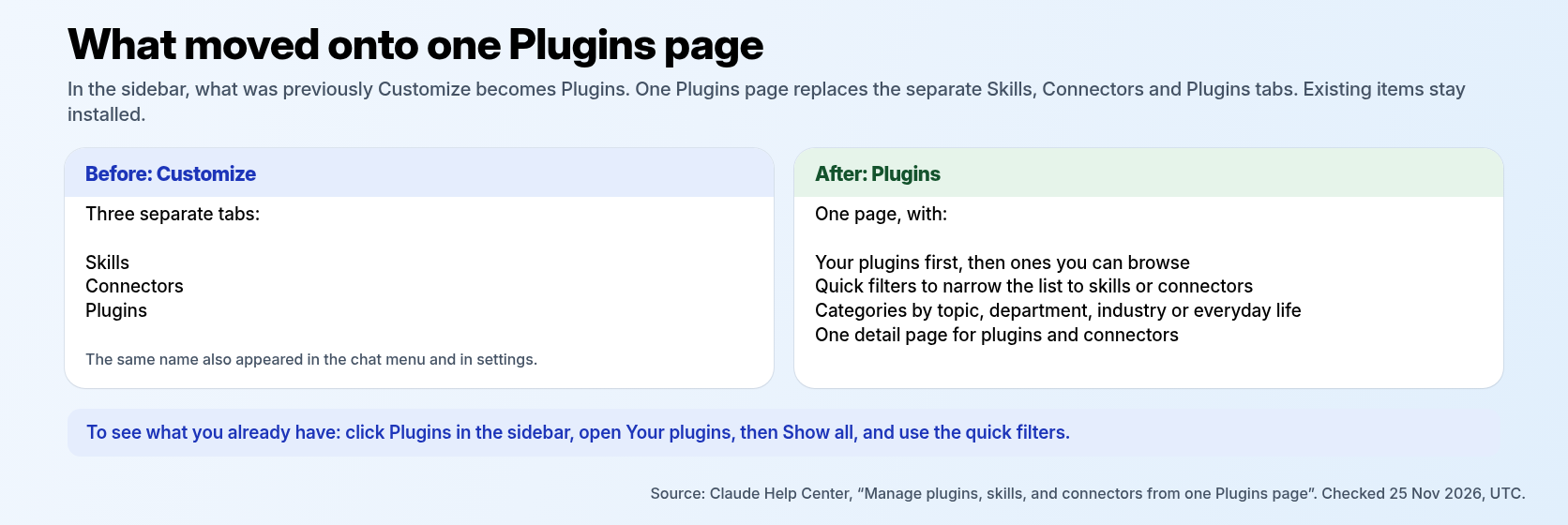
Skills, connectors and plugins in Claude used to live under Customize, on three separate tabs. That name now reads Plugins, in the sidebar, the chat menu and settings, and one Plugins page replaces those three tabs. Anthropic announced the change on 23 November 2026 at 20:56 UTC, in a post from @claudeai that also invited people to “Browse 10,000+ plugins,” a figure that is not in the help article. Anything you had already installed stays installed.
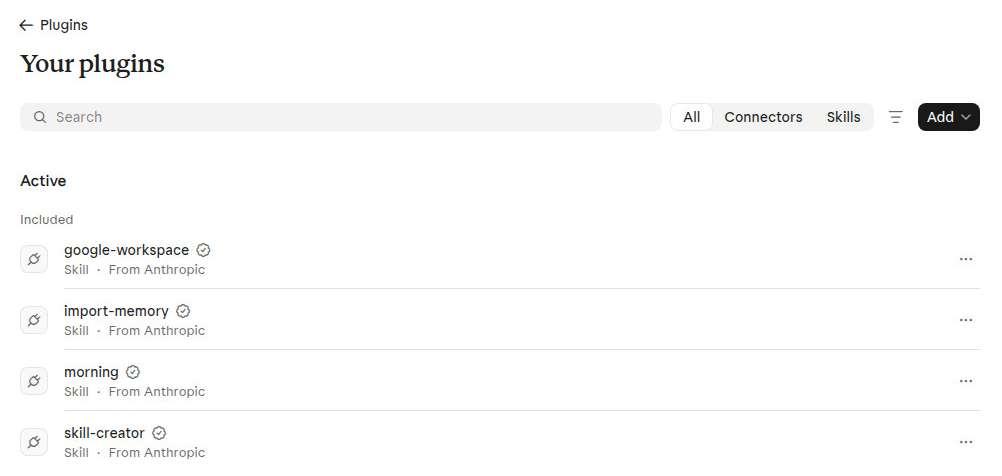
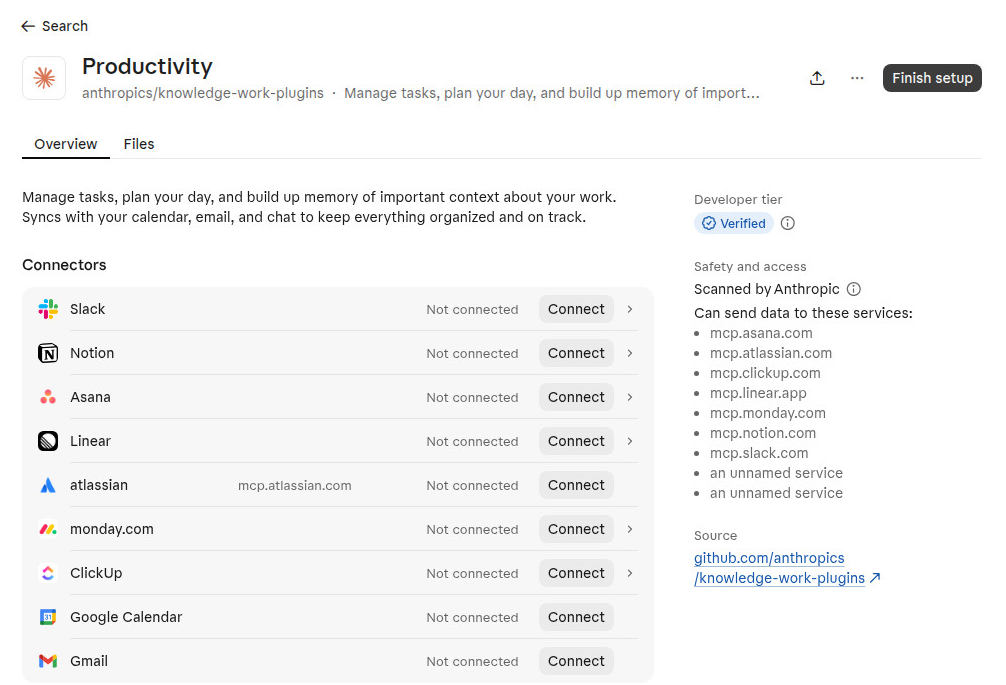
Labels and paths below come from Anthropic’s help pages and docs, checked on 25 and 27 November 2026 (UTC). The screenshots were taken in Claude on the web on 27 November 2026: shots 1 to 5 on a Free account and shot 6 on a Max account. Controls that no screenshot shows, such as the Disable plugin toggle, the Not added state and the owner settings, come from Anthropic’s docs and were not checked on a live account. The numbered figures are explanatory diagrams.
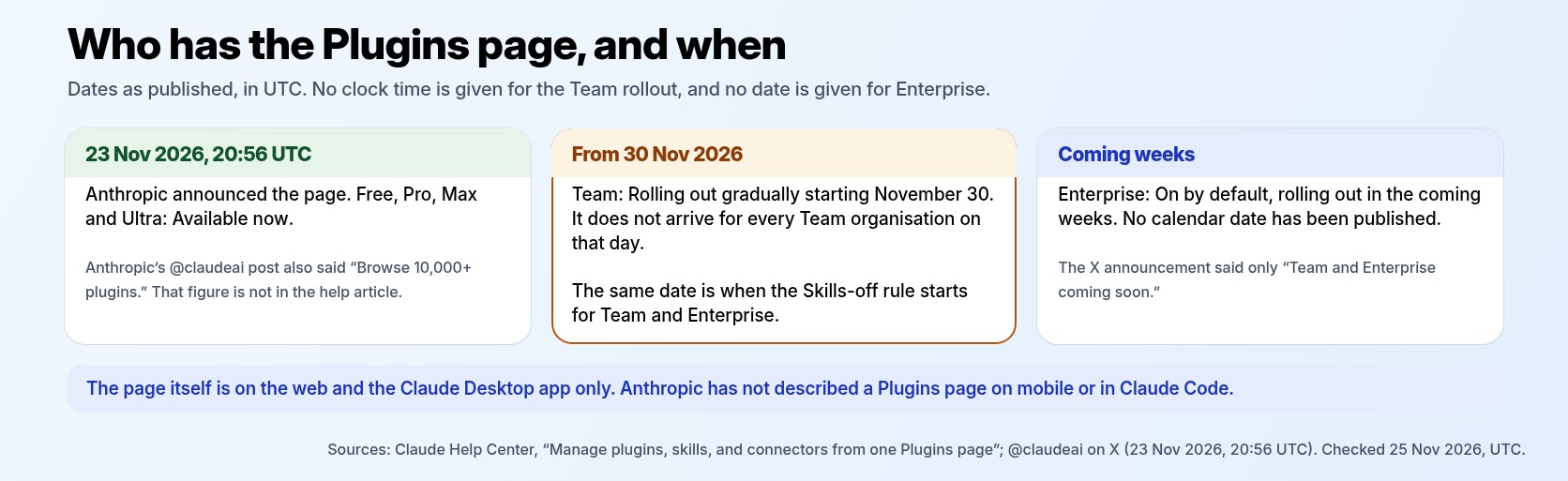
Who has it, and when
All dates below are calendar dates in UTC, with no clock time for the Team rollout and no date for Enterprise.
| Plan | Status |
|---|---|
| Free, Pro, Max, Ultra | Available now (announced 23 November 2026, 20:56 UTC) |
| Team | Rolling out gradually starting 30 November 2026 |
| Enterprise | On by default, rolling out in the coming weeks |
Team does not get the page on 30 November for every organisation; the rollout starts gradually from that date. The X announcement said only “Team and Enterprise coming soon.”
Find everything you have added
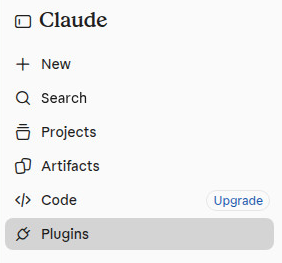
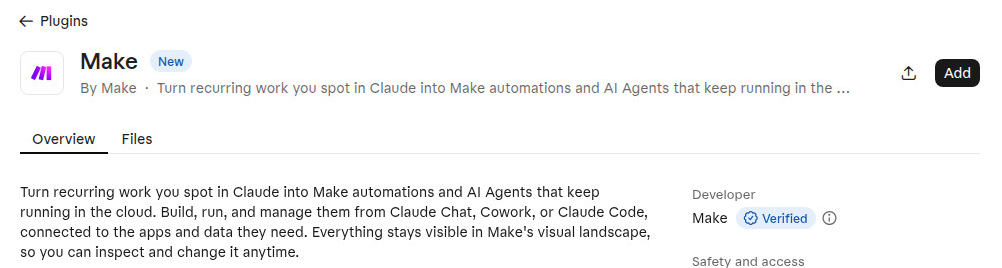
Open Plugins in the sidebar, then Your plugins, then Show all. Your plugins appear first, including your organisation’s plugins and plugins shared with you, above the ones you can browse. Quick filters narrow the list to skills or connectors; each card shows its type. You can also browse by category: “by topic, department, industry, or everyday life.” Plugins and connectors open on the same detail-page layout.
Some help articles still say Customize and still describe separate Plugins, Connectors and Skills paths; those pages had not been updated for the rename when we checked them. After the change, the top-level entry reads Plugins. This guide follows the new article — open Plugins in the sidebar, then filter to Connectors or Skills — and does not invent a sub-path such as Plugins > Connectors.
Read the labels: Verified, Community and Custom
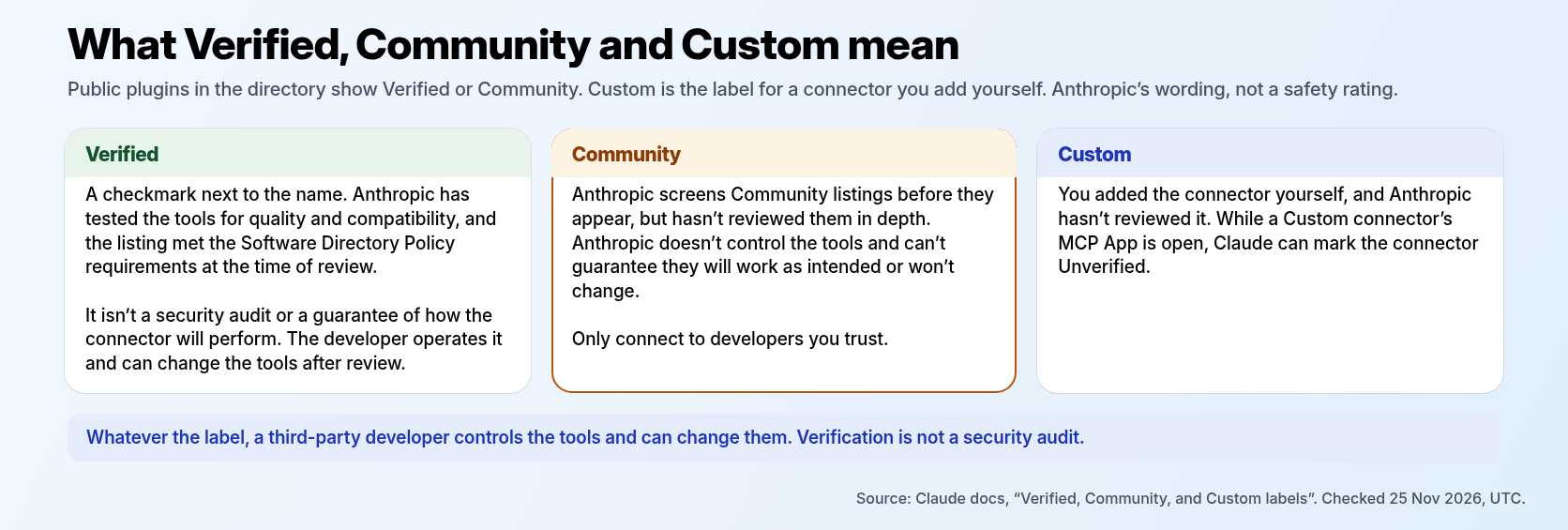
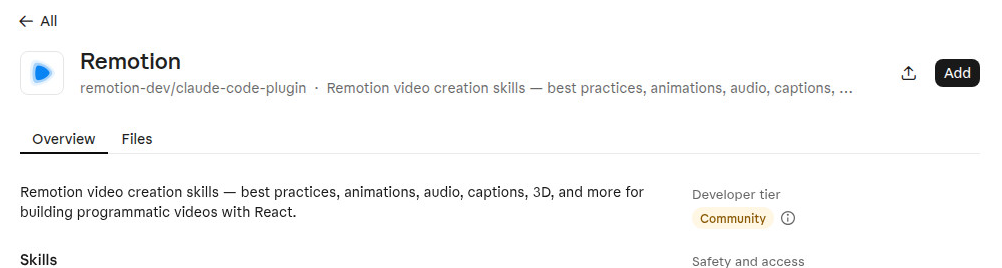
Public plugins in the directory show a Verified or Community label. A third label, Custom, applies to a connector you add yourself. These labels describe how much Anthropic has reviewed a listing, not a safety rating.
Anthropic’s labels page describes these labels for connectors. Anthropic has tested a Verified connector’s tools for quality and compatibility, and the listing met the Software Directory Policy requirements at the time of review. In our screenshots, the label sits on the listing’s detail page, under Developer or Developer tier, and the Verified badge carries a checkmark. Verification “isn’t a security audit or a guarantee” of how the connector will perform. The developer operates it and can change the tools after review.
A Community listing is built by a third-party developer. Anthropic screens those listings before they appear, but has not reviewed them in depth, and it does not control the tools. Custom means you added the connector yourself, and Anthropic has not reviewed it.
Run a skill
Skills work as plugins. Use one with the + button, or by typing /. Skills can still be shared.
A five-minute tidy
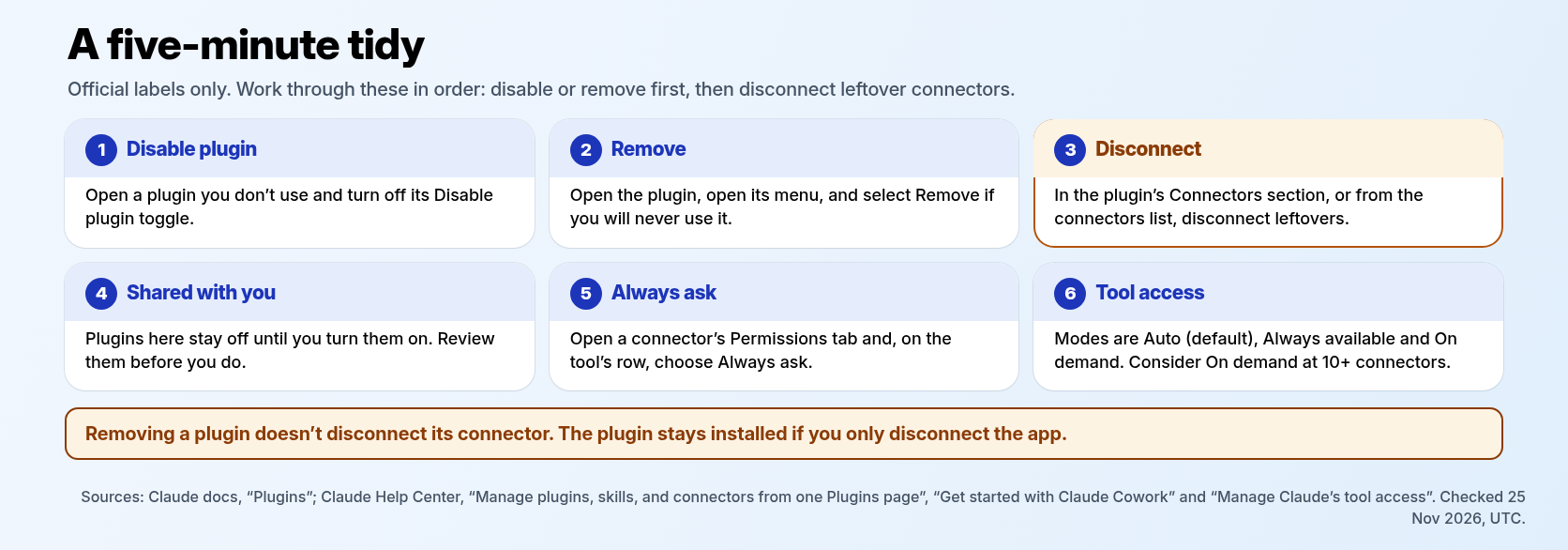
Work through these in order. Removing a plugin does not sign you out of the bundled app.
- Disable what you do not use. Open the plugin and turn off its toggle, labelled Disable plugin. (Anthropic’s docs describe this toggle; it was not visible on the plugin we used for the screenshots.)
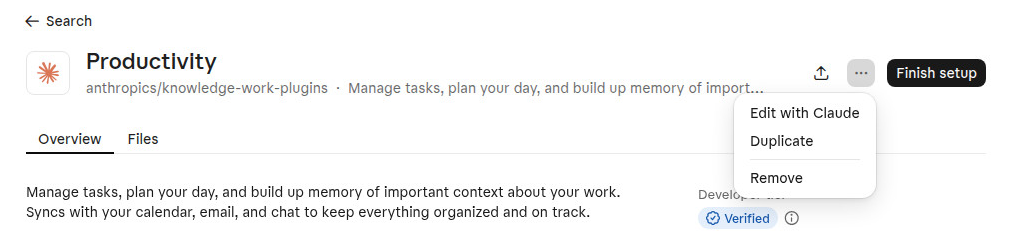
- Remove what you will never use. Open the plugin, open its menu, and select Remove.
- Then disconnect leftover connectors. Do this from the Connectors list on the plugin’s page (a section on its Overview tab when we checked; Anthropic’s docs call it a Connectors tab), or from the connectors list. Inside a plugin, each connector shows Connected, Not connected or Not added. Disconnecting leaves the plugin installed. Removing the plugin does not disconnect the connector. Treat a connector like a key and disconnect leftovers. Our 10-minute privacy checklist is a wider pass before you connect a personal agent at all.
- Check Shared with you. Plugins there stay off until you turn them on.
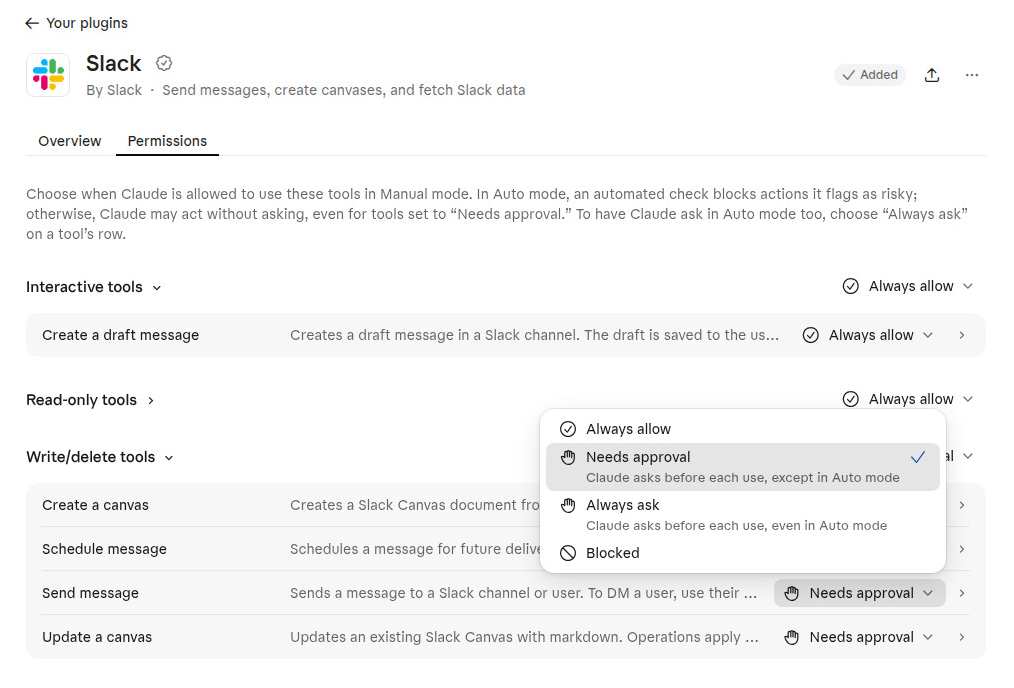
- Set risky tools to Always ask. Open a connector, select its Permissions tab, and on the row of each tool that sends, deletes or changes things (for example under Write/delete tools), choose Always ask. Our screenshot of this menu is from a Max account, on the Slack connector, which is marked Added; Send message is still on Needs approval, and Always ask is visible in the open menu but not enabled. In Cowork, Needs approval prompts in Manual mode, may prompt in Auto mode if an automated check flags the action, and does not prompt in Skip mode. Always ask prompts for that specific tool even in Auto or Skip, where the setting is supported. Do this on the web or in Claude Desktop. This option is rolling out gradually on Pro, Max, Ultra, Team and Enterprise; on Team and Enterprise your organisation’s settings come first, so you may not see it. Choosing Always allow for that tool or its group, even in a chat or on your phone, overrides it. For a wider permissions habit, see Give your AI agent a short leash.
- Review Tool access if you have many connectors. The modes are Auto (the default), Always available and On demand. Consider On demand at 10 or more connectors.
If a plugin was installed by your organisation as “Installed by default,” you can still turn it off. If it is marked “This plugin is required by your organization,” you cannot turn it off or remove it, including in Claude Code.
Marketplace and directory plugins update automatically. For a marketplace you added yourself, use Check for updates, or turn on Sync automatically for a github.com marketplace. You can remove a marketplace, including the default Knowledge Work one, from its menu with Remove.
For Team and Enterprise owners
Turn Skills on before 30 November if you still want plugins
From 30 November 2026, on Team and Enterprise plans, an organisation with Skills turned off also loses plugins in Claude Desktop. The help article says plugins then “stop working in Claude Cowork and the Code tab starting November 30.” If your organisation should keep plugins, turn Skills on before that date. Leave Skills off only if you intend to drop plugins on those surfaces.
If your organisation uses Anthropic’s HIPAA configuration, the BAA “doesn’t cover connectors, plugins, or skills.” Keep protected health information out of them.
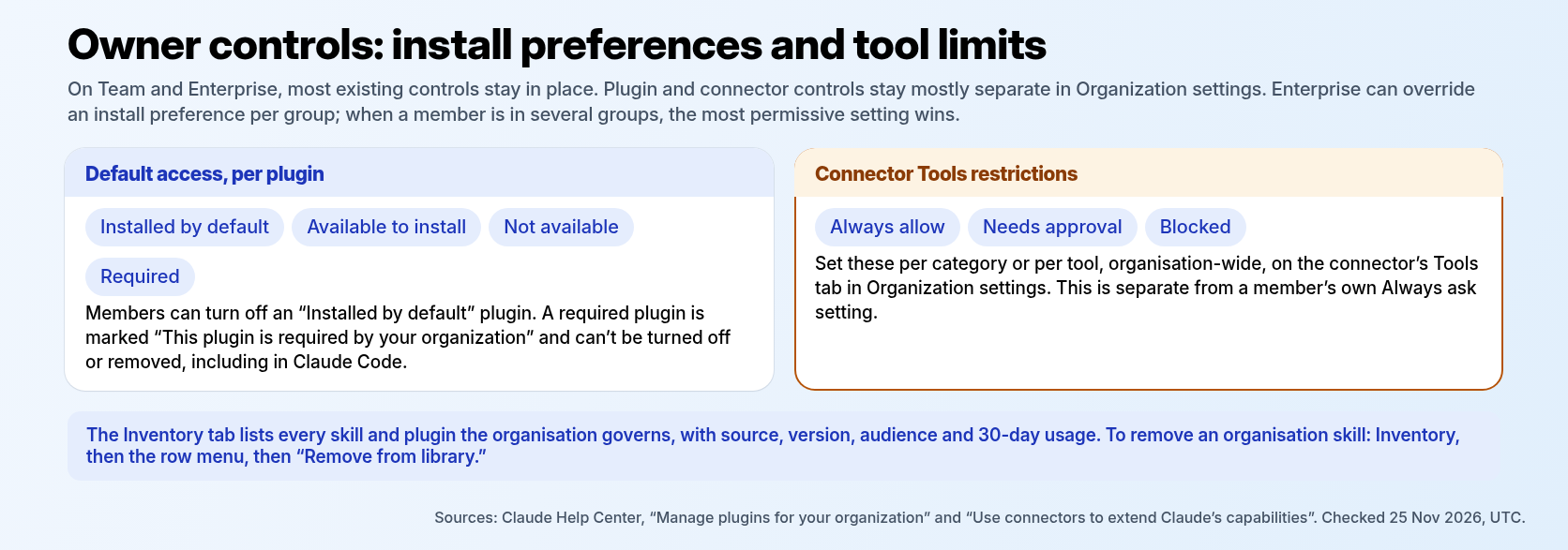
Most existing controls stay in place, and plugin and connector controls “stay mostly separate in Organization settings.” Plugins & skills and Connectors become one Plugins group, with separate pages for plugins, connectors, policy, marketplaces and requests.
To enable plugins, one help article tells owners to use the Policy page in Organization settings (it calls the path Library > Policy), turn on Cloud code execution and file creation if it is off — “Plugins require it” — and then turn on Skills. The same article says the Skills toggle “will be renamed to Plugins on November 30.” Other help articles still describe a Policy tab under Plugins & skills. This guide does not treat either path as the only official wording; confirm it on your own admin screen before you change anything.
Use the Inventory tab to see every skill and plugin the organisation governs, with source, version, audience and 30-day usage. Each plugin has a Default access install preference: Installed by default, Available to install, Not available or Required. Enterprise can override that preference per group. When a member is in several groups, the most permissive setting wins. To remove an organisation skill, open Inventory, then the row menu, then Remove from library.
Connector action restrictions live on the connector’s Tools tab in Organization settings. You can choose Always allow, Needs approval or Blocked, per category or per tool, organisation-wide. Marketplace allow and block lists (strictKnownMarketplaces, blockedMarketplaces) go in Claude Code managed settings and also apply in Claude and Cowork. Enterprise plans can also turn on skill and plugin security scanning. On Team and Enterprise, the Publishing setting (Open, Requires review or Off) controls whether members can publish skills and plugins to the organisation library. Off prevents members from submitting through Publish to org; owners can still add skills and plugins directly. See Provision and manage skills for your organization.
Where it shows up — and where it does not
The Plugins page itself is on the web and the Claude Desktop app only. Anthropic’s help article does not describe a Plugins page on mobile, so this guide does not claim one. A plugin’s skills, commands and connectors still work in chat on the web, on desktop and on mobile.
The help article does not list Claude Code as a place where the page appears. Account plugins can sync to Claude Code if you are on version 2.1.273 or later and signed in with a Claude account, not an API key or a cloud provider. You can opt out with syncClaudeAiPlugins: false. Separately, in a future Claude Code release on or after November 30, 2026, plugin marketplaces in managed extraKnownMarketplaces will auto-update by default unless autoUpdate is set to false. That is a Claude Code change, not part of the Plugins page, and it is separate from the 30 November Claude Desktop cutoff for Team and Enterprise organisations with Skills disabled.
If you build your own local connector, our guide to building a local MCP server and connecting it to Claude Desktop still applies. More Claude pieces live on the Claude tag page.
Common misconceptions
- “Removing a plugin signs me out of the app.” No. Removing a plugin does not disconnect its connector. Disconnect the connector as a separate step.
- “Verified means it has been security-audited, or that it is safe.” No. Anthropic says verification is not a security audit or a guarantee.
- “Every Team organisation gets the page on 30 November.” No. Team starts a gradual rollout from that date.
- “There is a Plugins page on mobile, or in Claude Code.” That is not what the help article describes. The page is on the web and Desktop; plugins can still be used in mobile chat, and they can sync into Claude Code.
A short checklist
- Open Plugins in the sidebar, then Your plugins, then Show all, and filter to skills or connectors.
- Disable or remove what you do not need; then disconnect leftover connectors.
- Review Shared with you, set risky tools to Always ask if you have that option, and consider On demand at 10 or more connectors.
- Team and Enterprise owners: if you want plugins in Claude Desktop after 30 November, turn Skills on before then. Keep protected health information out of connectors, plugins and skills if you are on the HIPAA configuration.
Related reading
- Give your AI agent a short leash: 5 permission settings to check today
- Before you connect a personal AI agent: a 10-minute privacy checklist
- Build a local MCP server and connect it to Claude Desktop
- Claude tag page
Sources
- Claude Help Center, Manage plugins, skills, and connectors from one Plugins page
- @claudeai on X, announcement, 23 November 2026, 20:56 UTC
- Claude docs, Plugins
- Claude docs, Verified, Community, and Custom labels
- Claude Help Center, Use plugins in Claude
- Claude Help Center, Manage plugins for your organization
- Claude Help Center, Use connectors to extend Claude’s capabilities
- Claude Help Center, Get started with Claude Cowork (Always ask)
- Claude Help Center, Manage Claude’s tool access
- Claude Help Center, Provision and manage skills for your organization
- Claude Code docs, changelog
Explainer · November 2026 · help pages and docs checked 25 and 27 November 2026 UTC; screenshots from Claude on the web, 27 November 2026