Turn a Claude artifact into a desktop app (Mac and Windows)
Claude’s “Install as app” beta gives an artifact its own window and icon on a Mac or Windows PC. Build a small focus timer, install it, set its permissions carefully, then update or remove it.
About 20 minutes · Beginner · Claude for Mac or Windows · Updated: 26 Nov 2026
Claude can already build small tools for you as artifacts: a timer, a tracker, a calculator, a checklist. Until now, you opened those tools inside Claude, or shared them as a link. Since 24 Nov 2026, Anthropic has been rolling out a beta that turns one into an app of its own. In Anthropic’s words, you can “install an artifact that Claude makes for you as an app on your Mac or Windows computer. It gets its own window and icon, opens like any other app, and can even interact with the operating system the way any other app might.”
Anthropic also says you don’t need any of the usual app-making chores: “You don’t have to package or sign it, and it uses your Claude account, so there’s no API key or separate login.”
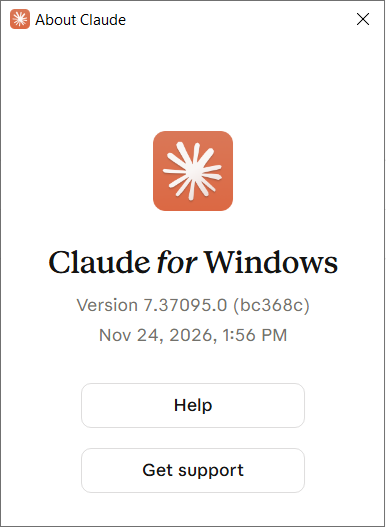
In this tutorial you will build one small tool, install it, set its permissions, update it and uninstall it. Everything here comes from the Claude Help Center and Anthropic’s own post, checked on 25 Nov 2026 (UTC). The numbered screenshots are from Claude for Windows 7.37095.0, checked on 26 Nov 2026 (UTC). Labels in those shots are quoted as they appear on screen; Mac paths and other official wording come from the help pages. The other figures are diagrams. If a label on your screen differs, trust your screen.
Prerequisites
- ✓ Claude for Mac or Claude for Windows, version 6.28899.0 or later. To update on macOS, go to Claude > Check for Updates. On Windows, go to Help > Check for Updates under the menu button (☰).
- ✓ A Mac or a Windows PC. “Apps aren’t available on Linux, web, or mobile.” That holds even though Claude Desktop itself runs on Linux as a beta. Claude Desktop needs macOS 13 (Ventura) or higher, or Windows 10 or higher.
- ✓ Artifacts that can run code. “Cloud code execution and file creation (called Create and edit files in the updated Settings layout)” must be on. On Free, Pro, Max and Ultra it’s in Settings > Capabilities; on Team and Enterprise it’s in Organization settings > Capabilities.
- ✓ A plan where the beta has reached you. It is “rolling out in beta on Free, Pro, Max, Ultra, Team, and Enterprise plans,” so you may not see it yet. On Team or Enterprise, ask an owner if you don’t see it (see “For Team and Enterprise admins” below).
- ✓ A connection. “To open an app, you need to be online and signed in to Claude Desktop.”
What you’ll build
By the end of this guide, you will have:
- ✓ A small focus timer, built as an artifact in one chat.
- ✓ The same artifact installed as an app with its own window and icon.
- ✓ A short list of the permissions you allowed, and why.
- ✓ A tested way to update the app, and to remove it.
What we’re building, and why this example
We use one of Anthropic’s own example prompts: “Make a Pomodoro timer that lives in my menu bar.” Claude named the artifact Tomato Timer. A timer is a good first app: useful daily, and it needs no private data. Anthropic’s other examples include “Make a small Mac app that reminds me to stretch every hour.”
Keep your first app simple, and keep personal or company data out of it until you understand what it can do.
Step 1 — Describe the app in a chat
Open Claude for Mac or Windows and start a new chat. The help article’s instruction is simply: “Describe the app you want in a chat.” Paste the example prompt:
Make a Pomodoro timer that lives in my menu bar.Claude builds it as an artifact titled Tomato Timer. Anthropic’s advice is to “try it as an artifact” before you install it. So test it first: start the timer, pause it, reset it, and ask Claude to fix anything that is off. The artifact also includes its own button, labelled “Install as menu bar app.” That is the in-artifact install button the help article describes: “Artifacts can also build their own install button, if asked to do so.” The button still says “menu bar” in our Windows shots.
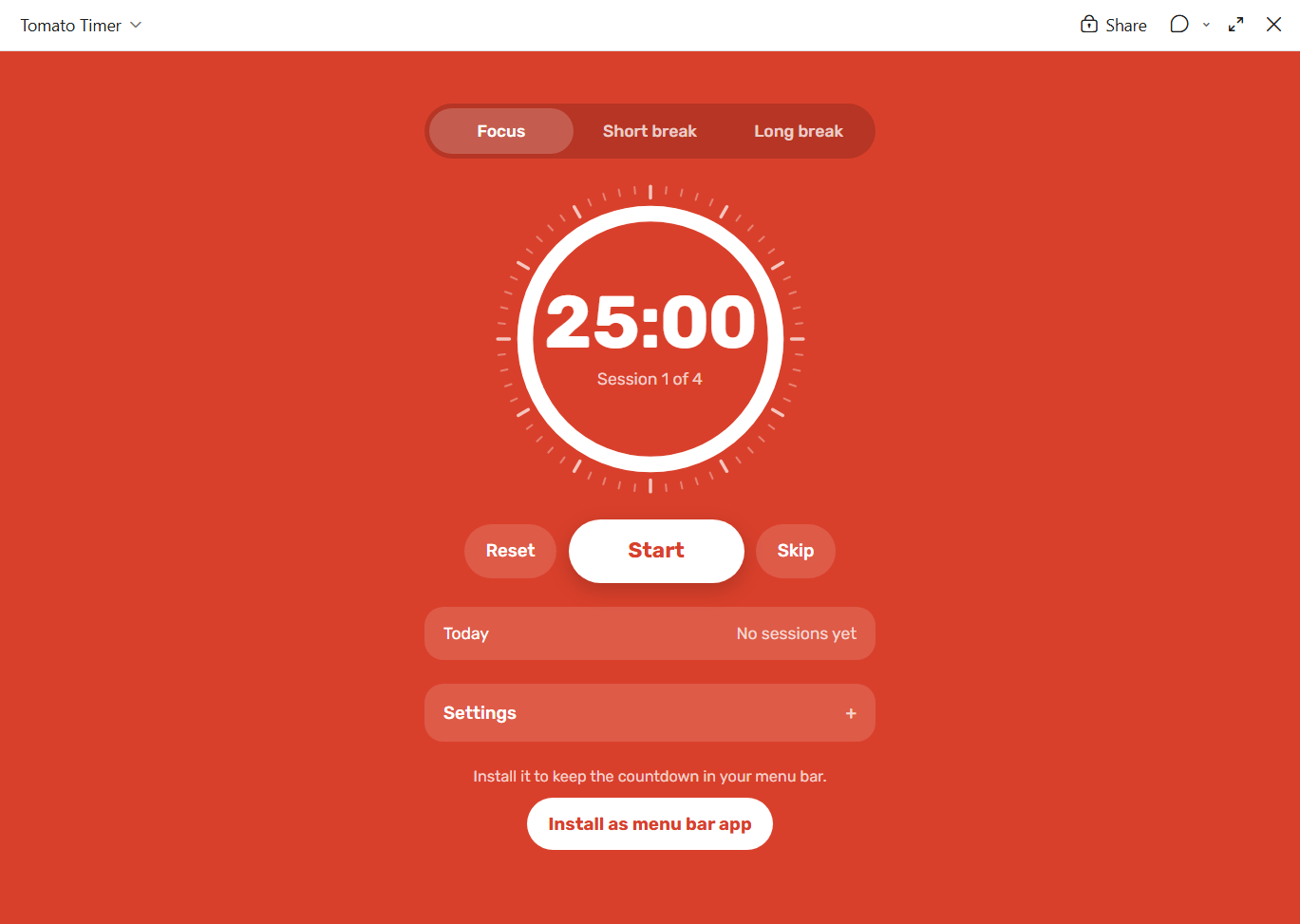
Checkpoint: the timer works as an artifact in the main Claude Desktop window.
Step 2 — Install it
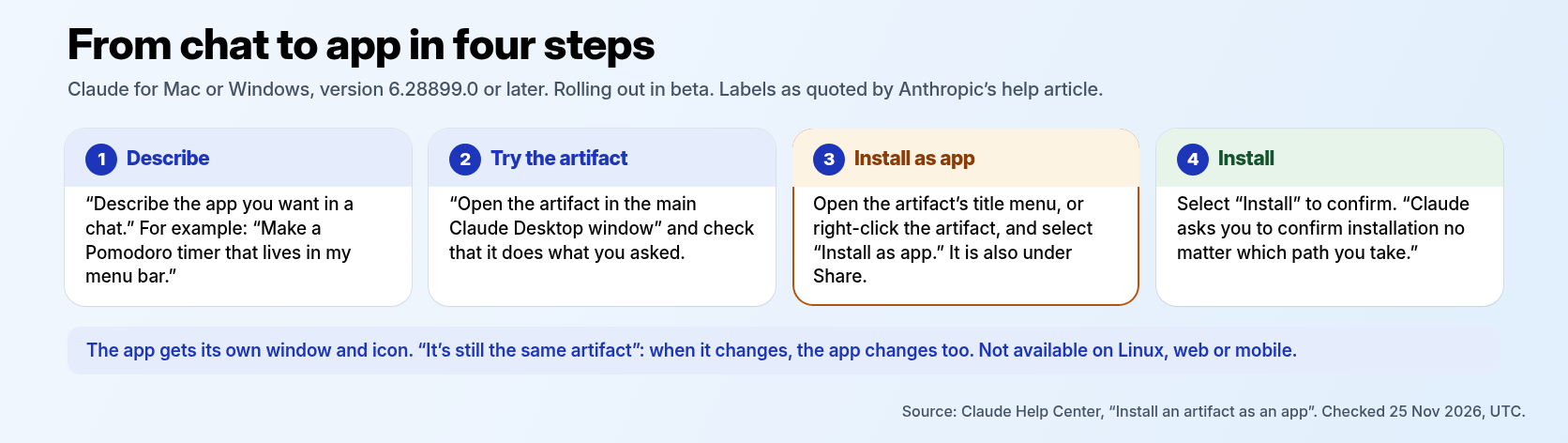
The help article gives four steps:
- “Open the artifact in the main Claude Desktop window.”
- “Open the artifact’s title menu, or right-click the artifact.”
- “Select ‘Install as app.’”
- “Select ‘Install’ to confirm.”
There are two other routes to the same place: “You can also find Install as app under Share. Artifacts can also build their own install button, if asked to do so. Claude asks you to confirm installation no matter which path you take.” In our Windows shots, that in-artifact button is labelled “Install as menu bar app.” Right-clicking the artifact opens a menu with Copy, Select All and “Install as app” (Screenshot 3). The confirmation dialog is titled Install “Tomato Timer” as an app? and carries a Beta badge; the buttons are Cancel and Install (Screenshot 4). The dialog also says the app “can’t reach your files or run programs unless you allow it.”
One thing that is not the same: your browser’s own “Add to Dock,” “Add browser shortcut” and “Add to Home Screen” options “only add a shortcut. They don’t have the desktop features described here.”
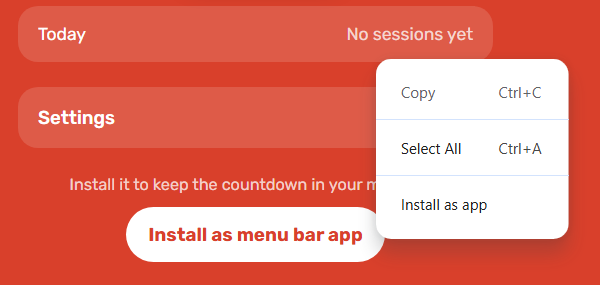
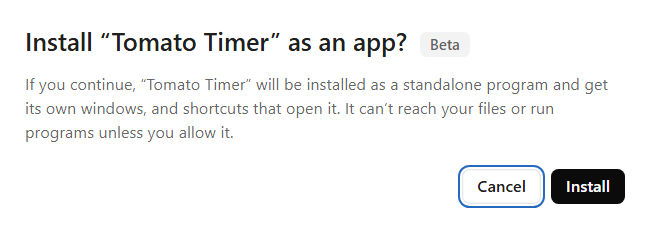
Checkpoint: you selected Install, and Claude confirmed the install.
Step 3 — Open it and keep it handy
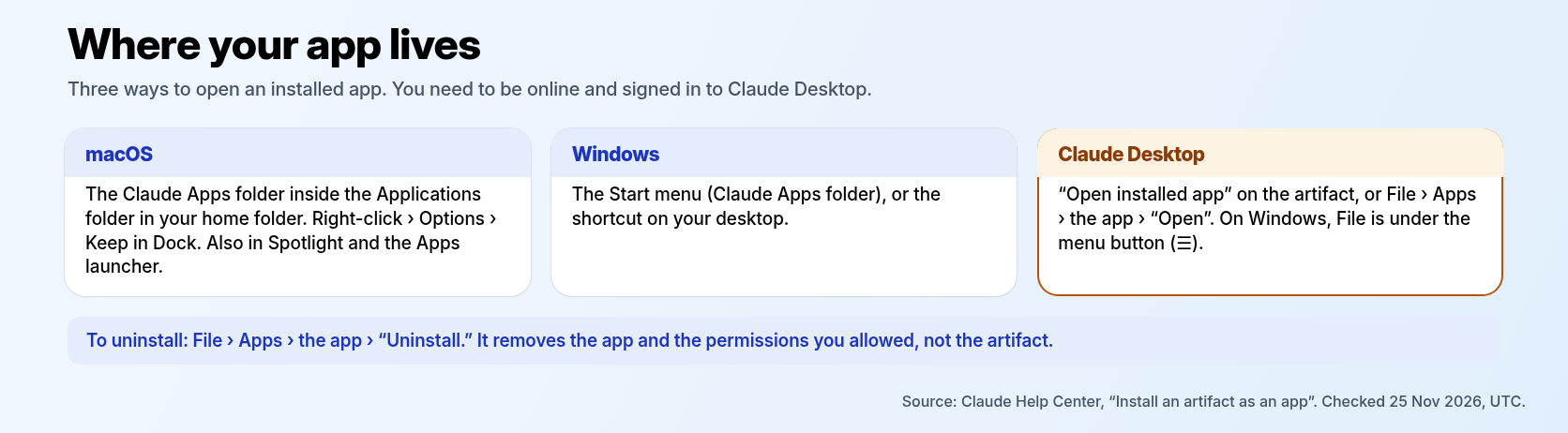
- macOS: open it from “the Claude Apps folder inside the Applications folder in your home folder.” To keep it in the Dock, right-click its icon and select Options > Keep in Dock. Your apps also show up in Spotlight and the Apps launcher.
- Windows: open it from “the Start menu (Claude Apps folder) or from the shortcut on your desktop.”
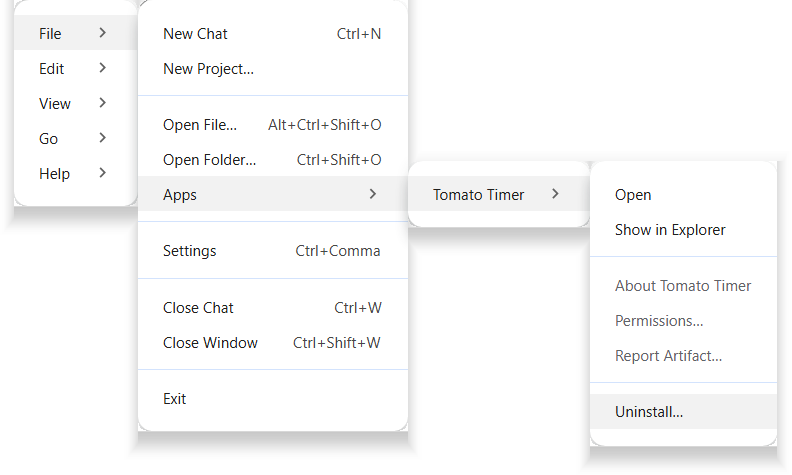
- In Claude Desktop: select “Open installed app” on the artifact, or go to File > Apps, select the app and select “Open.” On Windows, File is under the menu button (☰).
The help article says an app with a menu bar item or system tray icon keeps running after you close its window. To stop one on macOS, quit it from the Dock, or press Cmd+Q while it’s the active app. On Windows, select “Exit” in its tray icon’s menu. In our Windows shots, Tomato Timer shows “The menu bar item is turned off for this app,” and the System tray icon permission is off, so closing the window should quit it.
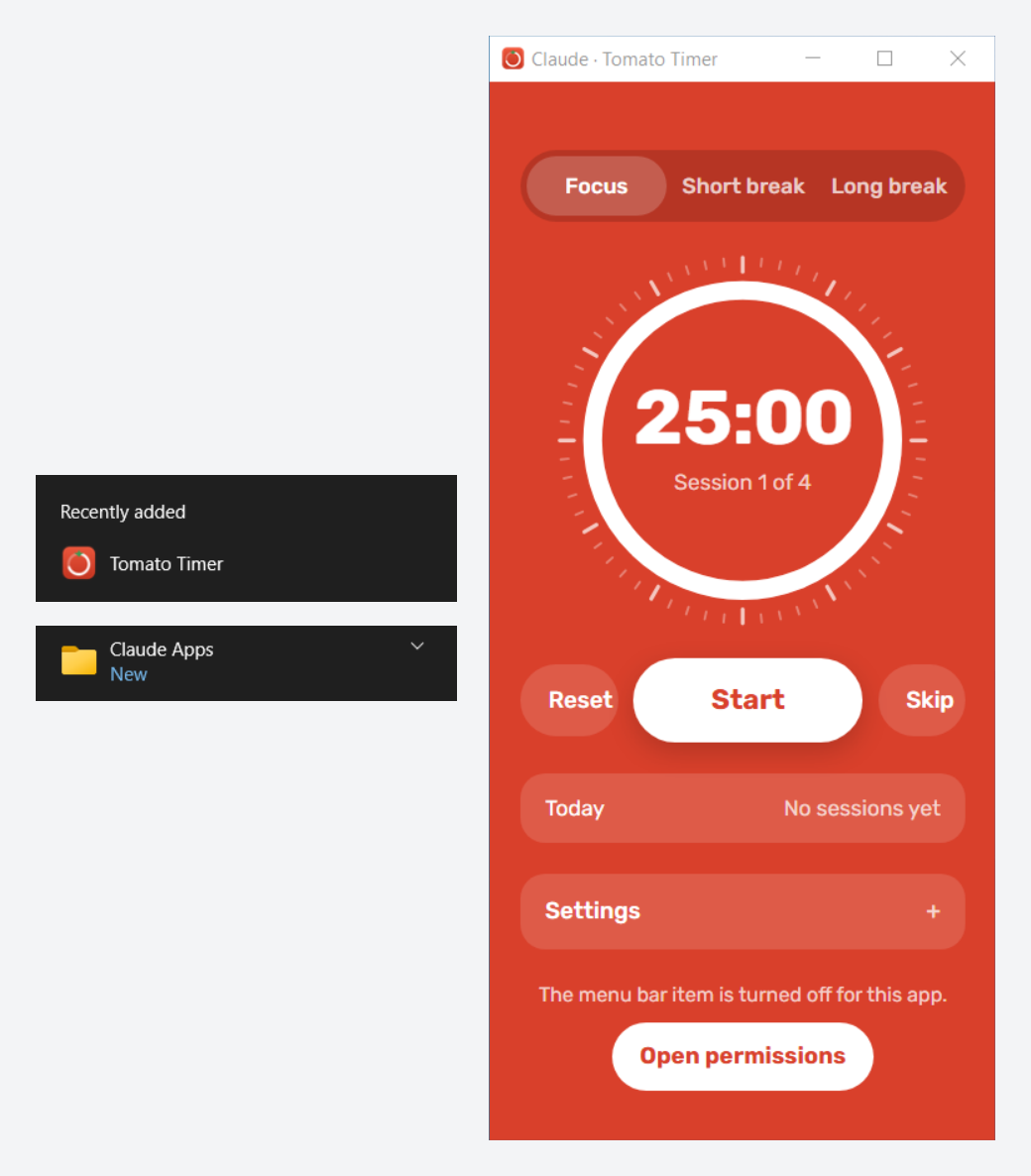
Checkpoint: the timer opens in its own window, outside the main Claude window, and you know how to quit it.
Step 4 — Review permissions carefully
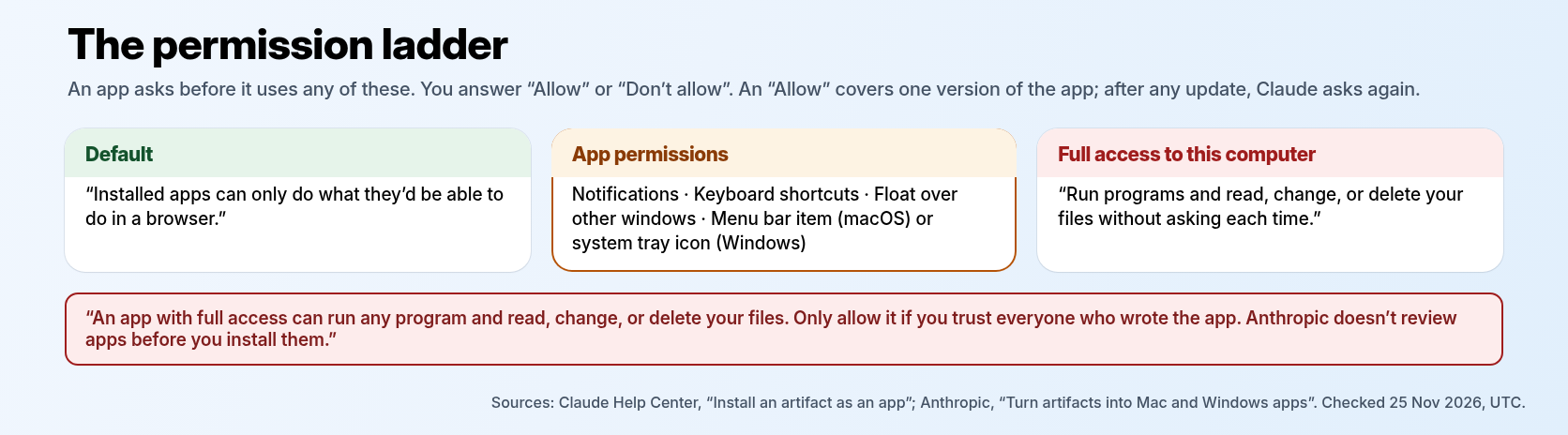
Anthropic describes three levels. By default, “Installed apps can only do what they’d be able to do in a browser.” Beyond that, an app has to ask, and you answer each request with “Allow” or “Don’t allow.” The help article lists five permissions:
| Permission | What the app can do |
|---|---|
| Notifications | Show notifications while you use other apps |
| Keyboard shortcuts | Respond to key combinations while you use other apps |
| Float over other windows | Draw content above other windows, and read where the mouse cursor is on your screens |
| Menu bar item (macOS) or system tray icon (Windows) | Show an item there while the app is open |
| Full access to this computer | Run programs and read, change, or delete your files without asking each time |
The table above is Anthropic’s list of permissions an app can ask for. In our Windows shots, none of the screenshots shows an “Allow” or “Don’t allow” prompt. To open permissions, right-click the app’s title bar (or press Alt+Space) and select “Permissions…” (Screenshot 6). That title-bar menu also lists About This Artifact…, Show App in Explorer, Report Artifact… and Uninstall App…, along with the usual window commands.
The panel that opens is titled Permissions for “Tomato Timer” (Screenshot 7). It lists only two items, both off: Notifications (“It can show notifications while you use other apps.”) and System tray icon (“If installed, it keeps running in the system tray after you close this window.”), with Cancel and Save. It does not list keyboard shortcuts, float over other windows, or full access. The installed app itself also shows the line “The menu bar item is turned off for this app.” and an “Open permissions” button, which is another way to reach the same panel.
Anthropic’s warning about full access is worth reading in full:
“An app with full access can run any program and read, change, or delete your files. Only allow it if you trust everyone who wrote the app. Anthropic doesn’t review apps before you install them.”
Claude generally doesn’t let an app request full access if someone outside your organization wrote part of it, or if Claude can’t confirm who made it, and “On Free, Pro, Max, and Ultra plans, ‘outside your organization’ means any user other than you.” Our advice: say “Don’t allow” to full access unless you wrote every part of the app and know why it needs it.
“An ‘Allow’ covers one version of the app. After any update, including your own edits, Claude asks again. A ‘Don’t allow’ stays until you change it.” And: “If an app loads code from another site, that code can change without a new request.”
To change or take back a permission later:
- macOS: with the app open, click the app’s name in the menu bar and select “Permissions.”
- Windows: right-click the app’s title bar (or press Alt+Space) and select “Permissions.” In our shots the menu item is written “Permissions…”
- Claude Desktop: File > Apps, select the app, then “Permissions.”
Turning off full access “can reload or close the app, so save your work first,” and “It doesn’t undo changes the app already made.” If you need to report an app, the help article says “Report Artifact” is in the same menu as “Permissions,” where available. In our Windows shots the items are written “Report Artifact…” and “Permissions…”
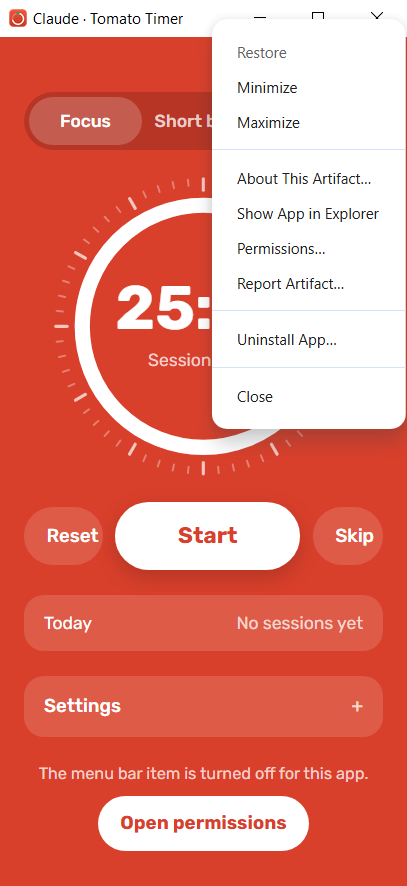
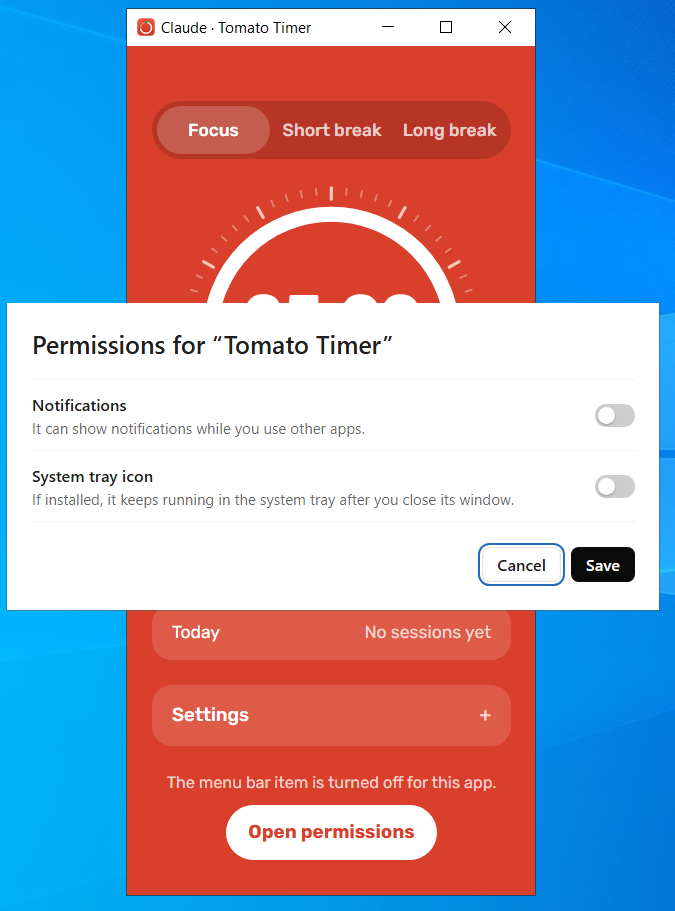
Checkpoint: you opened the Permissions panel for Tomato Timer and reviewed the two toggles.
Step 5 — Update it by editing the artifact
There is no separate update button for your app. “It’s still the same artifact: when you or another editor changes it, the app changes too.” Anthropic’s post says the app “updates automatically when the underlying artifact is edited.”
So go back to the chat and ask for a change, for example a longer break after every fourth session. Then open the app again. Because an “Allow” covers one version, expect the permission prompts to come back, and answer them again with the same care.
Checkpoint: the installed app shows your change, and you answered the new permission prompts.
Step 6 — Uninstall it
- “Go to File > Apps in Claude Desktop.”
- “Select the app.”
- “Select ‘Uninstall.’”
In our Windows shot, File > Apps > Tomato Timer lists Open, Show in Explorer, About Tomato Timer, Permissions…, Report Artifact… and Uninstall… The help article writes “Uninstall.” Some of those labels differ from the title-bar menu in Screenshot 6, which uses Show App in Explorer, About This Artifact… and Uninstall App…
On macOS the app moves to the Trash. On Windows its shortcuts are removed. If you kept it in the Dock or pinned it to the taskbar or Start, remove it there by hand. “Uninstalling removes the permissions you allowed, it doesn’t delete the artifact,” so the artifact is still there if you want to install it again later.
Checkpoint: the app is gone from the Claude Apps folder or Start menu, and the artifact is still in your chat.
Sharing an app with others
An app is an artifact, so the usual artifact-sharing cautions apply. Artifacts can save information “that everyone who opens them can see, like items in a shared tracker. Before you enter sensitive information, check whether the artifact uses shared storage.” People who open your shared artifact use their own connector access, not yours. And the advice runs both ways: “Only open shared artifacts from people you trust.”
An app “can use Claude and your connectors the same way the artifact does.” Building an app, and any requests it makes to Claude, “count toward your plan’s usage limits.”
For Team and Enterprise admins
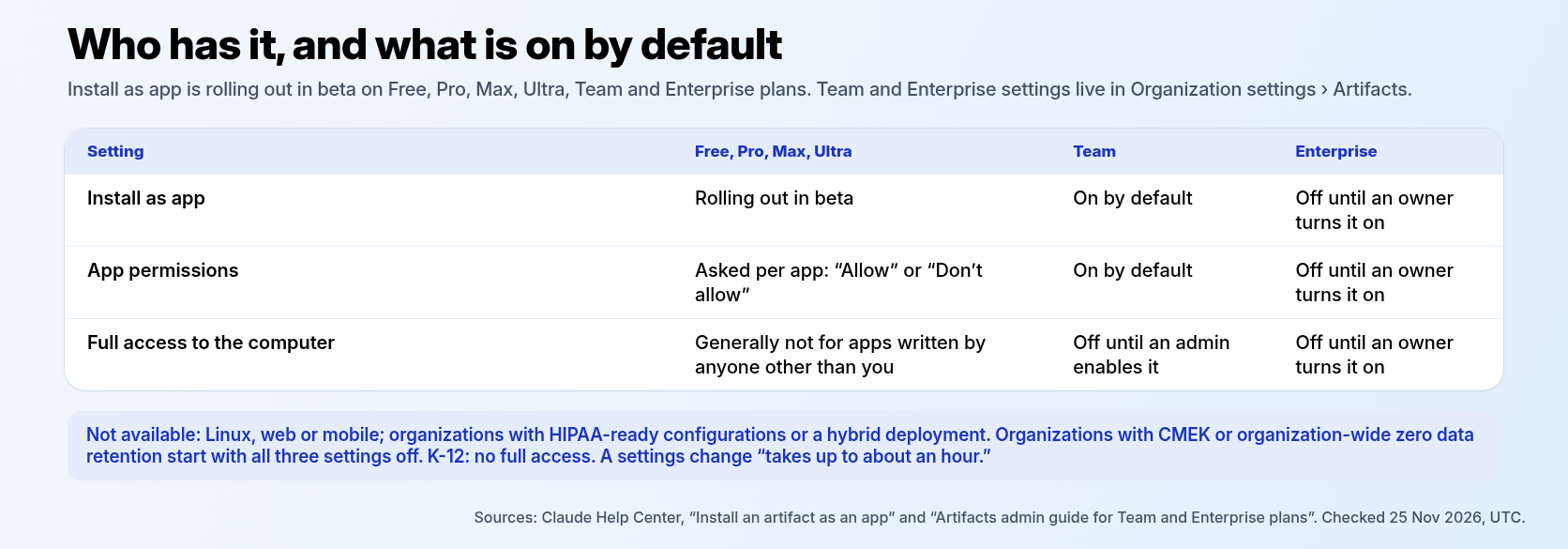
On Team plans, “it’s on by default, but the highest permission tier, full access to the computer, is off by default until an admin enables it.” On Enterprise plans, “the entire feature is off until an owner turns it on in Organization settings > Artifacts.”
The admin guide lists three settings under Organization settings > Artifacts:
- Install as app: on by default on Team, off on Enterprise.
- App permissions: on by default on Team, off on Enterprise.
- Full access to the computer: off on both.
“If these settings aren’t there yet, the beta hasn’t reached your organization.” A change “takes up to about an hour.”
Some organizations can’t use it, or start with it off. Organizations with HIPAA-ready configurations or a hybrid deployment can’t turn it on. Organizations with CMEK or organization-wide zero data retention (ZDR) start with all three settings off, and “Zero data retention, organization-wide or for Claude Code, doesn’t cover these apps.” K-12 organizations can’t turn on full access, and some start with all three settings off. Full access also isn’t available in Claude for Teachers. IT can also turn the features off on a computer with the device-policy (MDM) keys isArtifactAppsEnabled, isArtifactAppPermissionsEnabled and isArtifactAppFullAccessEnabled, which apply to every account on that computer and “can only turn features off.” Where the organization setting and device policy differ, the stricter one applies.
For audit, “Opening an app and access checks are logged as artifact views in the Compliance API. Installs, permission answers, what an app does on the computer, and changes to these three settings aren’t logged.”
Current limits
Installing artifacts as apps is in beta. At launch:
- Apps aren’t available on Linux, web or mobile.
- Artifacts made from a template, “such as Docs, Slides, or Sheets,” can’t be installed. Neither can legacy artifacts (chat artifacts made before 16 Sep 2026) or live artifacts from Claude Cowork.
- On macOS, Claude’s computer use can see an installed app, “but can’t click or type in it.”
Troubleshooting
- You don’t see “Install as app.” “If you don’t see ‘Install as app,’ update Claude Desktop.” Check that you are on 6.28899.0 or later. The beta is still rolling out, so it may not have reached you yet. The Latest release channel (Settings > Desktop app > Release channel) gets new versions “about once a day”; on Stable, the default, new features “can reach you a few days later.”
- You’re on Team or Enterprise and it isn’t there. Ask an owner. On Enterprise it is off until an owner turns it on, and changes take up to about an hour.
- The artifact can’t be installed. Check whether it was made from a template, is a legacy artifact or is a Cowork live artifact. None of those can be installed.
- The app won’t open. You need to be online and signed in to Claude Desktop.
Summary checklist
- ✓ Claude for Mac or Windows 6.28899.0 or later, and “Create and edit files” turned on.
- ✓ Built a simple, low-risk app and tried it as an artifact first.
- ✓ Installed it through the title menu, right-click, Share or an install button, and confirmed with “Install”.
- ✓ Opened it from the Claude Apps folder, Start menu or File > Apps, and know how to quit it.
- ✓ Allowed only the permissions it needs; said “Don’t allow” to full access unless you wrote every part of it.
- ✓ Updated it by editing the artifact, and answered the permission prompts again.
- ✓ Know how to uninstall it with File > Apps > “Uninstall”, which keeps the artifact.
Related reading
Sources
- Claude Help Center, “Install an artifact as an app”
- Claude Help Center, Release notes, entry for 24 Nov 2026, “Install artifacts as apps (beta)”
- Anthropic, “Turn artifacts into Mac and Windows apps”
- Claude Help Center, “Artifacts admin guide for Team and Enterprise plans”
- Claude Help Center, “What are artifacts and how do I use them?”
- Claude Help Center, “Share artifacts”
- Claude Help Center, “Install Claude Desktop”
Tutorial · November 2026 · sources checked 25 Nov 2026 UTC; numbered screenshots are from Claude for Windows 7.37095.0, checked 26 Nov 2026 UTC; the other figures are diagrams