
Tutorial · Step 3 of 3 · 1 min read
Run and Test the Pipeline Demo on multi-agent FastAPI server
End-to-End Implementation Walk Through: Run and Test the Pipeline Demo
1) How to Run the Multi-Agent FastAPI Server
- Activate your Python virtual environment (if not already active), In the first terminal, run:
# Windows
.venv\Scripts\activate

# macOS/Linux
source .venv/bin/activate- Run the FastAPI server:
python server_fastapi.py-
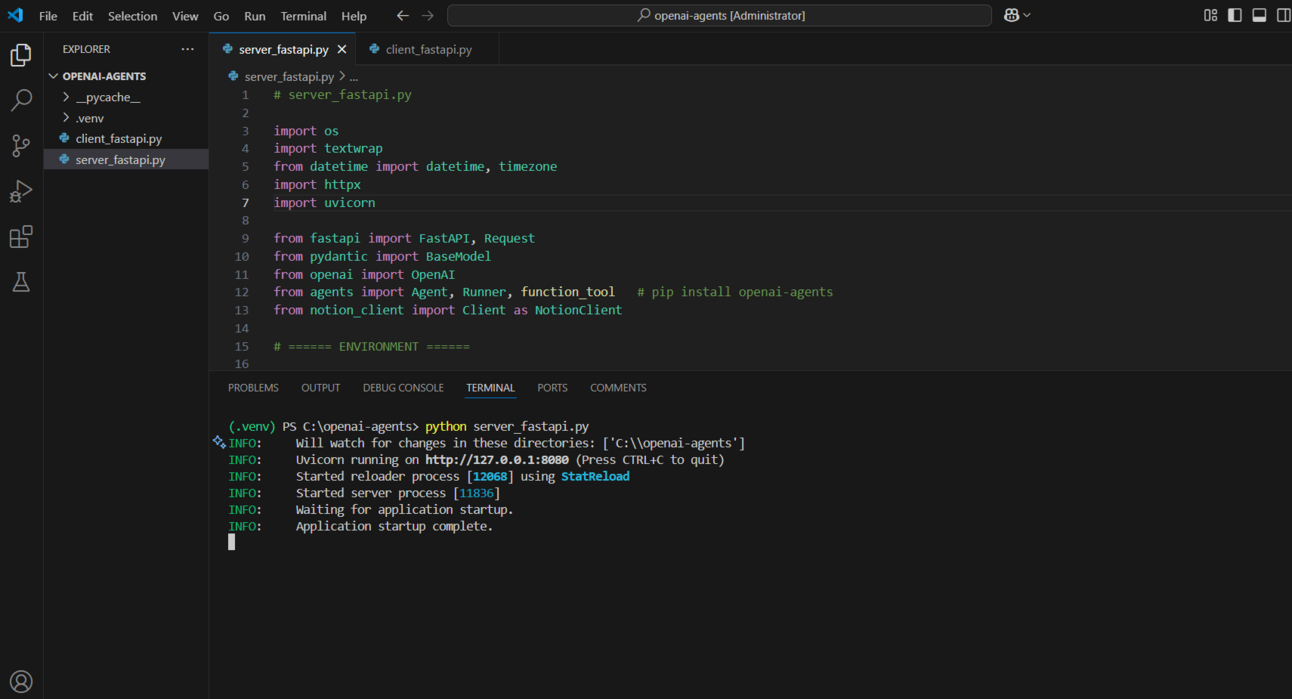
Server Output:
- If successful, you should see output similar to:
INFO:     Uvicorn running on http://127.0.0.1:8080 (Press CTRL+C to quit)
INFO: Application startup complete.- This means your API server is live at http://127.0.0.1:8080.
- Ready for Requests:
- You can now send POST requests to
http://127.0.0.1:8080/runfrom your client, or test with tools likeclient_fastapi.py, Postman, or curl
2) How to Run the FastAPI Client
-
Split the Terminal
In VS Code, open the integrated terminal.- Go to the menu bar and select Terminal > Split Terminal (or use
Ctrl+Shift+5). - This gives you two terminals side by side—one for the server, one for the client.
- Go to the menu bar and select Terminal > Split Terminal (or use
-
Activate Your Virtual Environment
- In the second terminal, activate your Python virtual environment if you haven’t already:
# Windows
.venv\Scripts\activate

# macOS/Linux
source .venv/bin/activate- Run the FastAPI Client
- With the virtual environment active, start your client script by running:
python client_fastapi.py- Enter a Prompt (Example Provided)
- When prompted with
Prompt (type 'exit' to quit):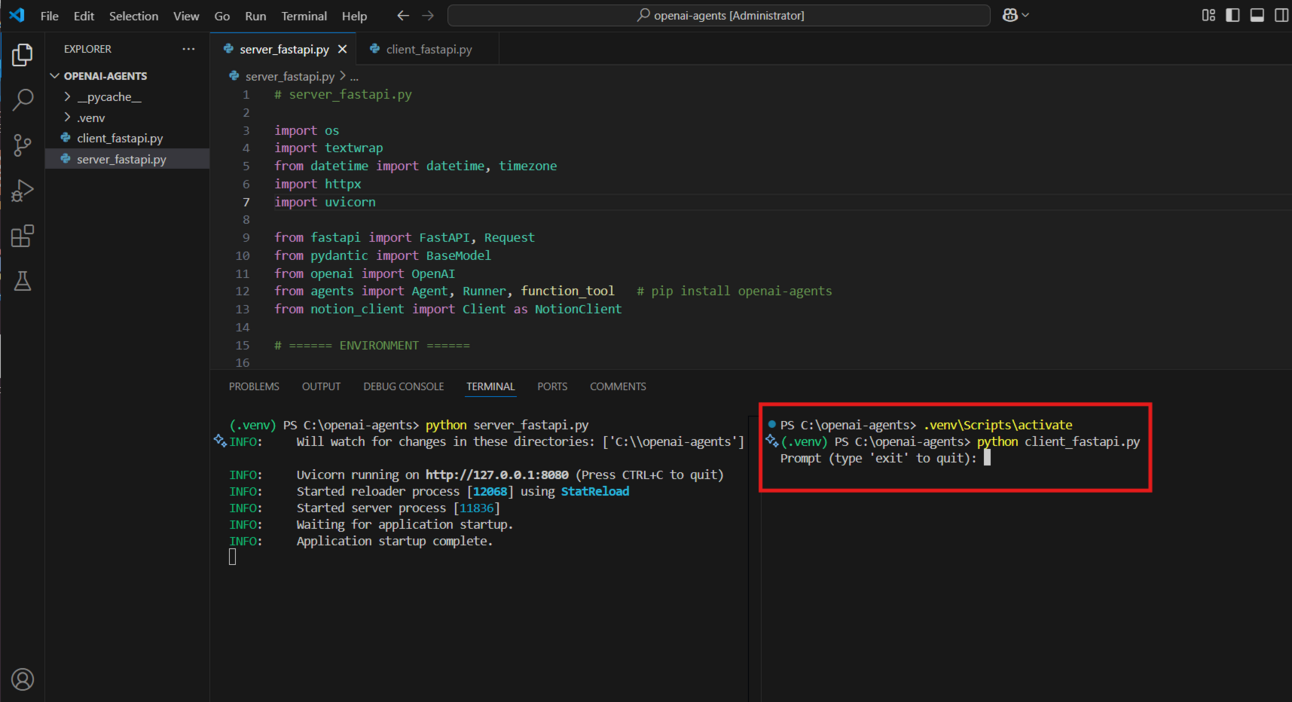
Enter your query, such as:
Summarize the latest stock price of Google and save the answer to Notion.The client will communicate with your FastAPI server, and you’ll see the response in the terminal.
=== RESPONSE ===
 The latest stock price for Google (Alphabet Inc. Class A - GOOGL) as of May 16, 2025, closed at $166.19 USD. The trading day showed an open price of $167.7250, a high of $169.3500, and a low of $165.6200, with a total volume of 42,846,925 shares traded.

Additionally, the Class C shares (GOOG) were noted at a current price of $167.43 USD, seeing a 1.23% increase over the past 24 hours according to recent reports.

Overall, Google has demonstrated positive recent momentum but a slight decrease over the past year with a recent market cap standing at approximately $2.02 trillion.

This information has been saved to Notion.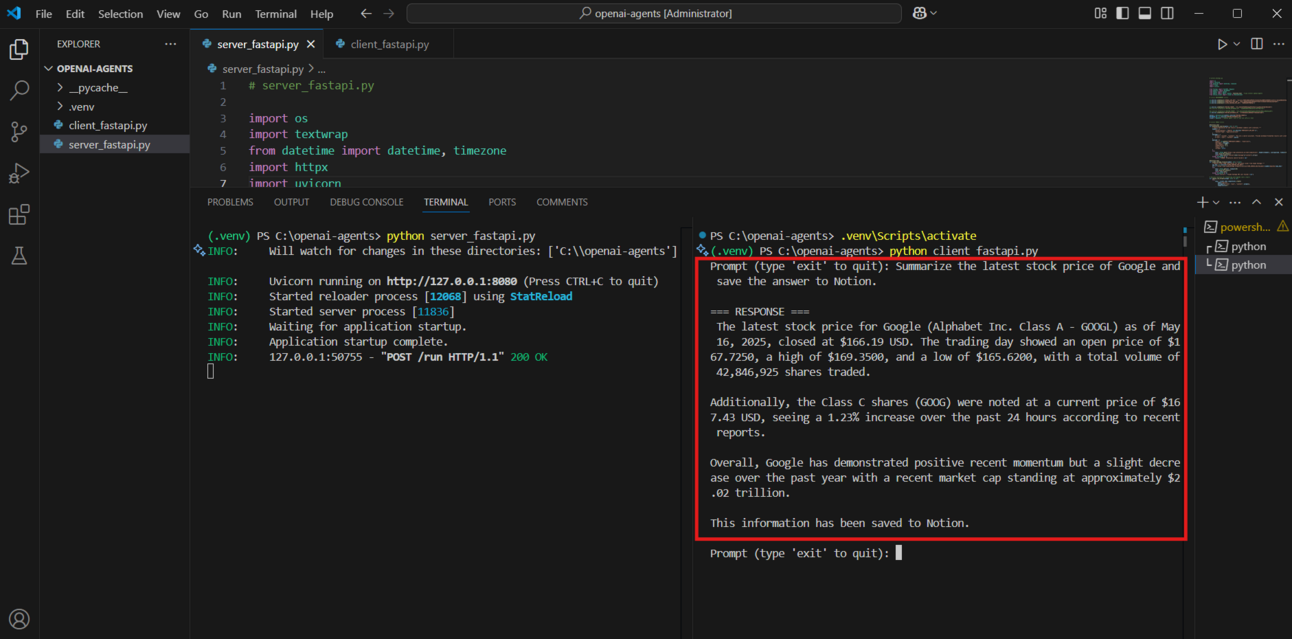
Tip:
- You can exit the client at any time by typing
exitorquit.
- Check the Document in Notion
- Open your Notion workspace and navigate to your connected database (e.g., US Market Analysis Report).
- You should see a new entry corresponding to your query.
- Click to view the page (Open in slide peek) —the content should be neatly formatted, with a professional summary, statistics, and sections as designed by your pipeline.
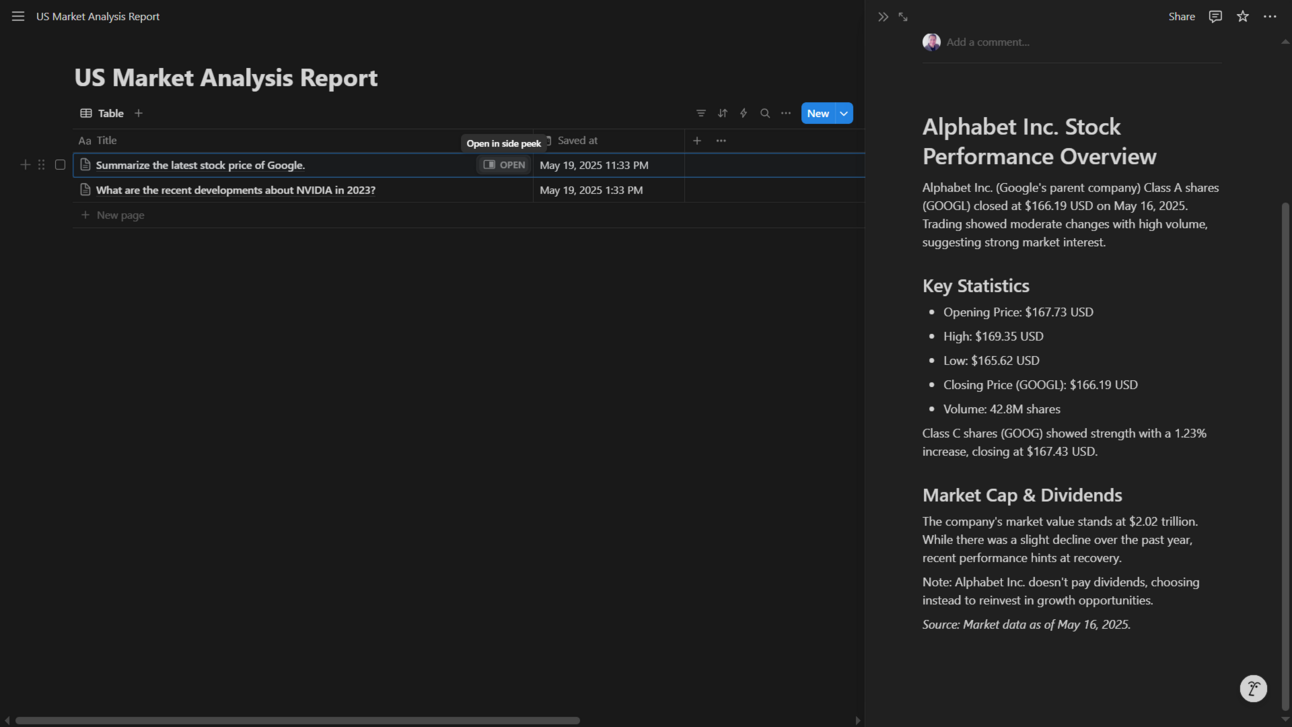
Figure: Example of a financial report for Google, automatically generated by your pipeline and presented in Notion.